
Models

Output type

Images (Optional)
Drag or upload images (0/16)
PNG, JPG, JPEG, WebP (max 16MB)

Prompt

Describe your image, or use @ to reference an uploaded image…
0/32000
Login for 10 free credits daily, then 6 credit / image

GPT Image 2.6: Free AI Image & GIF Generator with Reference Image Editing

Create and edit with GPT Image 2.6 on UGCMaker. Explore ideas with Flare, refine detailed compositions with Sunburst, and guide changes with reference images and text. Generate product imagery, social graphics, animated GIFs, and SVG designs. Start with limited free use, with no sign-up required.

Try GPT Image 2.6 Free
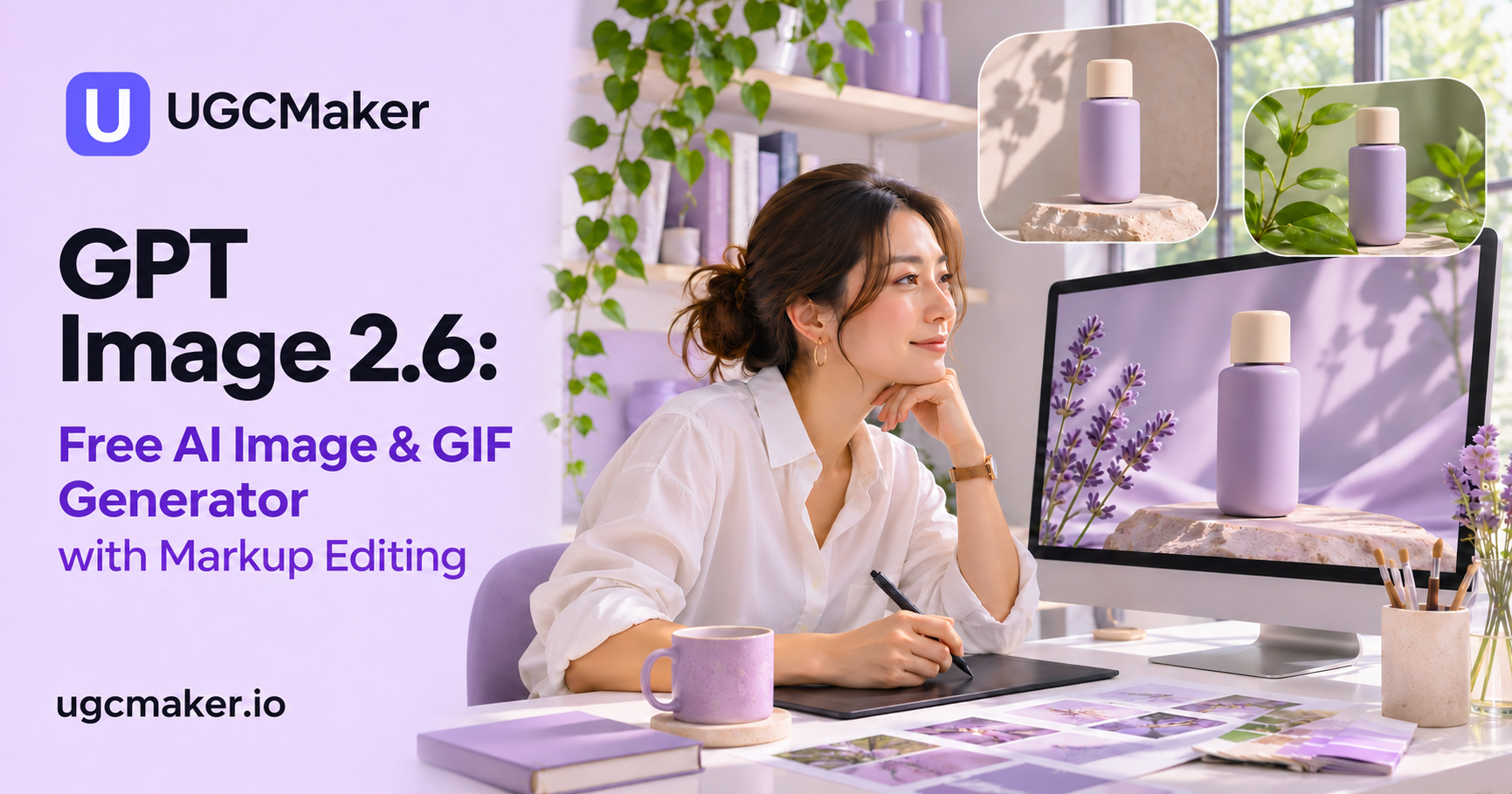
UGCMaker cover: GPT Image 2.6, Free AI Image & GIF Generator with Markup Editing

What Is GPT Image 2.6?

GPT Image 2.6 is OpenAI’s image generation and editing family, with Sunburst and Flare models that accept text and image inputs. On UGCMaker, use both models for still images, targeted edits, animated GIFs, and SVG graphics. Choose the model around your task, then develop the visual with a prompt and reference images that show what you want to change.

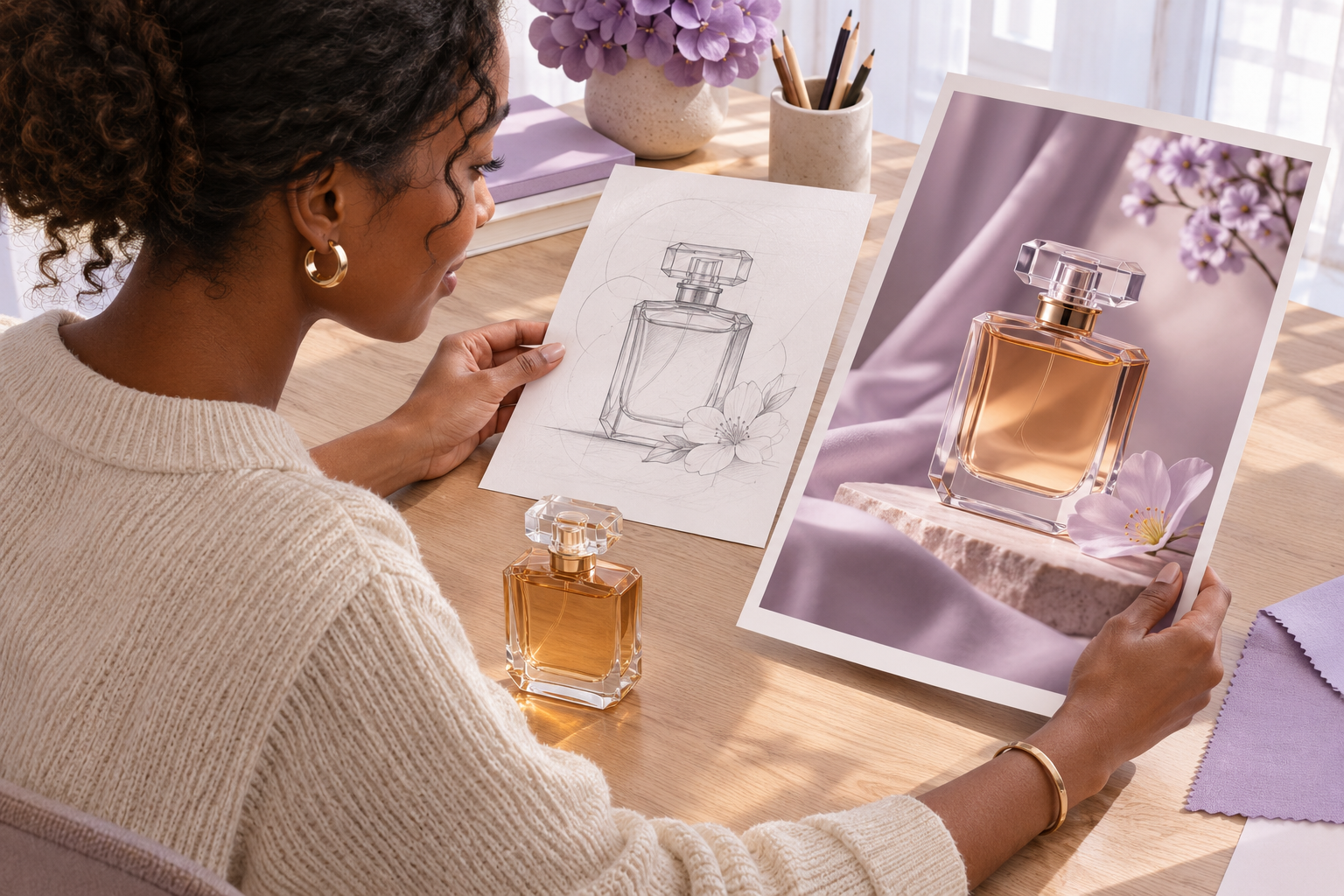
Designer turning a sketched product brief into a photographic campaign concept

GPT Image 2.6 Sunburst vs Flare

Choose the model around the task you need to finish. Use the same brief when comparing models so you can judge the composition and details that matter to your project.

GPT Image 2.6 Flare

Start with Flare when you want to explore visual directions quickly. Its focus is fast iteration, including interactive generation and editing. A useful starting task is comparing several backgrounds, layouts, or art directions before committing to one.
GPT Image 2.6 Sunburst

Choose Sunburst for detailed compositions and careful image edits. OpenAI highlights improved consistency across edits at medium or high quality. Consider it when a selected concept needs closer attention to a product’s appearance or a recurring character.

More Creative Control with GPT Image 2.6

Move from a broad idea to a specific result. The model family gives you control over visual planning, targeted edits, animation, and vector output in one creative workflow.

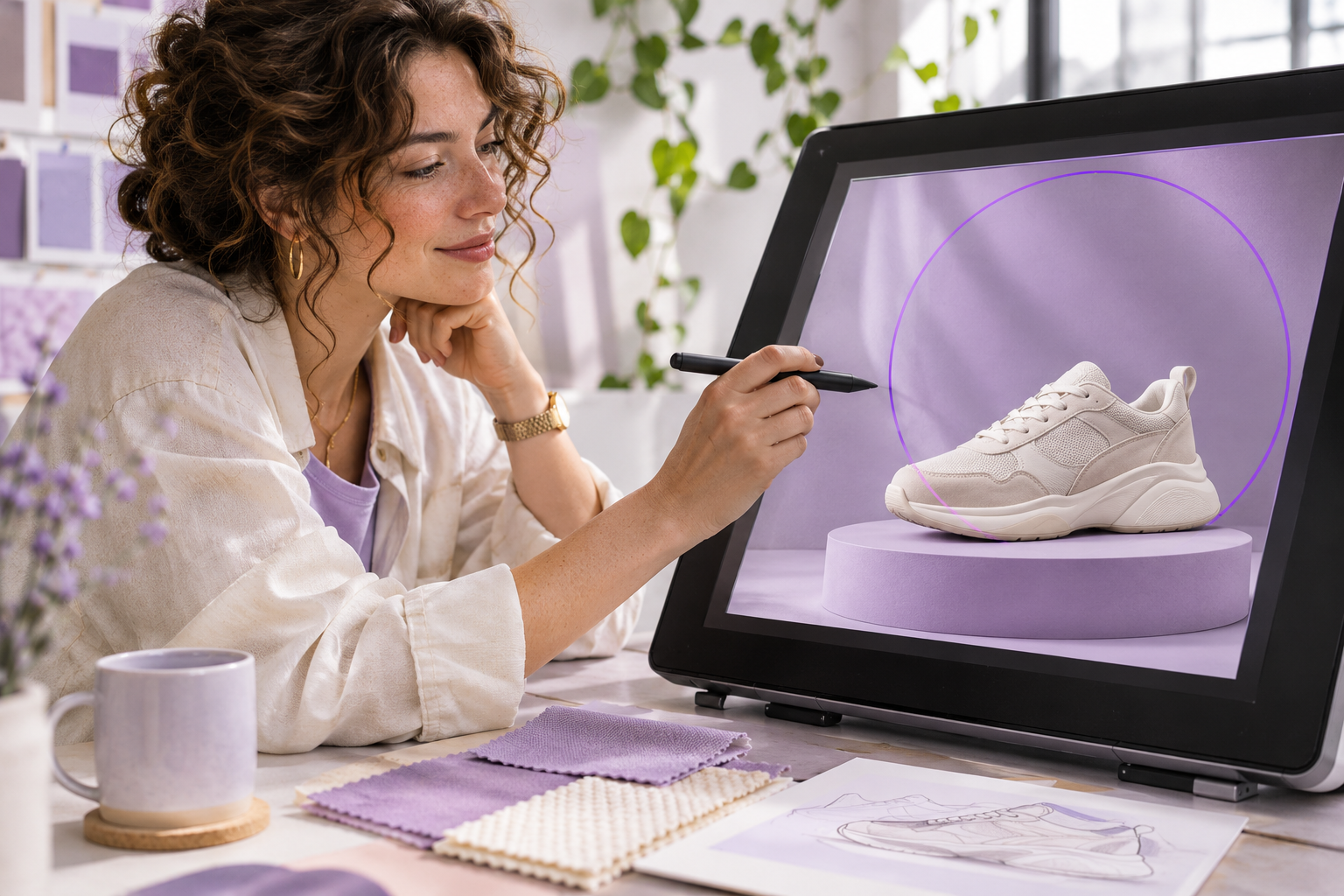
Art director marking a focused change on a product composition with a stylus

Separate planning from image quality

GPT Image 2.6 separates complexity from image quality. Use lower complexity for focused changes, and compare higher settings for scenes with demanding layouts. More planning can increase waiting time or introduce unwanted changes; choose the setting that fits the edit.

GPT Image 2.6 Image Editing with References

Upload a reference image, then describe the edit in text. For a product composition, identify the backdrop or prop to replace and name the product details that should remain recognizable.

GPT Image 2.6 GIF Generation

Turn a motion idea into an animated GIF. Describe a subject, one clear movement, and how the loop should end or restart. Use this workflow for a mascot reaction, a playful social post, or an early motion concept.

GPT Image 2.6 SVG Output

Create SVG graphics with editable shapes, paths, and colors. Explore an icon or illustration concept, then refine the vector design for its final placement. Generate an SVG from a design brief rather than treating it as a photo-edit export.

What Can You Create with GPT Image 2.6?

Create still images, guide targeted edits, generate animated GIFs, and design editable SVG graphics with GPT Image 2.6. Each example below illustrates a different capability, from a photographic product image to motion and vector artwork.

Illustrative examples of output types and editing workflows; not direct Sunburst or Flare benchmark results.

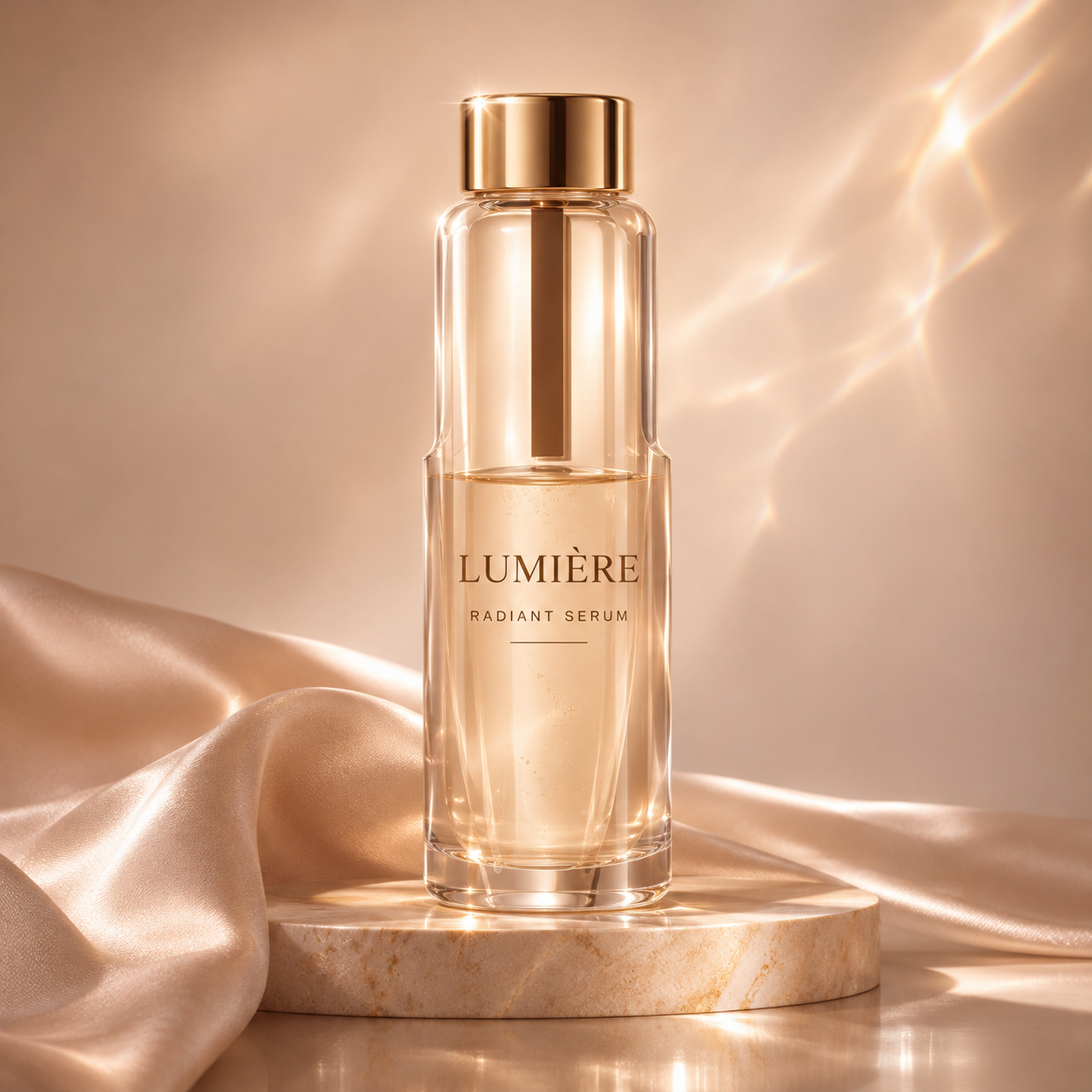
Golden Lumière serum bottle on a stone pedestal

Still Image Generation

Generate a new image from a text brief or visual references. Describe the subject, setting, lighting, and composition to create product images, portraits, or campaign visuals.

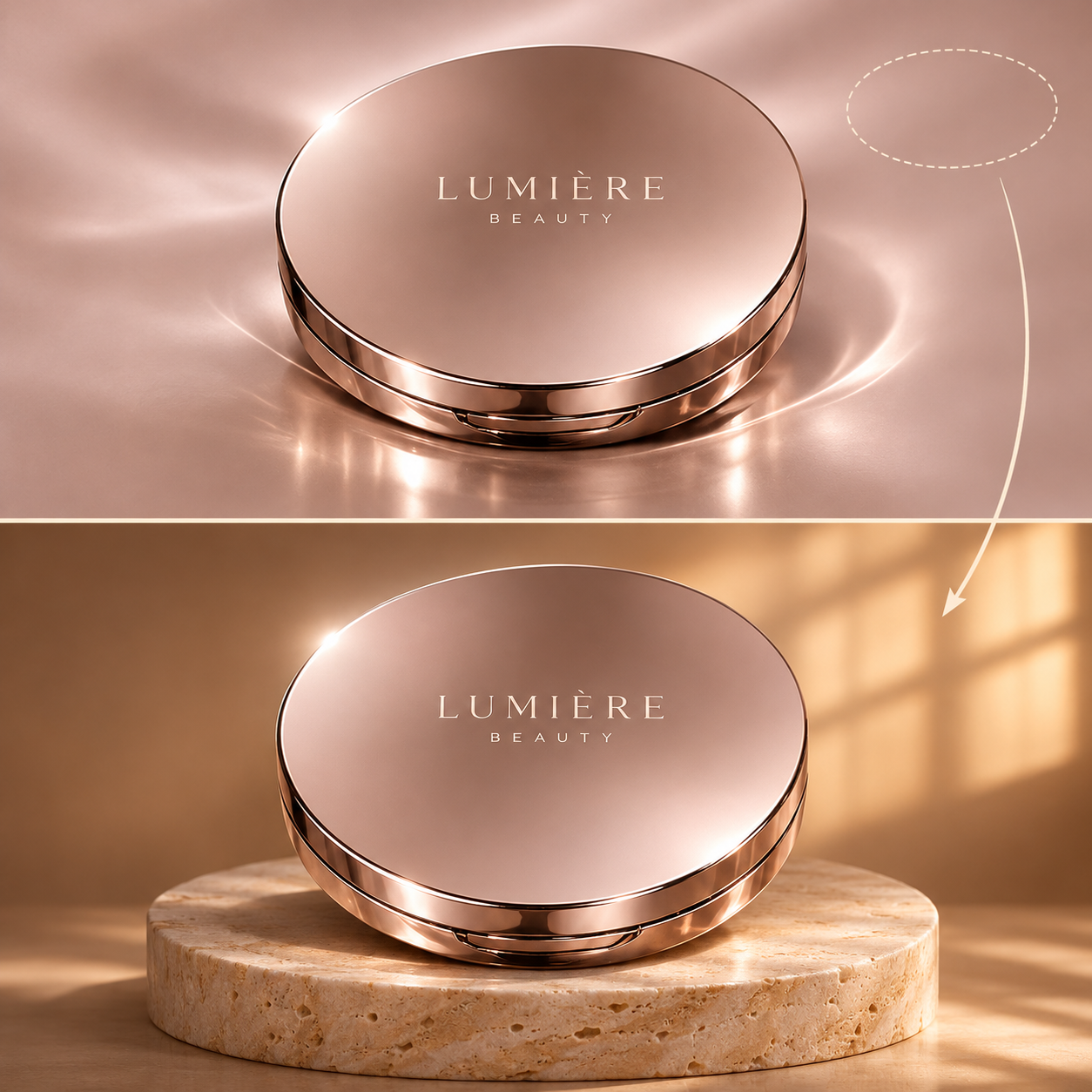
Before-and-after background edit of a rose-gold Lumière compact

Reference Image Editing

Use GPT Image 2.6 to edit an uploaded reference image. Describe the background, object, or detail you want revised, including what to replace and what to preserve.

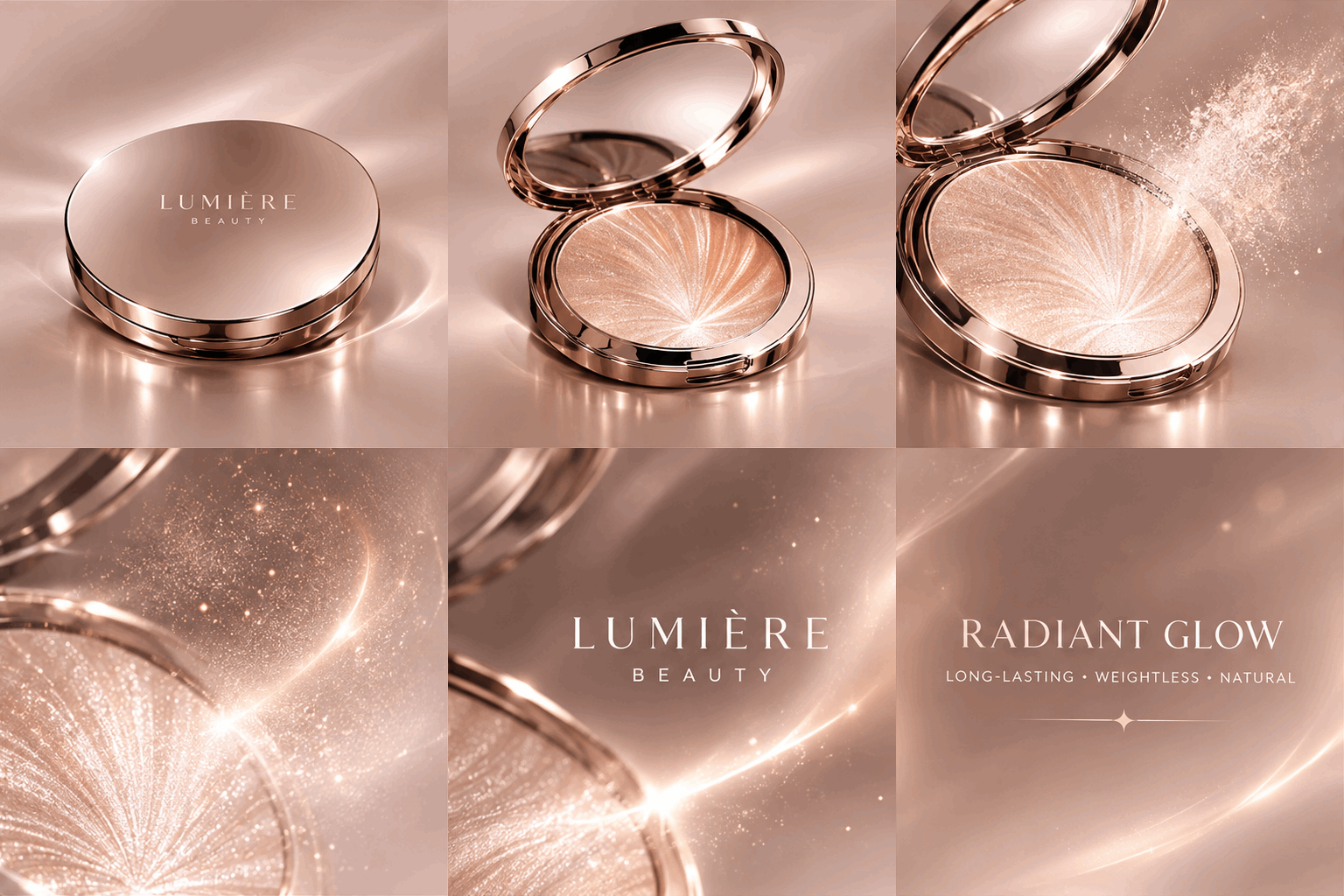
Animated Lumière compact with shimmering particles

Animated GIF Generation

Turn a motion idea into a looping GIF with GPT Image 2.6. Specify a subject, one clear movement, and how the loop returns to its starting point. The example below is an actual animated GIF.

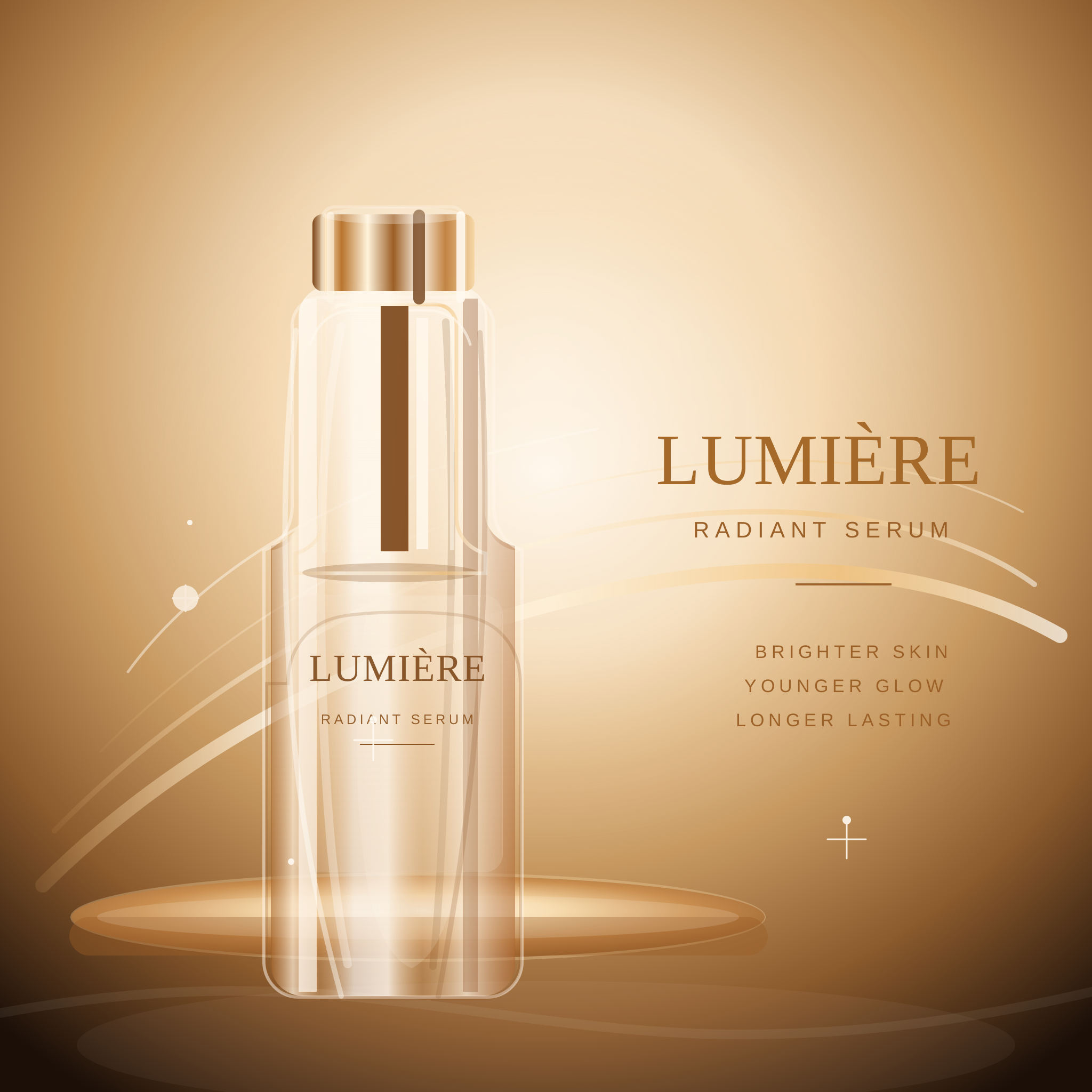
Gold Lumière serum bottle and typography in SVG vector artwork

Editable SVG Graphics

Create SVG artwork from a design brief for icons, illustrations, and scalable graphics. Work with vector shapes, paths, and colors. The example below is a native SVG illustration, not a flattened screenshot.

How to Use GPT Image 2.6 on UGCMaker

Start with limited free use, with no sign-up required. Select a model, prepare your prompt or editing references, and generate a result. Check the remaining allowance and any cost shown before submitting.

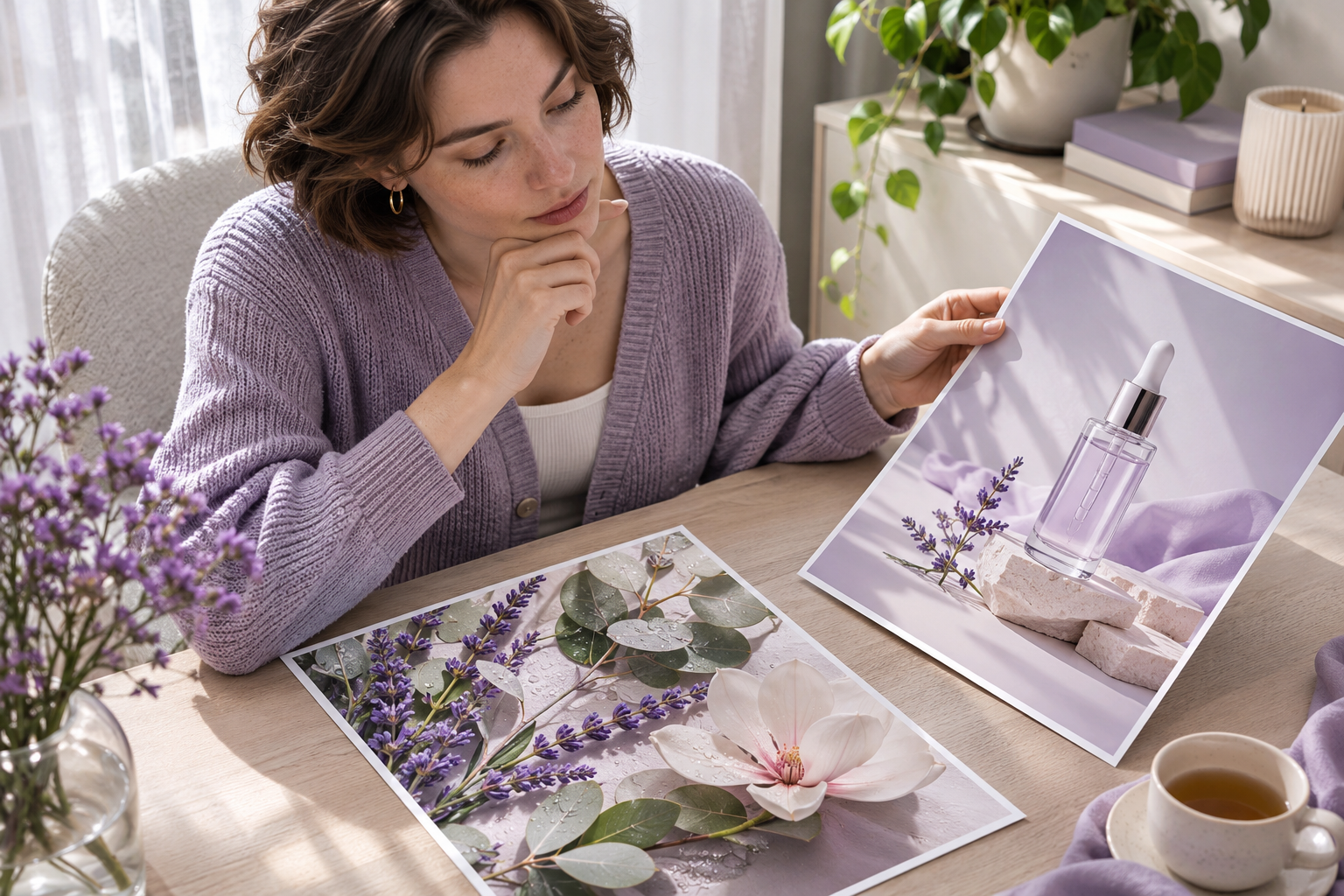
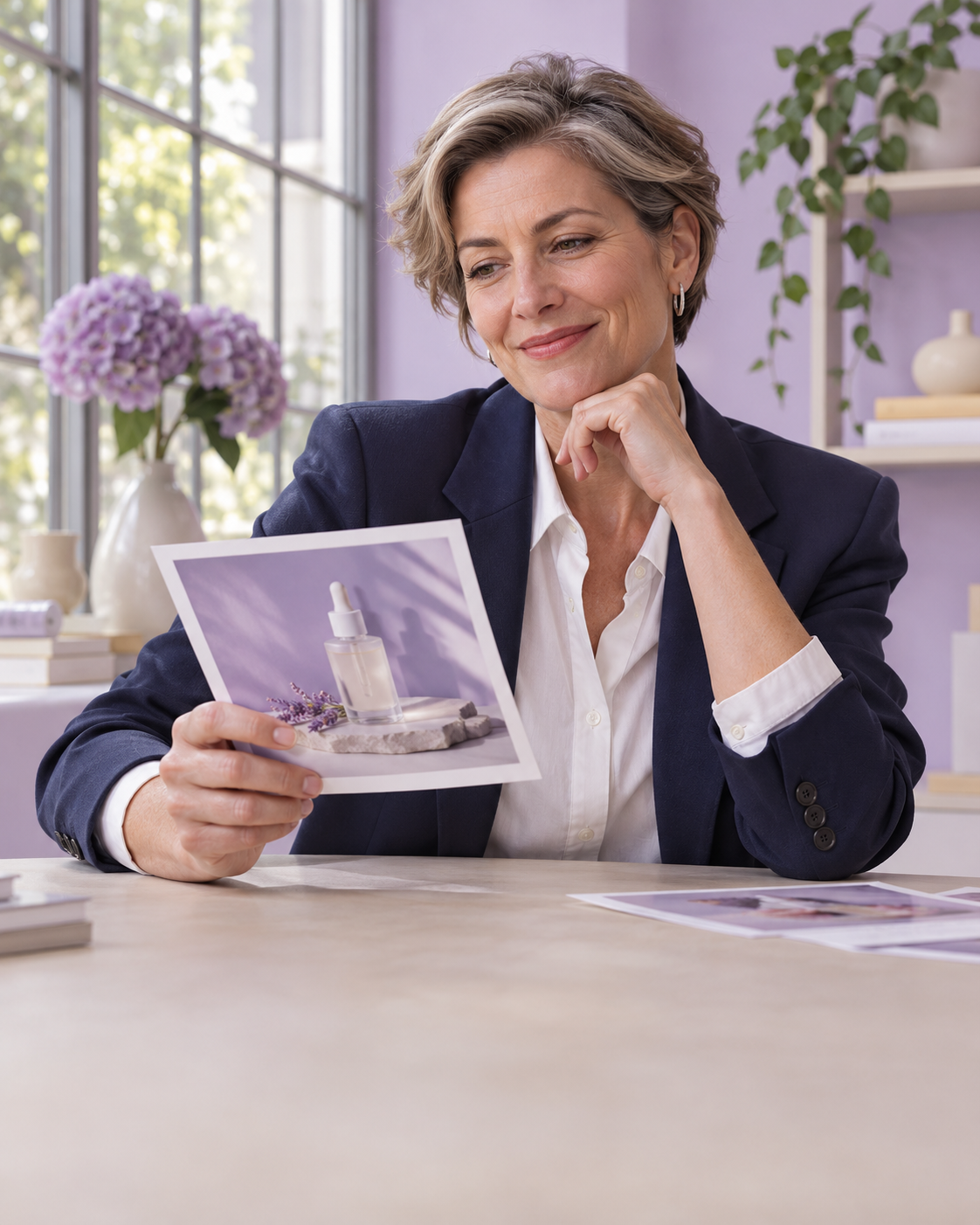
Creator comparing two printed visual directions before choosing a model workflow

Choose the model and task

Choose GPT Image 2.6 Flare for exploring visual directions or Sunburst for detailed work. Decide whether you need a new image, an edit, an animated GIF, or an SVG graphic before preparing the input.

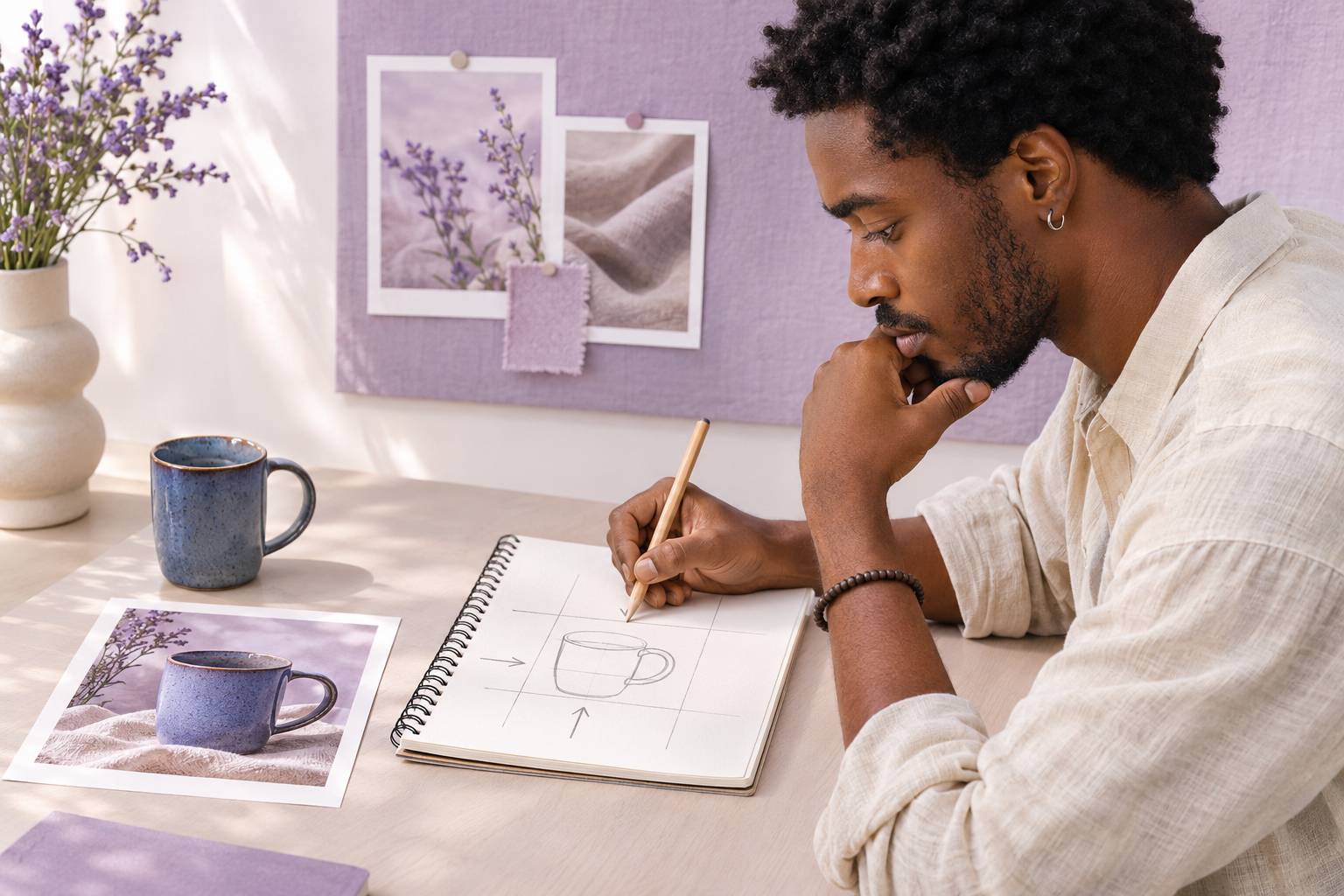
Creator assembling a product reference and sketching a clear composition brief

Describe the result and supply references

Describe the subject, scene, lighting, composition, and exact text. For image edits, add a reference and explain the specific change in text. For GIFs, describe the movement and loop. Review the available output settings and submit the generation.

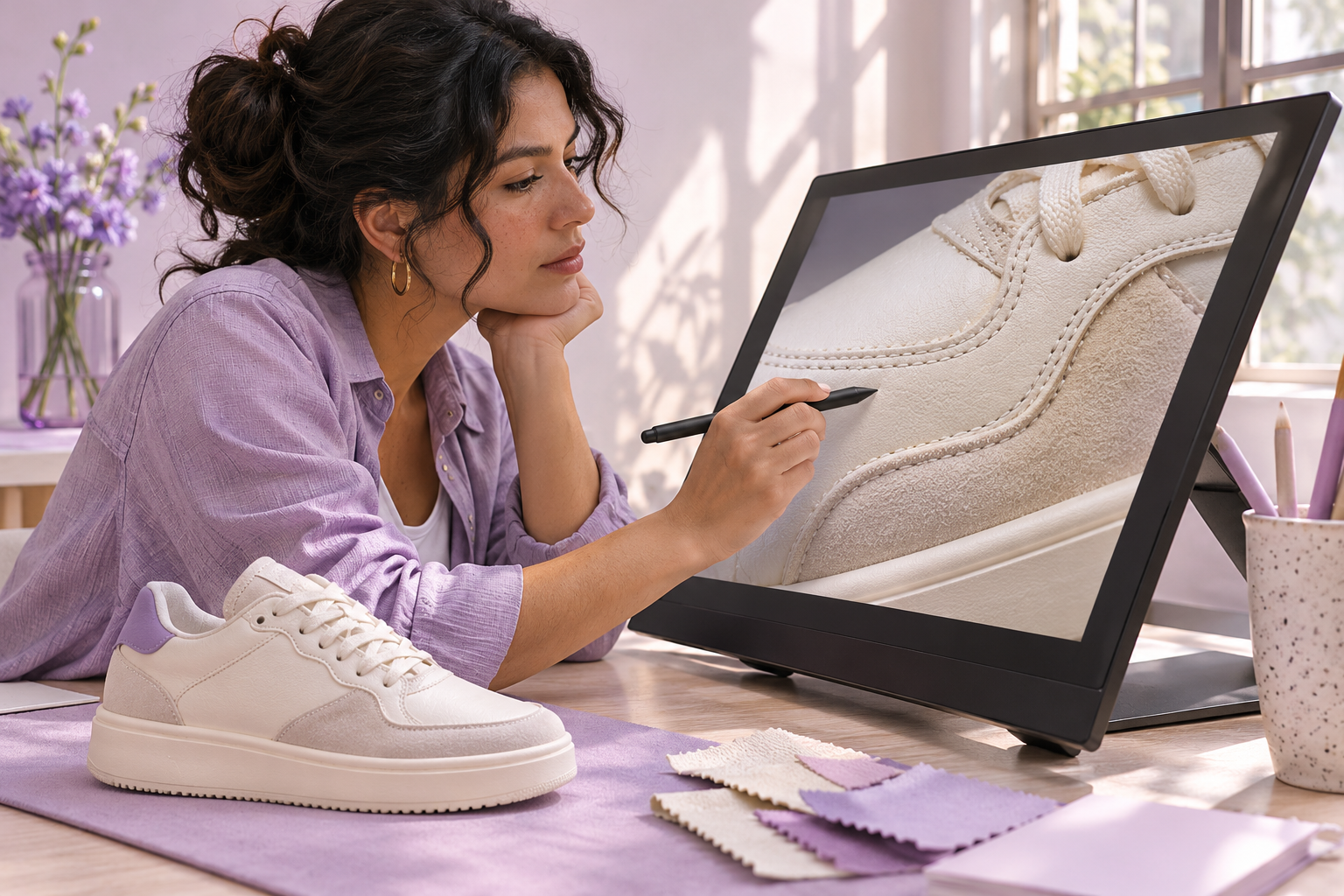
Designer reviewing product details and refining a campaign image on a pen display

Review and refine

Check the result for product shape, faces, text, and layout. Request a focused revision when needed. Inspect the final dimensions and file format before moving the asset into your campaign.

Create Your Next Visual with GPT Image 2.6

Turn your next product, campaign, or character idea into a visual brief. Choose Flare for exploration or Sunburst for detailed work, then generate and refine your result in UGCMaker. Limited free use is available without signing up.

Try the GPT Image 2.6 Generator

User Reviews — Examples

Discover how creators turn simple ideas into stunning visuals with GPT Image 2.6 — from eye-catching product images to professional-quality creative assets.

Concept portrait of an e-commerce brand owner in a small product studio

E-commerce Brand Owner

“I like starting with GPT Image 2.6 Flare to explore different settings for a product. Once a direction feels right, I can focus on the composition and check the packaging details.”

Concept portrait of a paid social designer reviewing a campaign mood board

Paid Social Designer

“Having Sunburst and Flare in one workflow makes it easier to choose how I approach a brief. I use Flare for initial directions and Sunburst when I want to work through finer details.”

Concept portrait of a social media manager planning content in a bright studio

Social Media Manager

“The GIF workflow gives me another way to develop a campaign idea. I can describe a simple movement for a mascot, review the loop, and decide whether it fits the post.”

Concept portrait of a freelance graphic designer working with sketches and a pen tablet

Freelance Graphic Designer

“SVG output is useful when an idea needs to become an editable graphic. I treat the result as a starting point, then review the shapes, spacing, and colors for the final design.”

Concept portrait of a creative director evaluating printed campaign imagery

Creative Director

“With GPT Image 2.6, I can upload a reference image and explain the revision in text. That fits the way I give feedback on a composition.”

Concept portrait of an independent content creator in a home photography workspace

Independent Content Creator

“The limited free trial lets me explore GPT Image 2.6 without signing up first. I can try a visual idea, inspect the result, and decide whether the workflow suits my next project.”

GPT Image 2.6 FAQ

What is the difference between GPT Image 2.6 Sunburst and Flare?

Flare focuses on fast iteration, while Sunburst focuses on detailed visual work. Both generate and edit images. Choose by the task, then compare outputs using the same brief and suitable quality settings.

What is new in GPT Image 2.6?

The release emphasizes faster creation and more control during edits. GPT Image 2.6 adds separate complexity control alongside reference image editing, GIF generation, and SVG output, giving you more ways to develop a visual brief.

Can GPT Image 2.6 edit an existing image?

Yes. Both models accept image inputs for editing. Explain the change and the features to preserve, then inspect the result. Image consistency is a capability to evaluate, not a guarantee that every detail stays identical.

Can GPT Image 2.6 generate GIFs and SVGs?

Yes. UGCMaker supports GPT Image 2.6 GIF and SVG generation. Choose GIF for animation or SVG for editable vector graphics. Start a generation task for these formats rather than choosing them as exports for a photo edit.

How do I write effective GPT Image 2.6 prompts?

State the subject, setting, composition, lighting, and intended placement. For example: “A matte blue ceramic mug on a pale oak desk, soft morning window light, three-quarter view, space for a headline on the right, no extra objects.” For edits, add a separate sentence naming what must stay unchanged.

Will GPT Image 2.6 keep product labels and characters consistent?

It is designed to support consistency across edits, with Sunburst emphasizing detailed work. Still, inspect labels, logos, faces, and proportions. Keep a reference handy and narrow each revision to the specific issue you want to fix.

Is GPT Image 2.6 available on UGCMaker?

UGCMaker supports both GPT Image 2.6 Sunburst and Flare for image generation and editing, including GIF, SVG, and reference image editing workflows. Start in the GPT Image 2.6 generator and choose the model that fits your task.

Is GPT Image 2.6 free to use?

Yes. UGCMaker offers limited free use of GPT Image 2.6 without sign-up. Check your remaining free allowance and any cost shown before generating. Available usage is limited, so review the current offer when planning a larger project.