

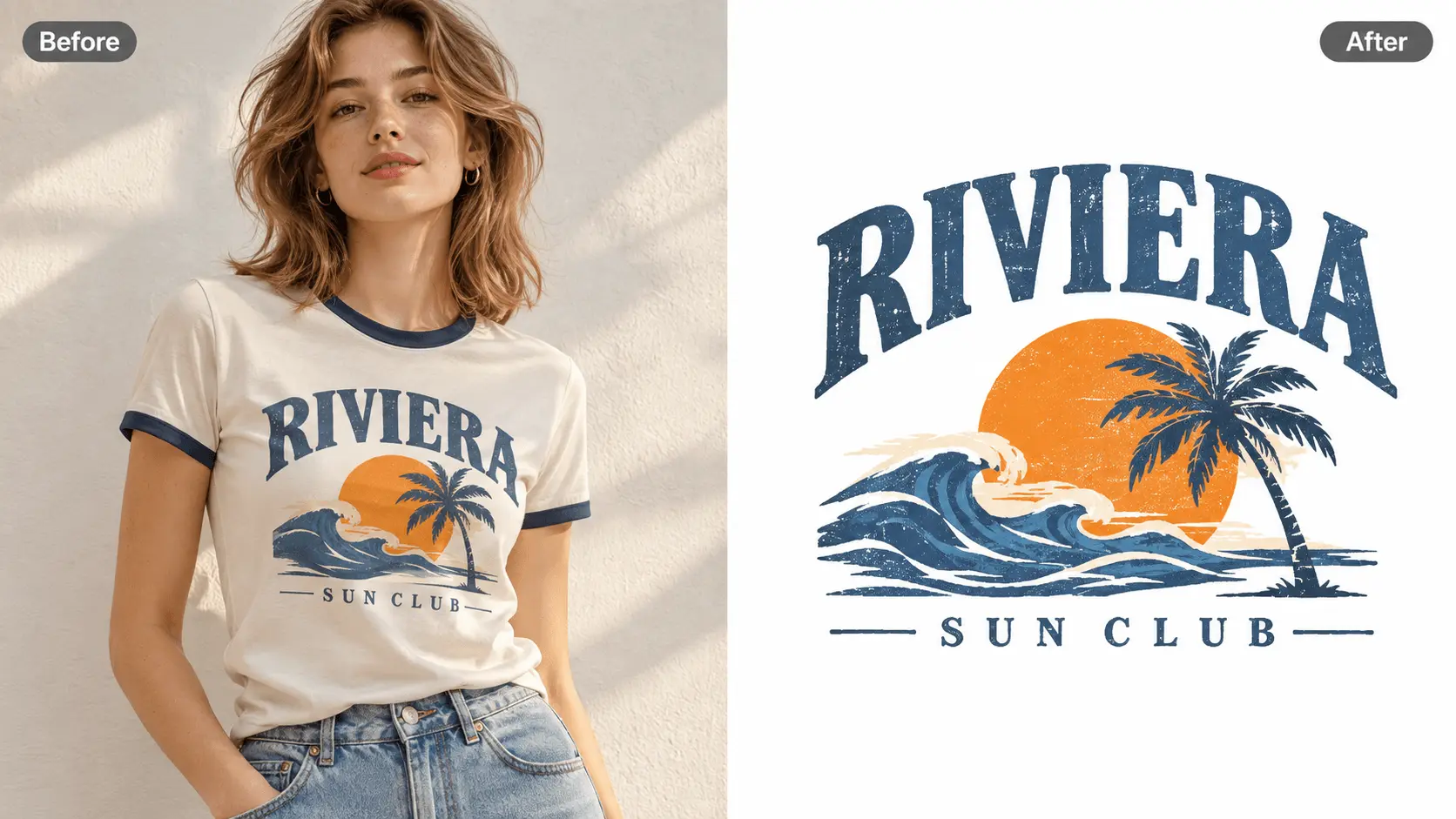
AI Pattern Extractor
Extract patterns from your photos with UGC Maker's AI Pattern Extractor. Free, online, no sign-up.
What Is an AI Pattern Extractor?
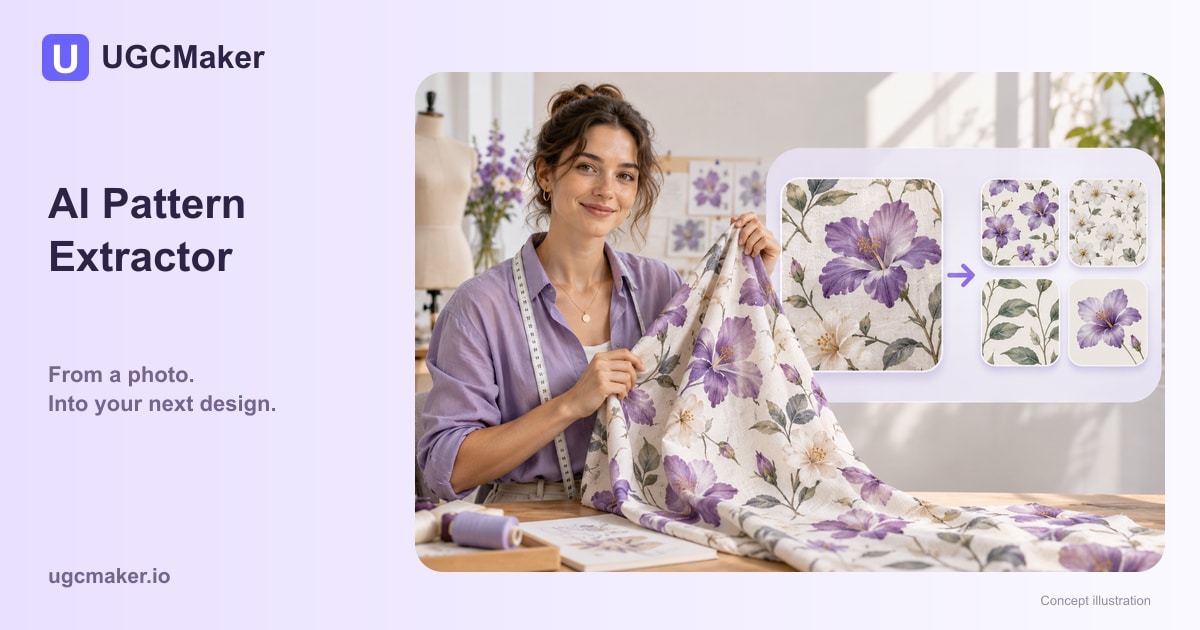
An AI Pattern Extractor turns visual details within a photo into a standalone design for another project. This image pattern extractor focuses on the motif or decorative pattern, rather than the entire photographed object. Use the AI Pattern Extractor from UGCMaker to begin with an existing image, then compare the extracted design with the visible source.
When the Pattern Is Trapped in a Photo
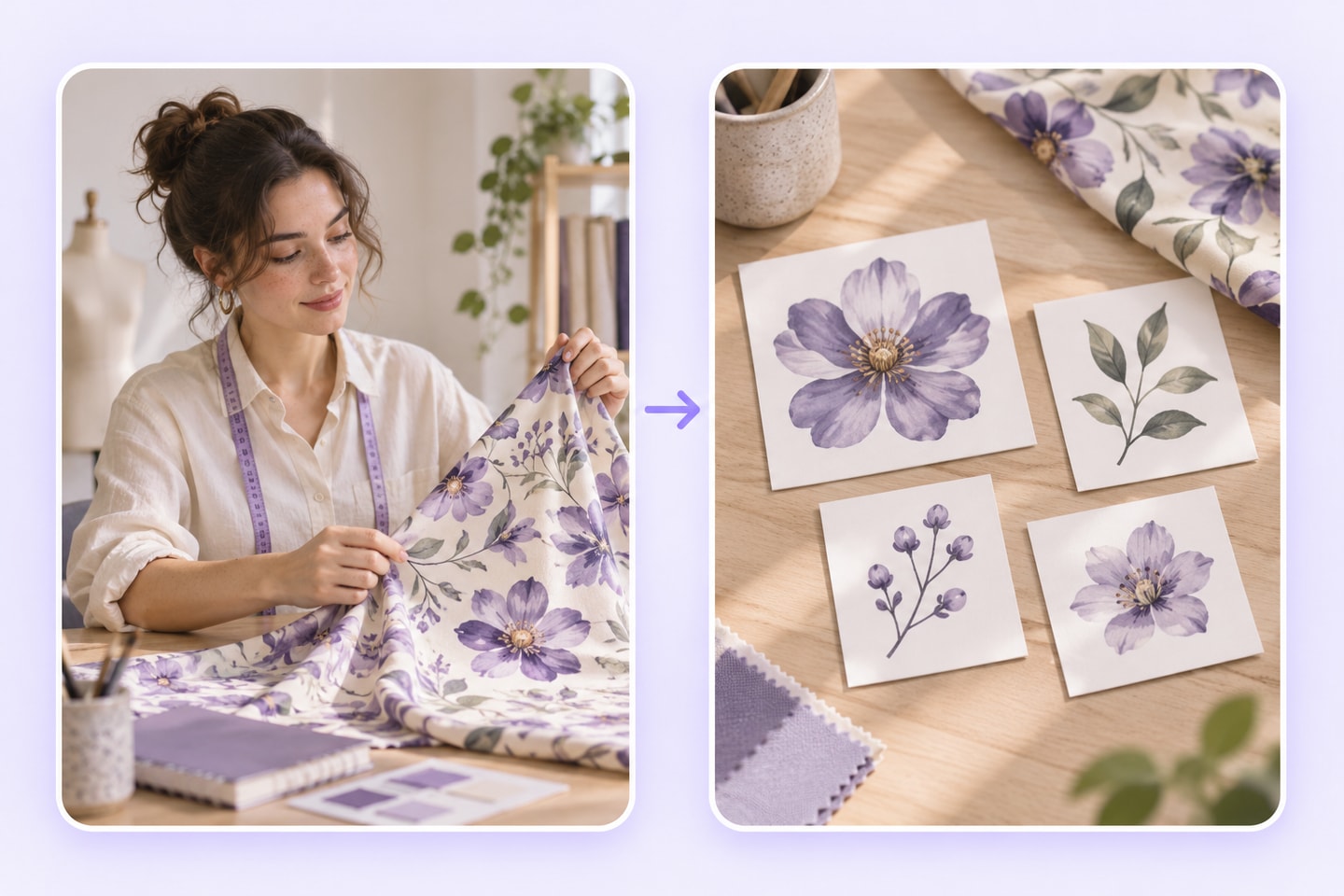
An AI Pattern Extractor addresses a specific design problem: the detail you want sits inside a larger image. Clarify which part matters before asking the tool to extract patterns from images.
The object hides the design’s structure
A pattern photographed on a sleeve or folded fabric can be difficult to read as a separate design. Identify the motif you need rather than treating the whole garment as the output.
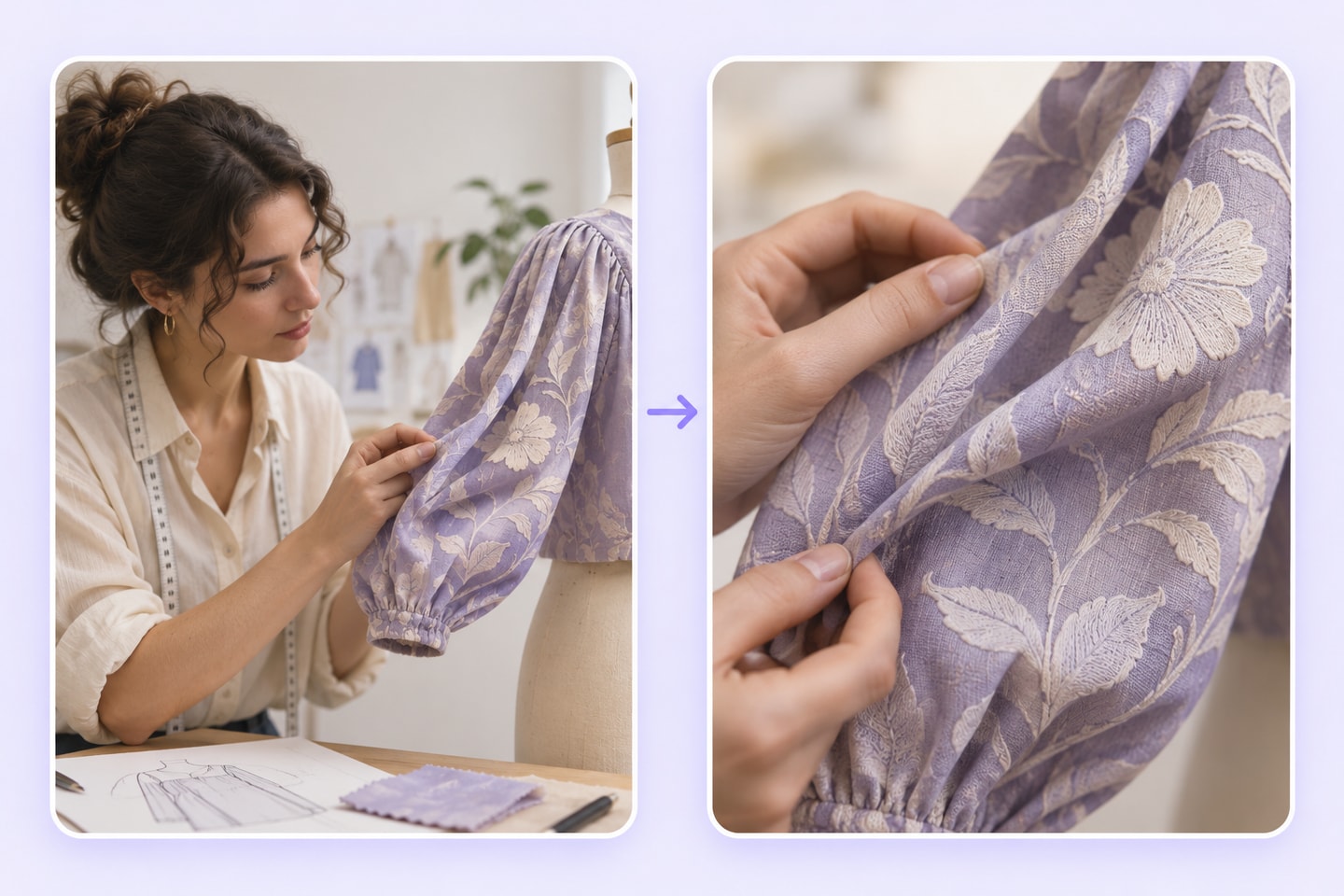
Lighting changes the apparent color
Shadows, glare, and fabric texture can affect what the photo shows. Start from the clearest visible area and compare the result with the source before making color decisions.
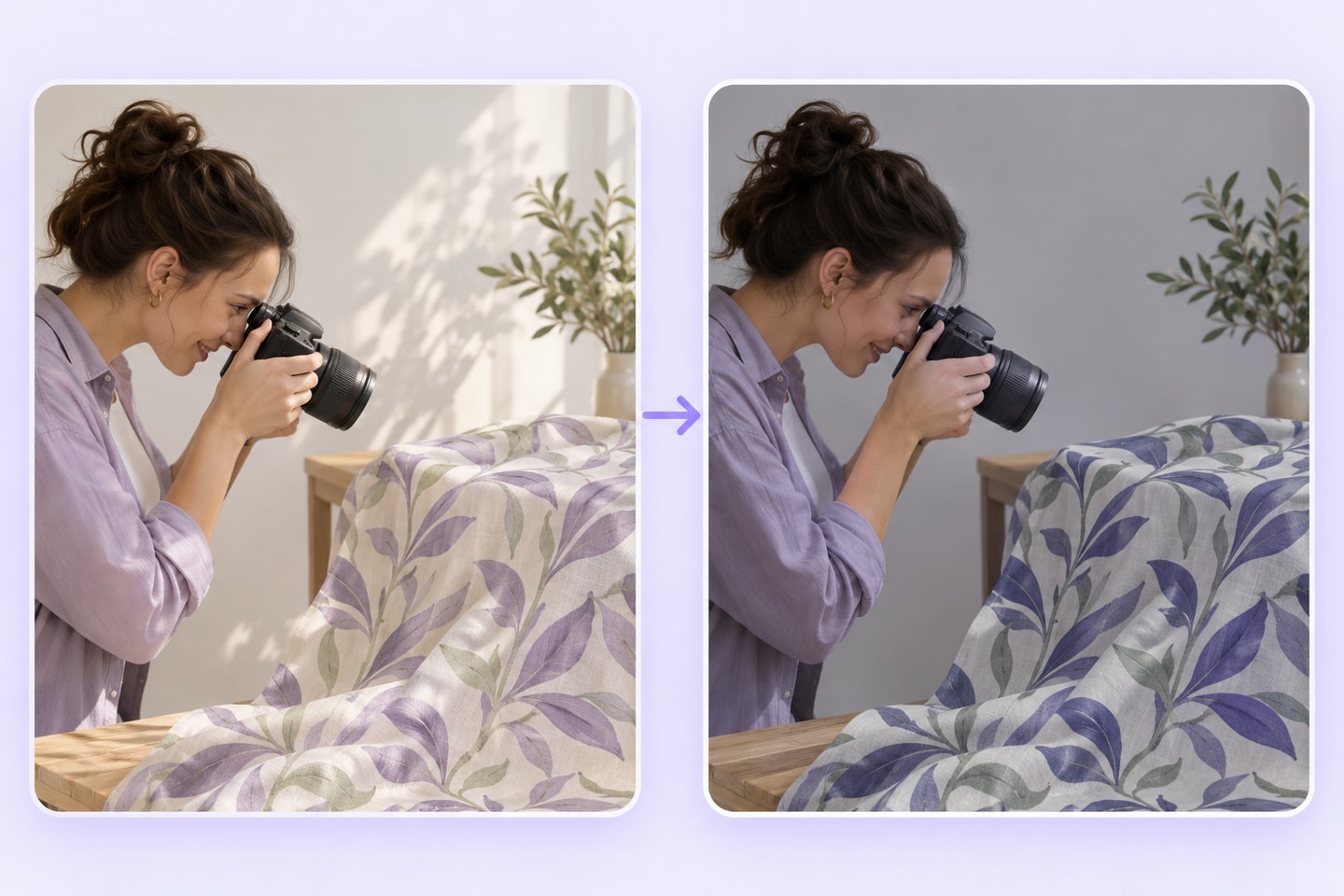
A crop still contains the surrounding scene
Cropping makes an area smaller; it does not necessarily separate the design. An AI Pattern Extractor is intended for preparing the visual detail as its own asset.
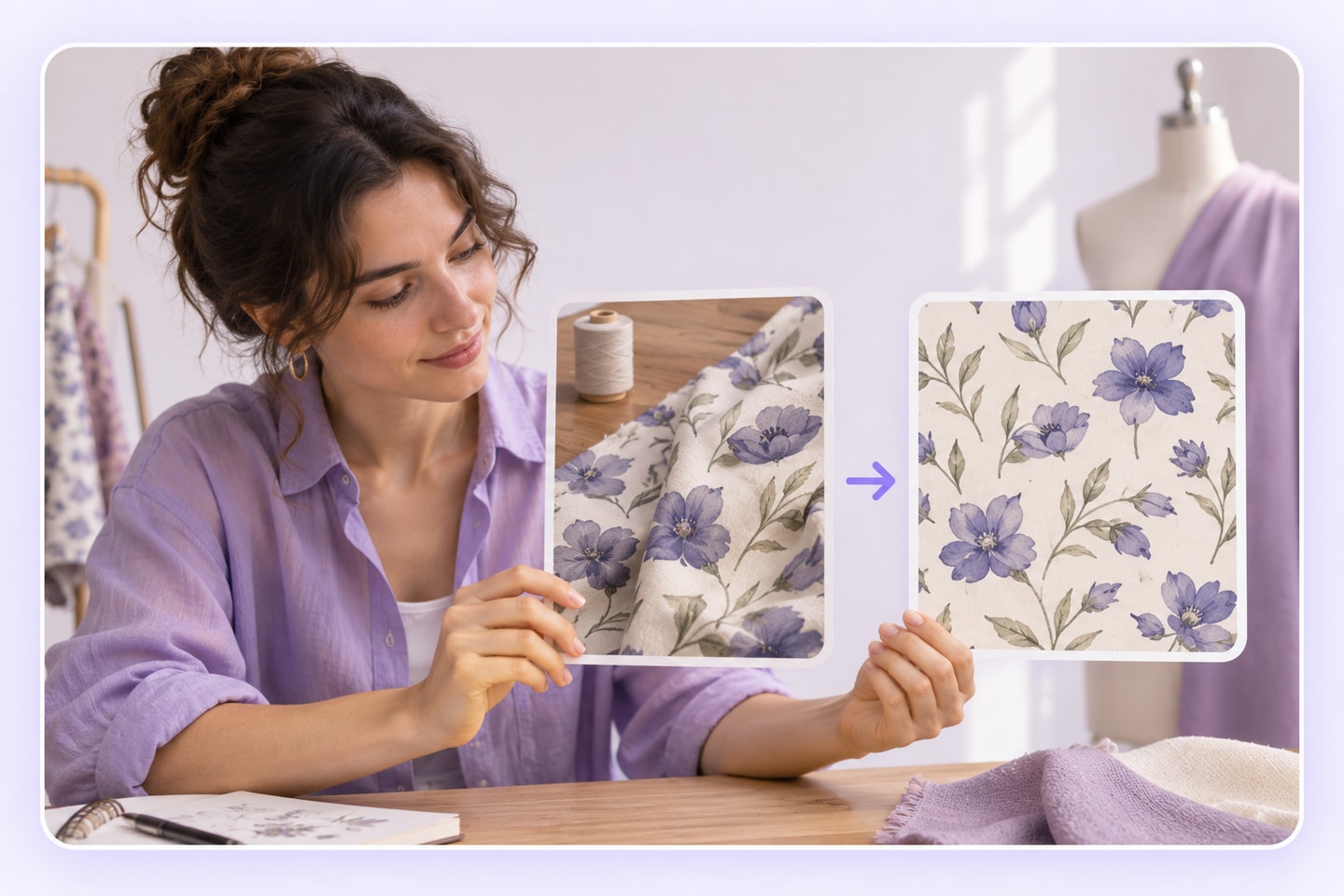
Choose a Clear Source for the AI Pattern Extractor
The source image determines which details are available to inspect. Before using the AI Pattern Extractor, choose a view where the intended design is visible and distinguishable from folds, lighting, and nearby decoration.
Visible motif
Keep the main shapes inside the frame. Avoid a source where the essential part is hidden behind a fold, a hand, or another object.
Readable detail
Prefer a sharp image with enough contrast to distinguish the design. A photo pattern extractor cannot provide a reliable record of detail absent from the source.
A defined target
Decide whether you need one motif or a broader pattern area. A clear target makes it easier to judge what the AI Pattern Extractor should preserve.
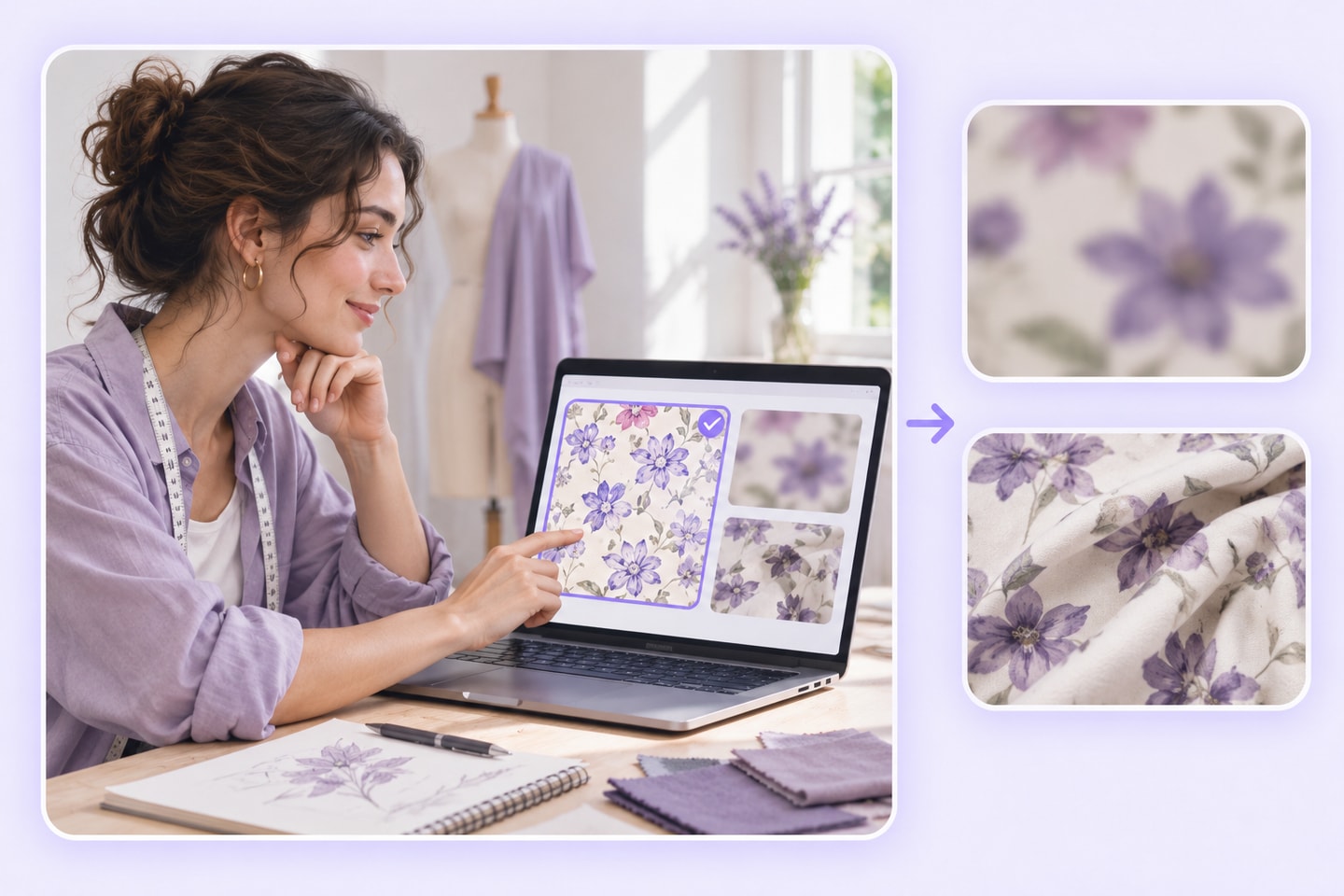
How to Use the AI Pattern Extractor
Choose the source, make the intended pattern clear, and inspect the extracted design. Keep the original image available throughout the AI Pattern Extractor workflow.
Add the source image
Open the AI Pattern Extractor and add the photo containing the design you want. Choose a source with the motif visible and as little obstruction as possible.
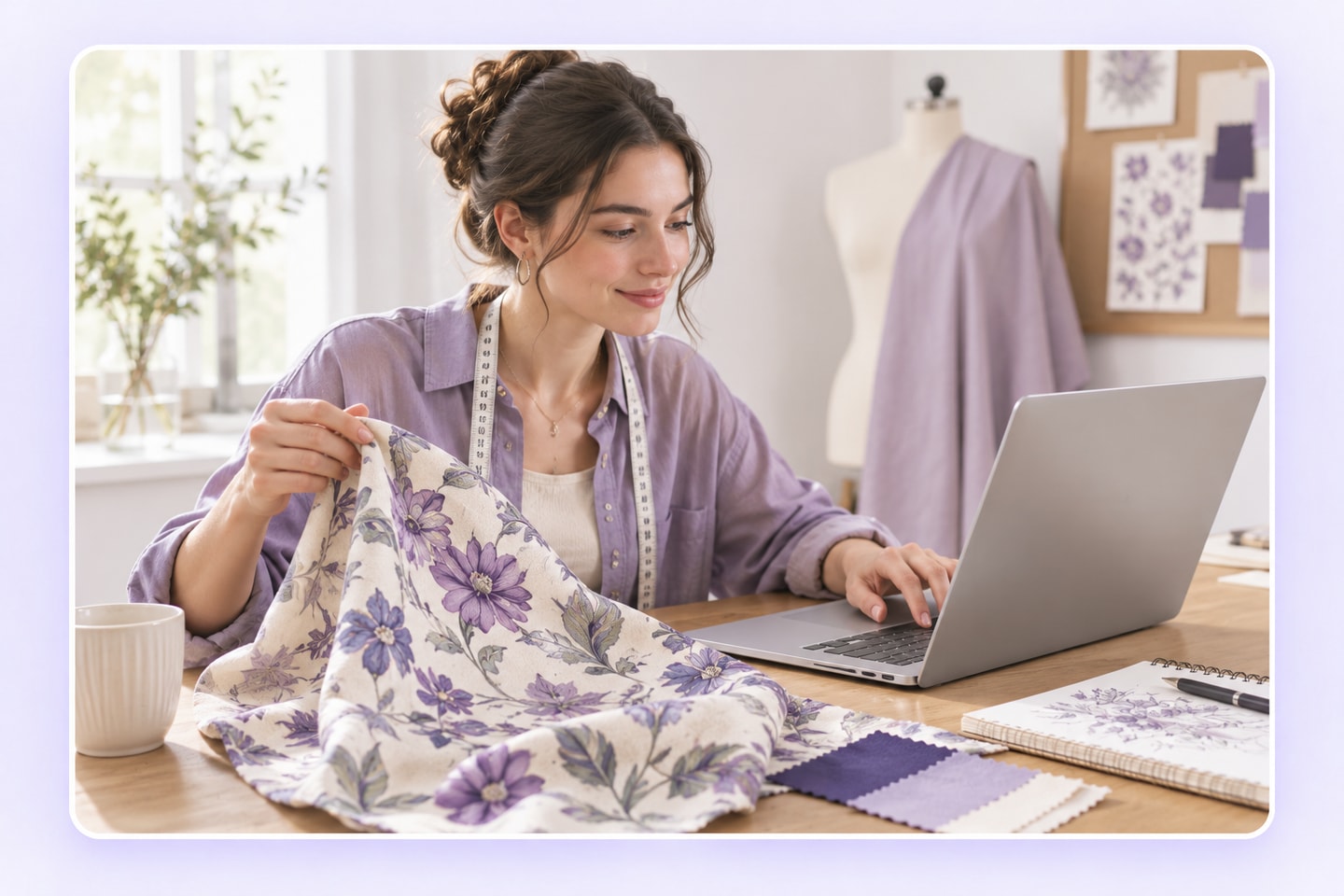
Define the pattern and start extraction
Use the available inputs to make the target design clear, then start extraction in the AI Pattern Extractor. Do not assume it can reconstruct hidden parts or recover original design files.
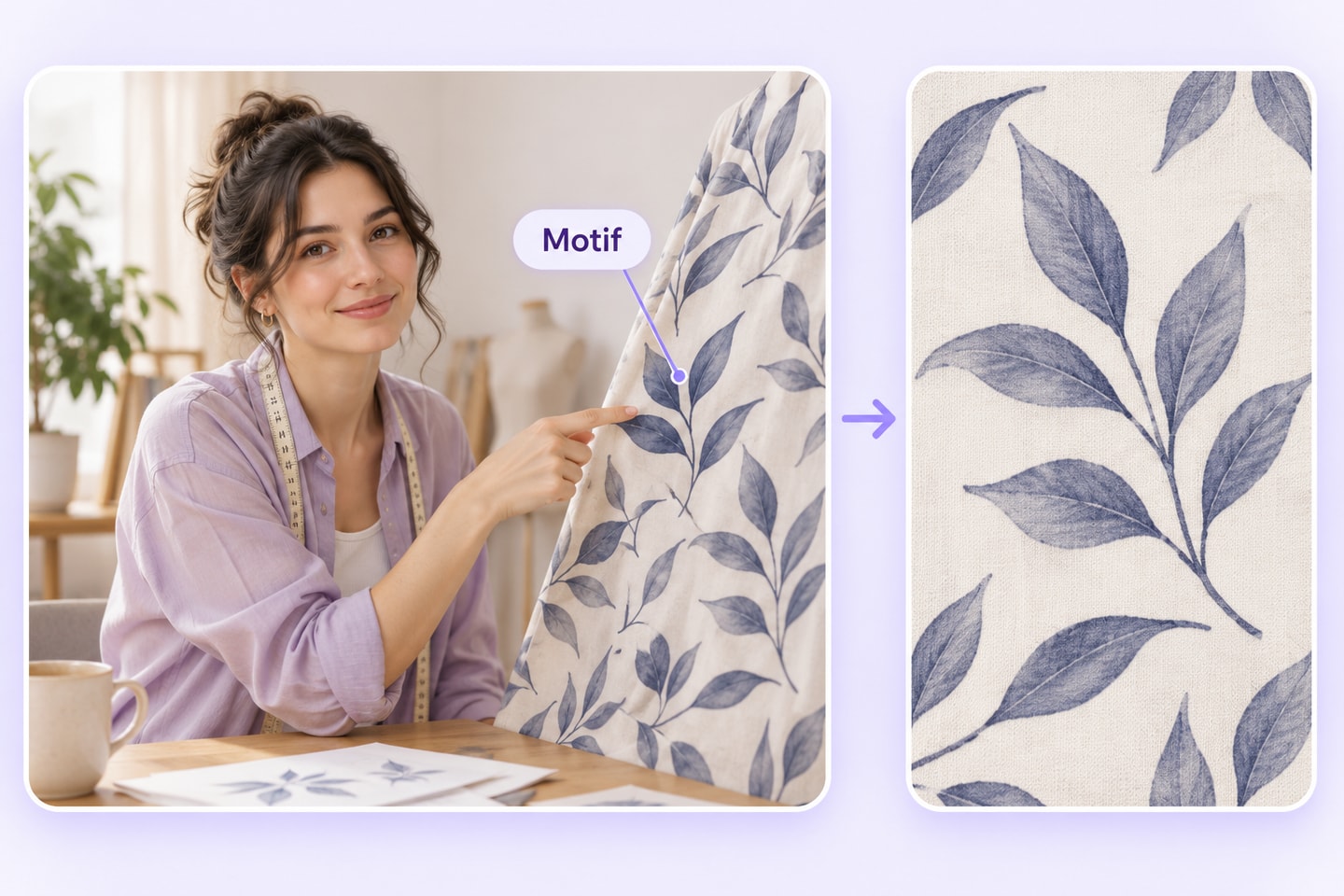
Review the standalone design
Compare shapes, borders, and color relationships with the source. Save the reviewed version using the available export option, then prepare any further layout work in your design workflow.
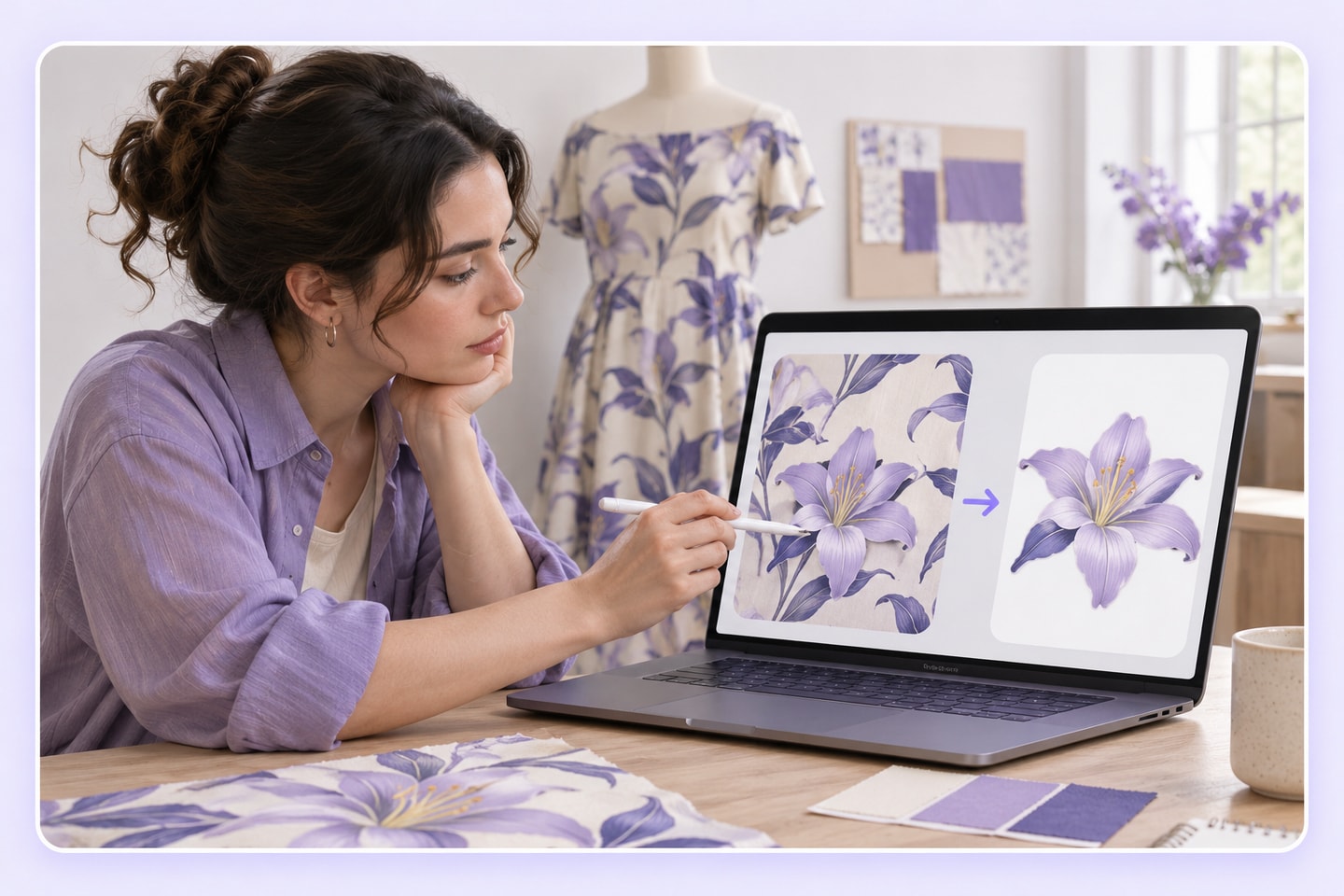
From a Fabric Photo to a Standalone Motif
Illustrative example.
This illustrative brief shows the difference between the photographed object and the design you want to extract. It is a planned AI Pattern Extractor use case, not a recorded tool output.
Source: a floral detail on a fabric bag
The photo shows a repeated leaf-and-flower design across a bag. Choose an unobstructed motif, keeping its visible shapes and color relationships as the reference.
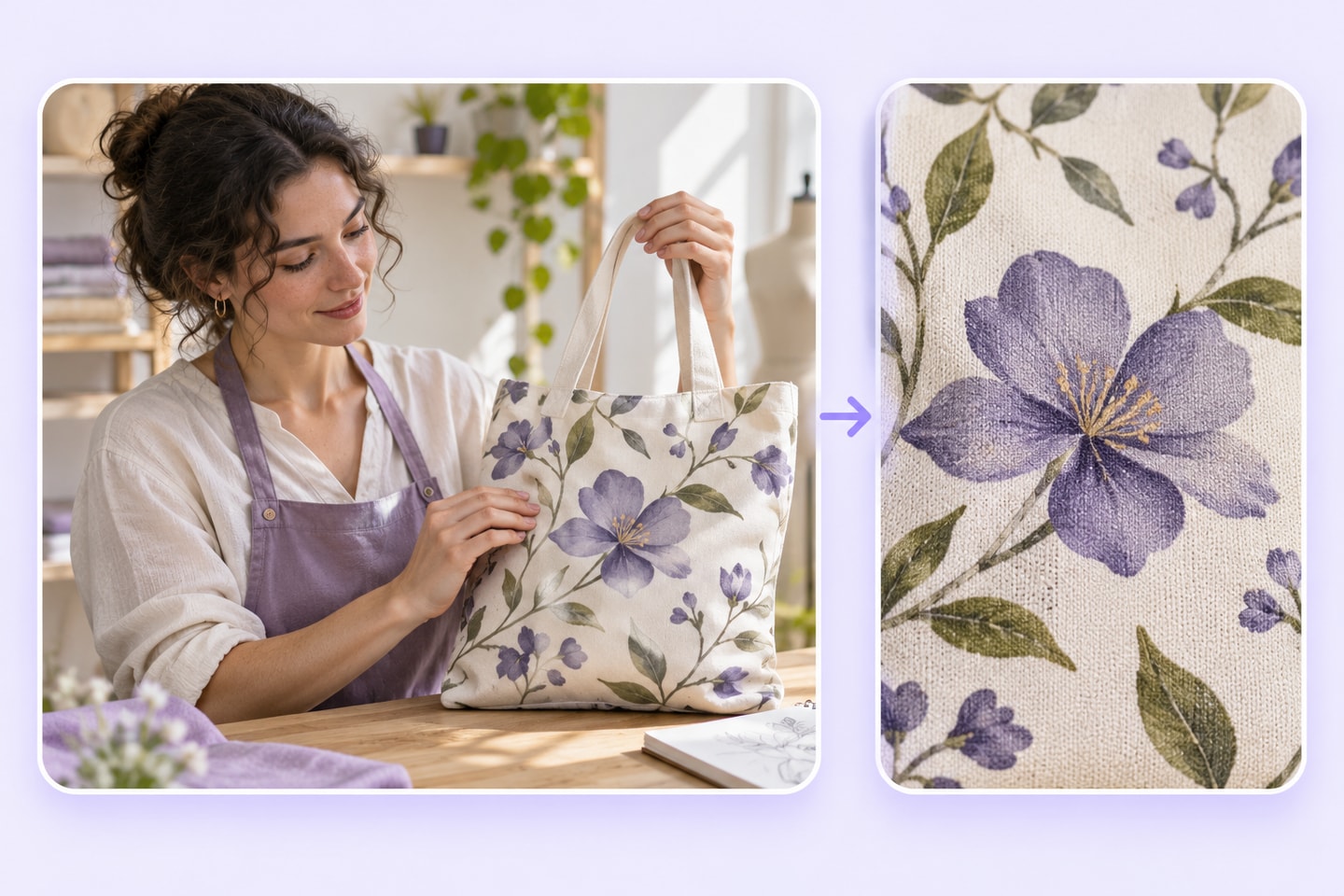
Goal: an independent design to review
Prepare the selected motif as a separate design, then compare it with the photo. A standalone motif is not automatically a seamless repeat, a vector file, or production-ready print artwork.
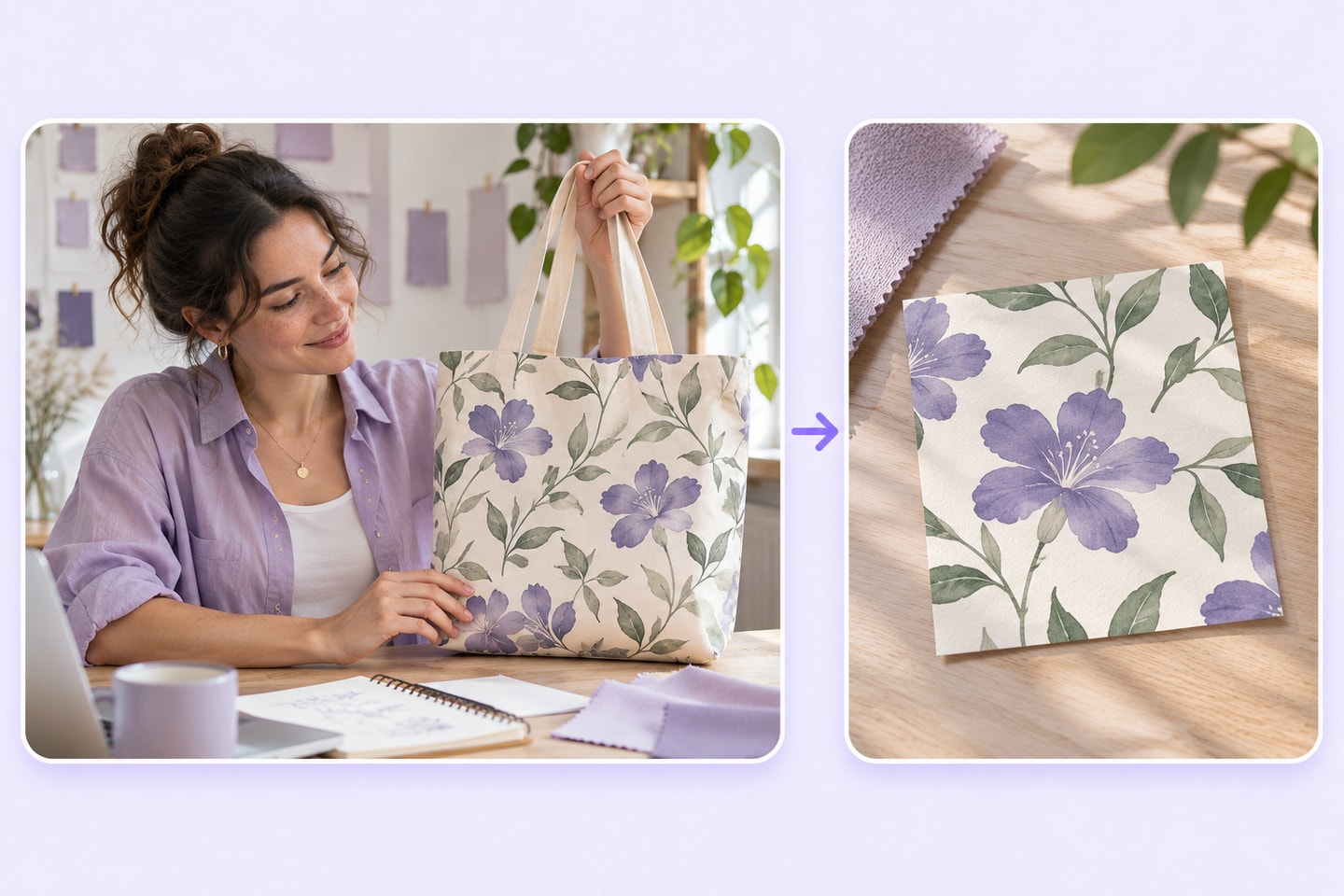
Where the AI Pattern Extractor Fits in Design Work
The AI Pattern Extractor connects a source image with the next design task. Keep extraction, layout development, and final production checks as distinct parts of that process.
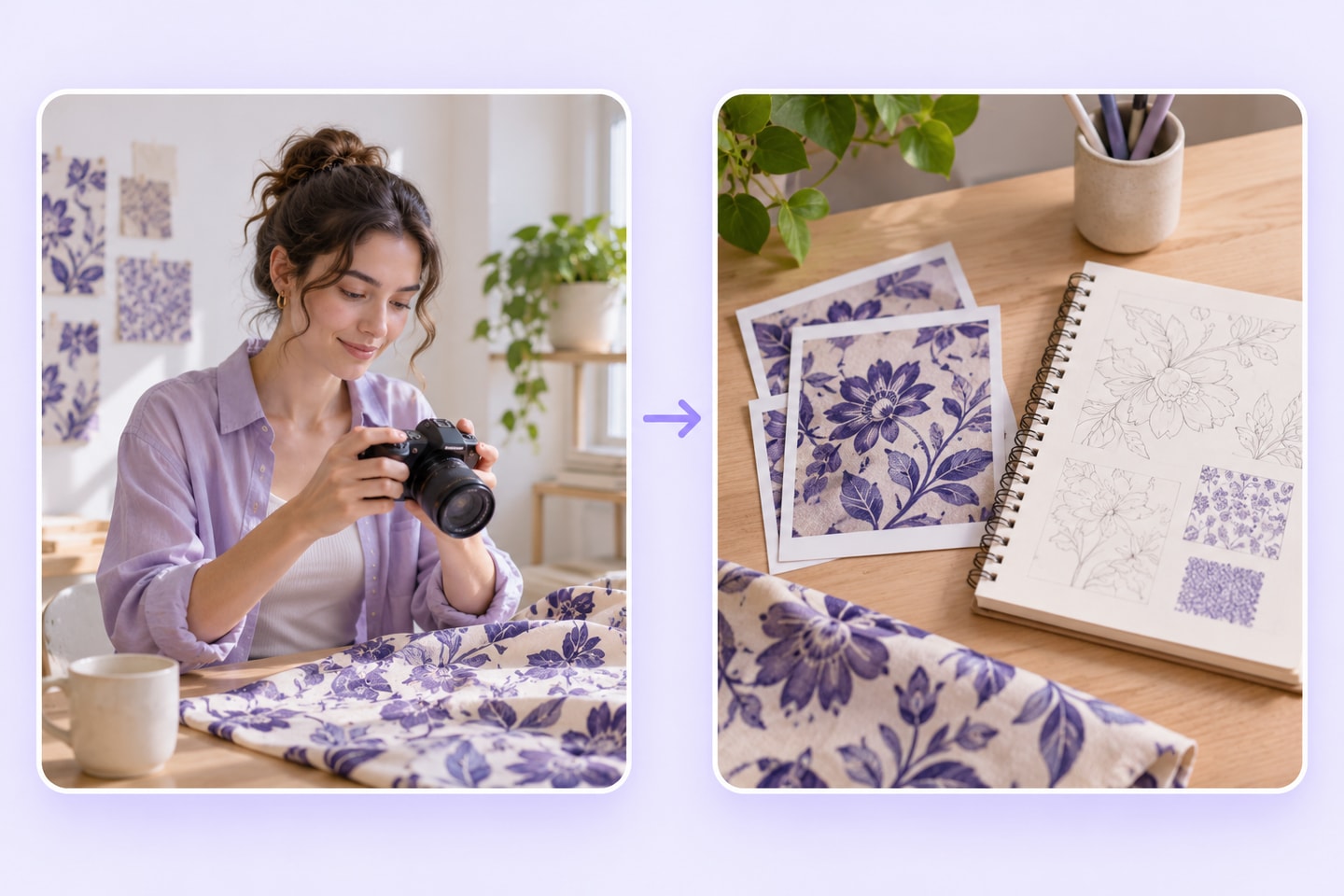
Before: define the design source
Choose the photo, identify the target motif, and confirm you can use the source for the intended project. Keep an untouched copy for comparison.
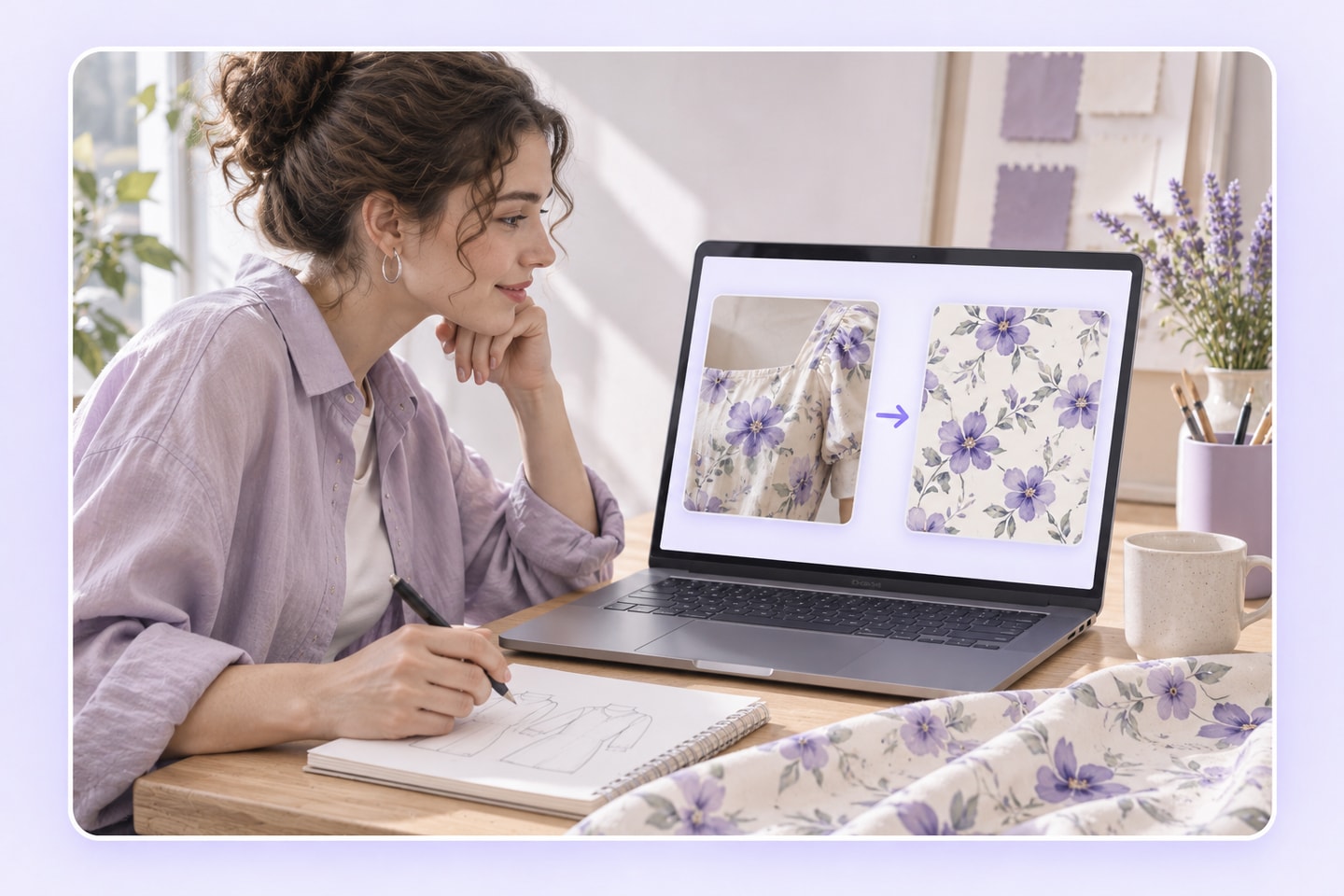
During: extract and compare
Use the AI Pattern Extractor to prepare a standalone design. Inspect what was retained, simplified, or changed before deciding how to use it.
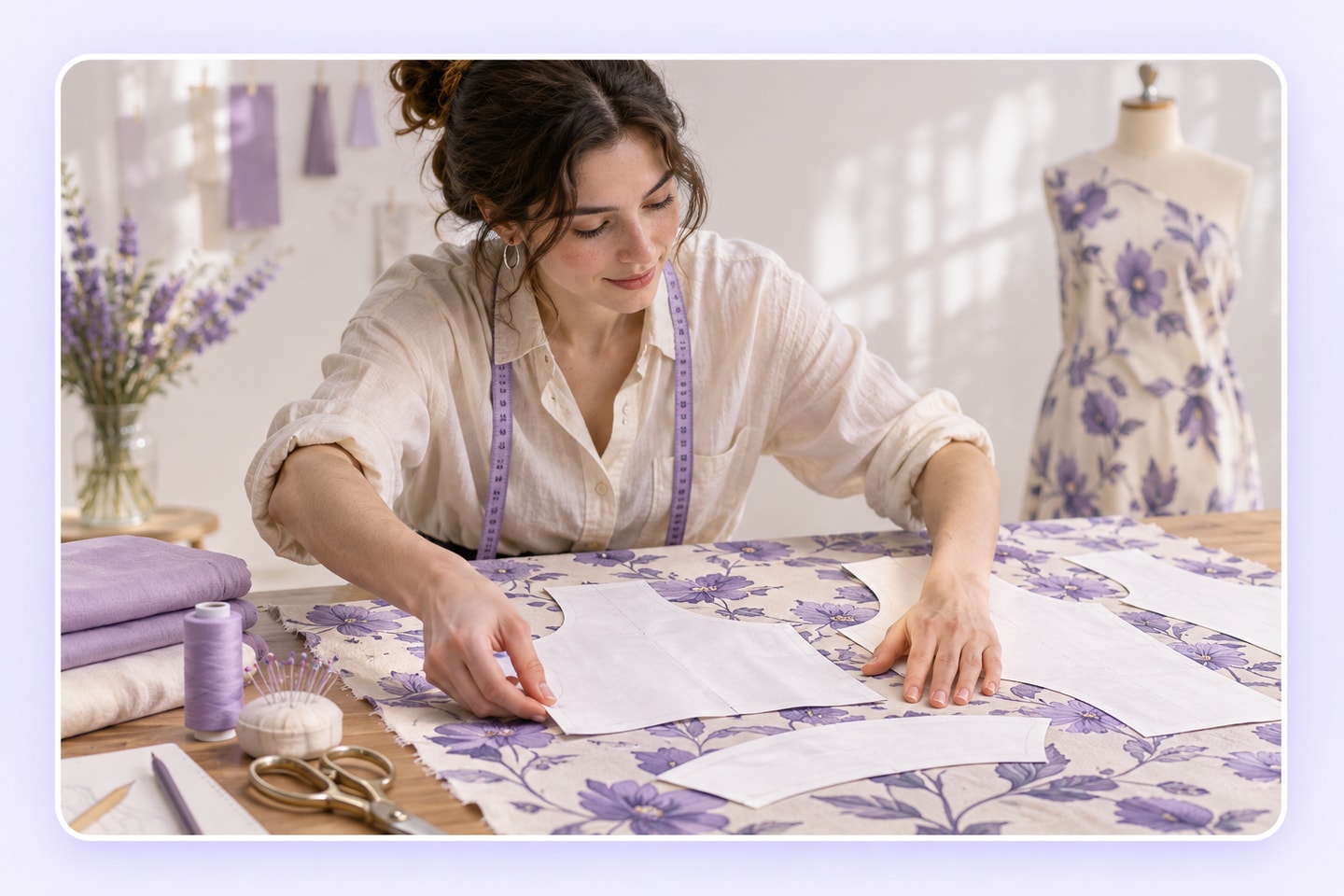
After: develop the next layout
Bring the reviewed design into your next composition. If you need a repeat tile, color adjustment, vector tracing, or a print layout, evaluate those as separate design tasks.
AI Pattern Extractor Review Examples
Explore how textile designers, e-commerce sellers, and creative teams might use the AI Pattern Extractor. These review examples highlight ways to turn product and fabric photos into standalone designs.
Textile Designer
I would use the AI Pattern Extractor to separate a visible motif from a fabric photo before exploring a layout. I would still compare the shapes with the source and check any repeat arrangement separately.
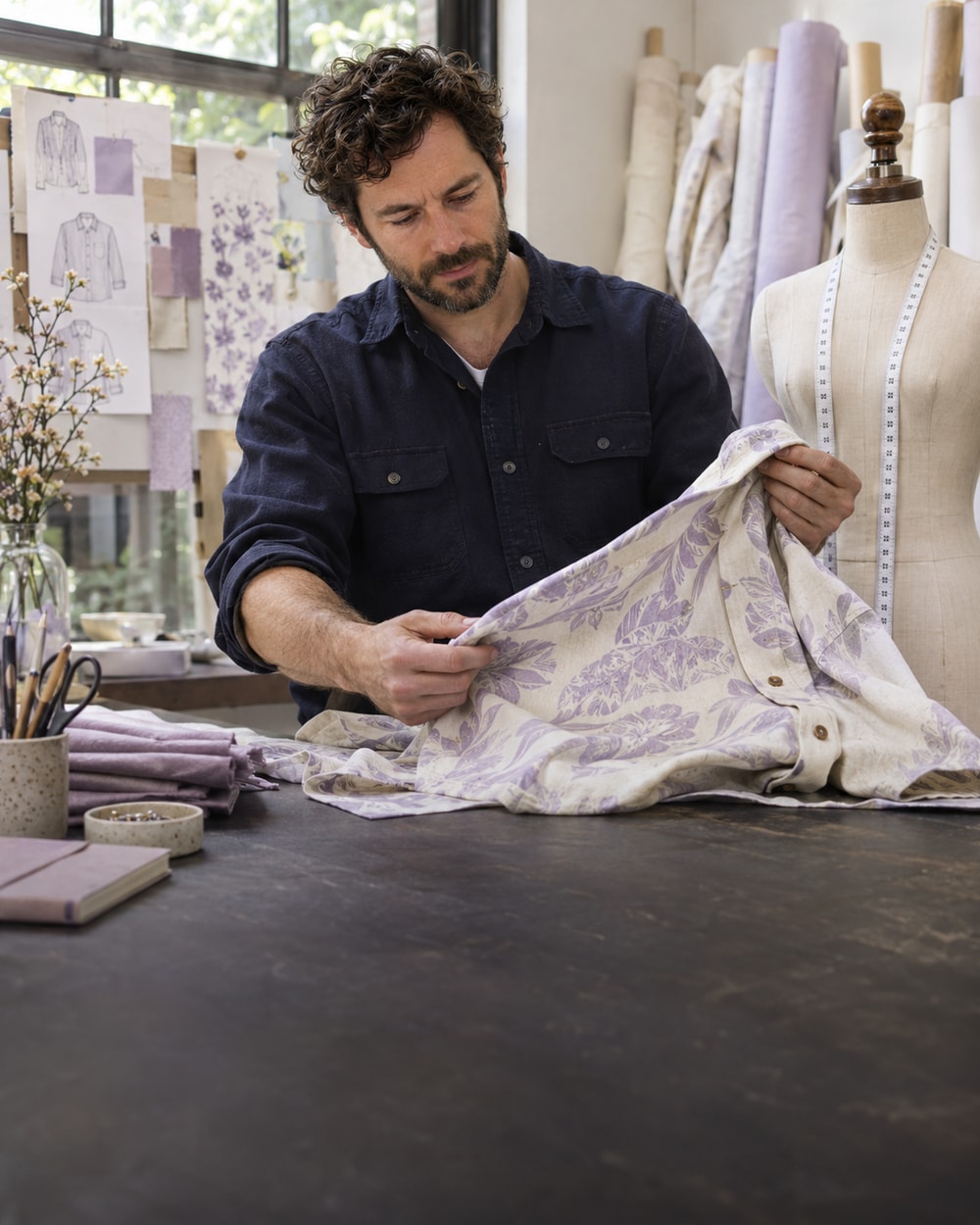
Apparel Designer
A garment photo includes folds and lighting as well as the print. The AI Pattern Extractor would be useful as a starting point for design exploration, with a careful review of which details belong to the motif itself.
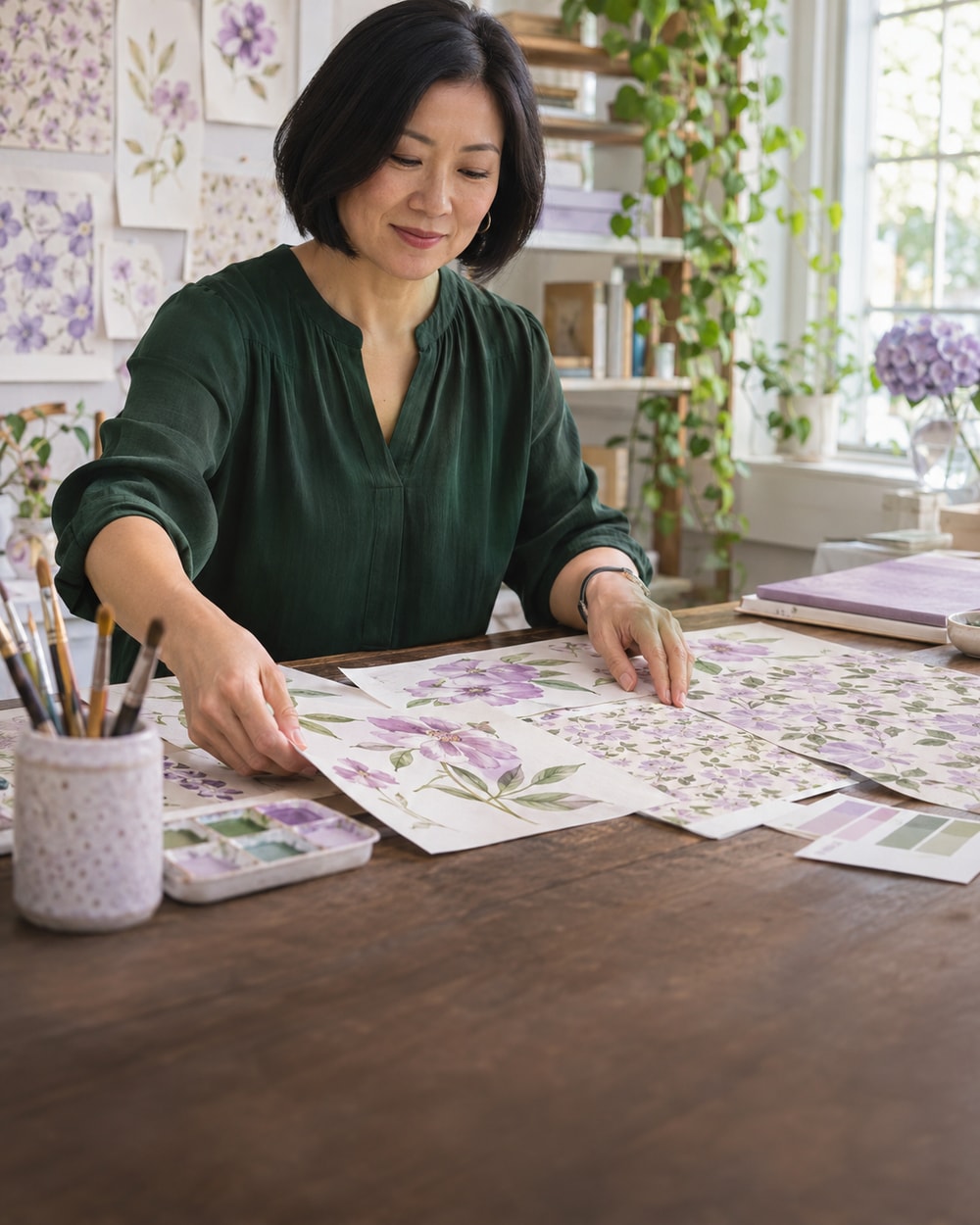
Surface Pattern Artist
I would bring a clearly visible design to the AI Pattern Extractor and judge the result against that reference. A standalone motif would help me think about a new composition without assuming the file is already a seamless repeat.
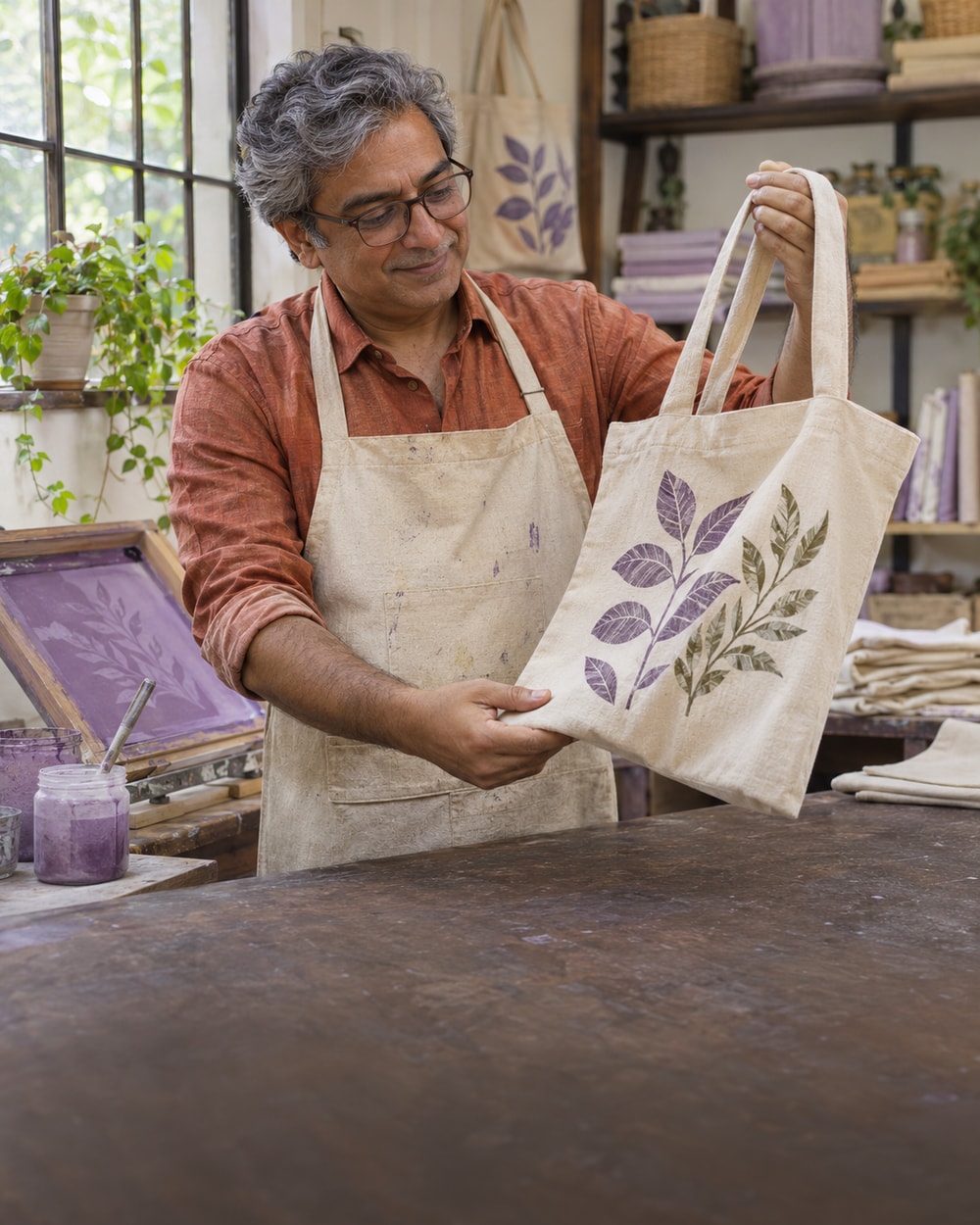
Handmade Shop Owner
When planning a new product idea, I want to focus on the decoration rather than the whole photographed object. I would use the AI Pattern Extractor for that exploration, using source artwork I am allowed to adapt.
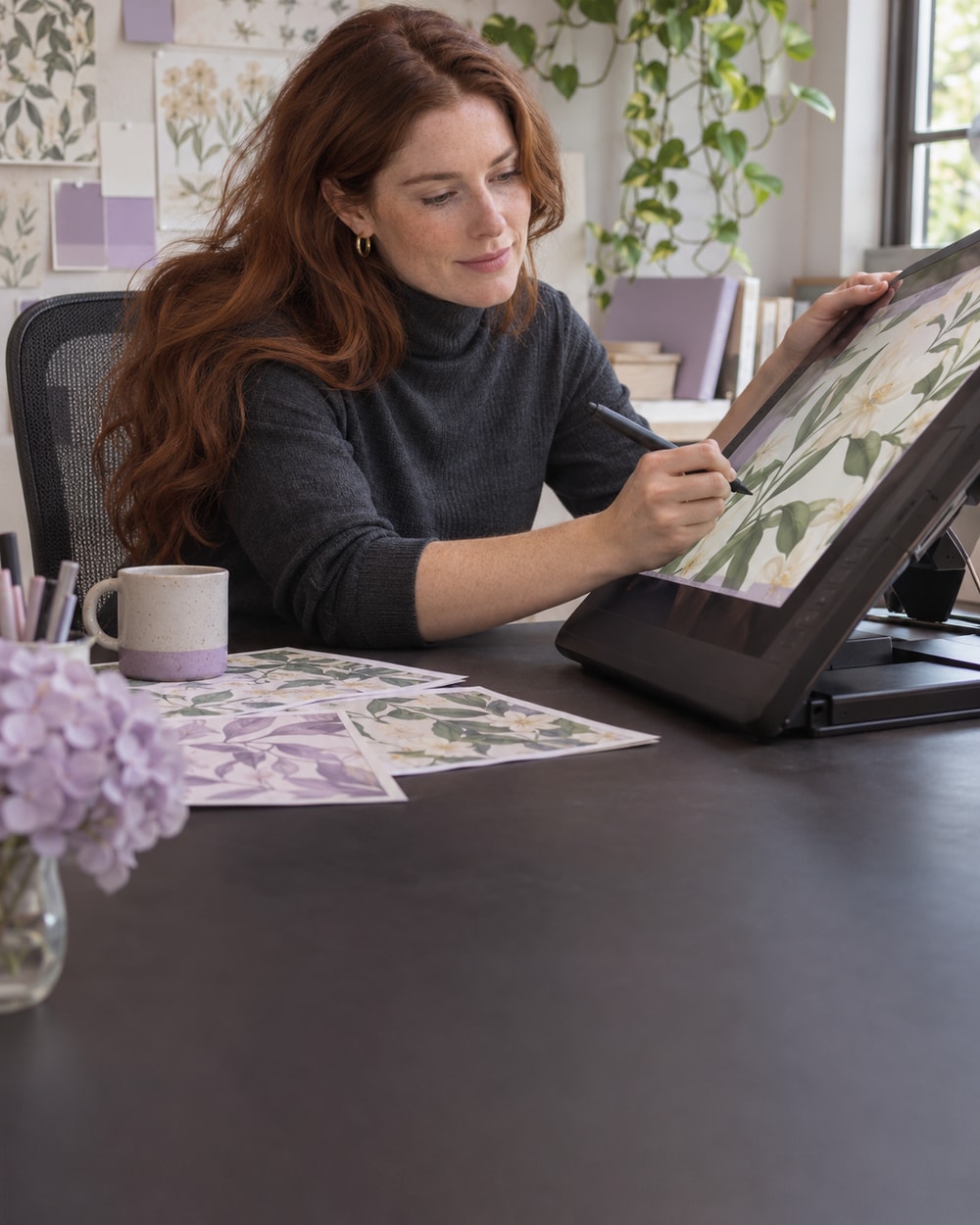
Graphic Designer
The AI Pattern Extractor would fit between choosing a source and building a layout. I would inspect the extracted edges and color relationships first, then decide what additional editing the final design needs.
Creative Studio Founder
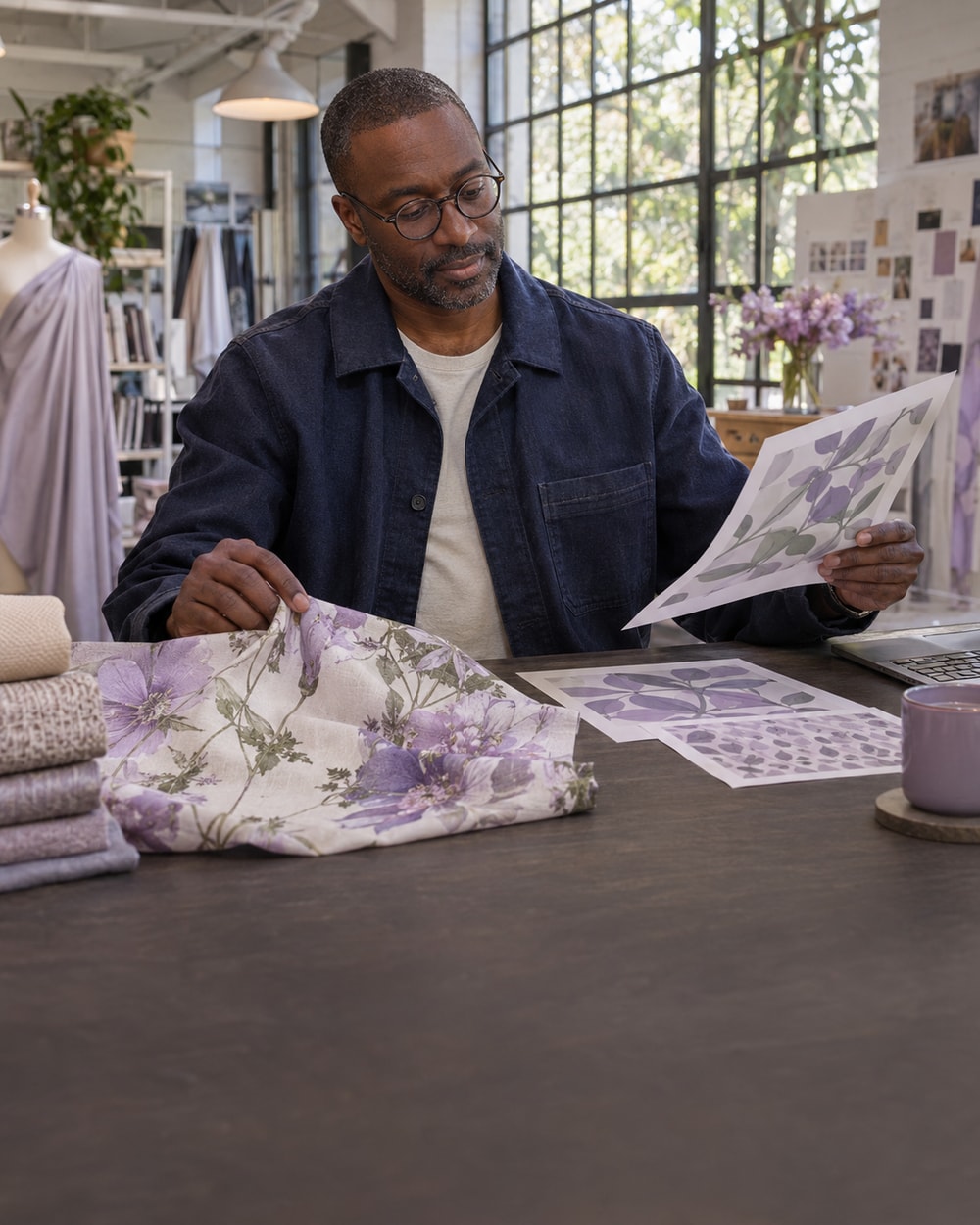
I would use the AI Pattern Extractor to make a specific visual detail easier to discuss with a client. I would keep the original photo beside it so the team can distinguish a source feature from a new design choice.
AI Pattern Extractor FAQ
Understand what extraction means, how to choose a source, and what still needs design work after a motif becomes a separate asset.
What does the AI Pattern Extractor do?
It extracts visible patterns or decorative details from an image into a standalone design. The intended task is design preparation, rather than identifying statistical patterns in data.
How do I extract patterns from images?
Add a source photo to the AI Pattern Extractor, make the intended motif clear through the available inputs, and start extraction. Compare the result with the photo before using the design elsewhere.
Can I start from a photo of fabric or clothing?
Yes, when the design you want is clearly visible. Choose an unobstructed area and inspect how folds, perspective, and lighting may have affected the pattern in the photograph.
What is the difference between extraction and cropping?
Cropping reduces the visible area of a photo. An AI Pattern Extractor aims to turn the selected visual detail into a standalone design, rather than simply retain a smaller piece of the original scene.
Is this the same as removing the background of a product?
No. Product background removal isolates the photographed item. Pattern extraction focuses on a decorative design within the image, which may be only one part of that item.
Will the extracted colors exactly match the original artwork?
Do not assume an exact match. The AI Pattern Extractor works from the image you provide; lighting, white balance, and surface texture can alter the colors visible in that photo.
Can it recover a pattern hidden by folds or other objects?
Do not rely on it to reconstruct hidden artwork accurately. Choose another source image when important shapes are obstructed or missing.
Does extraction automatically create a seamless pattern?
No. A standalone design is not proof of a seamless repeat. If you need tiling, test the boundaries and spacing as a separate design task after using the AI Pattern Extractor.
Will I receive an editable vector or a layered source file?
Check the export options currently offered by the tool. Do not assume that extracting a design also recreates its original vector paths, layers, or production file.
Is the result ready for printing?
Not automatically. Check the saved file’s dimensions, visible detail, color requirements, and layout against the intended print job before production.
Is the AI Pattern Extractor free and available without sign-up?
Yes. The AI Pattern Extractor is available online for free without sign-up. Check current usage conditions in the tool before processing a collection of source images.
Can I reuse a pattern from any photo?
Use source designs you own or have permission to adapt. The AI Pattern Extractor does not establish ownership or permission, and the intended use of the result still matters.
Bring a Visible Pattern Into Your Next Design
Choose a clear source and the motif you want to work with. Use the AI Pattern Extractor to prepare a standalone design, review it against the original, and plan its place in your next project.