Output has no audio. Details behind subtitles may change.
1 credits / video
Remove Subtitles from Video
UGC Maker helps you remove subtitles from video online and prepare your clips for fresh edits.
Remove Subtitles from Video
UGC Maker helps you remove subtitles from video online and prepare your clips for fresh edits.
Remove Subtitles from Video - AI Subtitles Remover Free Online
Remove subtitles from video online with UGC Maker. Clear unwanted captions and prepare your clips for fresh edits or new subtitles. Free online no sign-up.
Use Remove Subtitles from Video to prepare footage for a different message. UGC Maker offers free online access without sign-up, helping you clear unwanted captions before your next edit or a fresh set of subtitles.
Old Captions Can Get in the Way of Your Next Edit
Old captions can clash with a new script or cover details you want viewers to see. With UGC Maker, Remove Subtitles from Video helps you prepare existing clips for another edit instead of placing new words over old ones.
AI Subtitle Remover for Your Next Video Edit
UGC Maker brings subtitle cleanup into your browser so you can focus on the next version of your content, from refreshed clips to new captions.
Clear Unwanted Captions
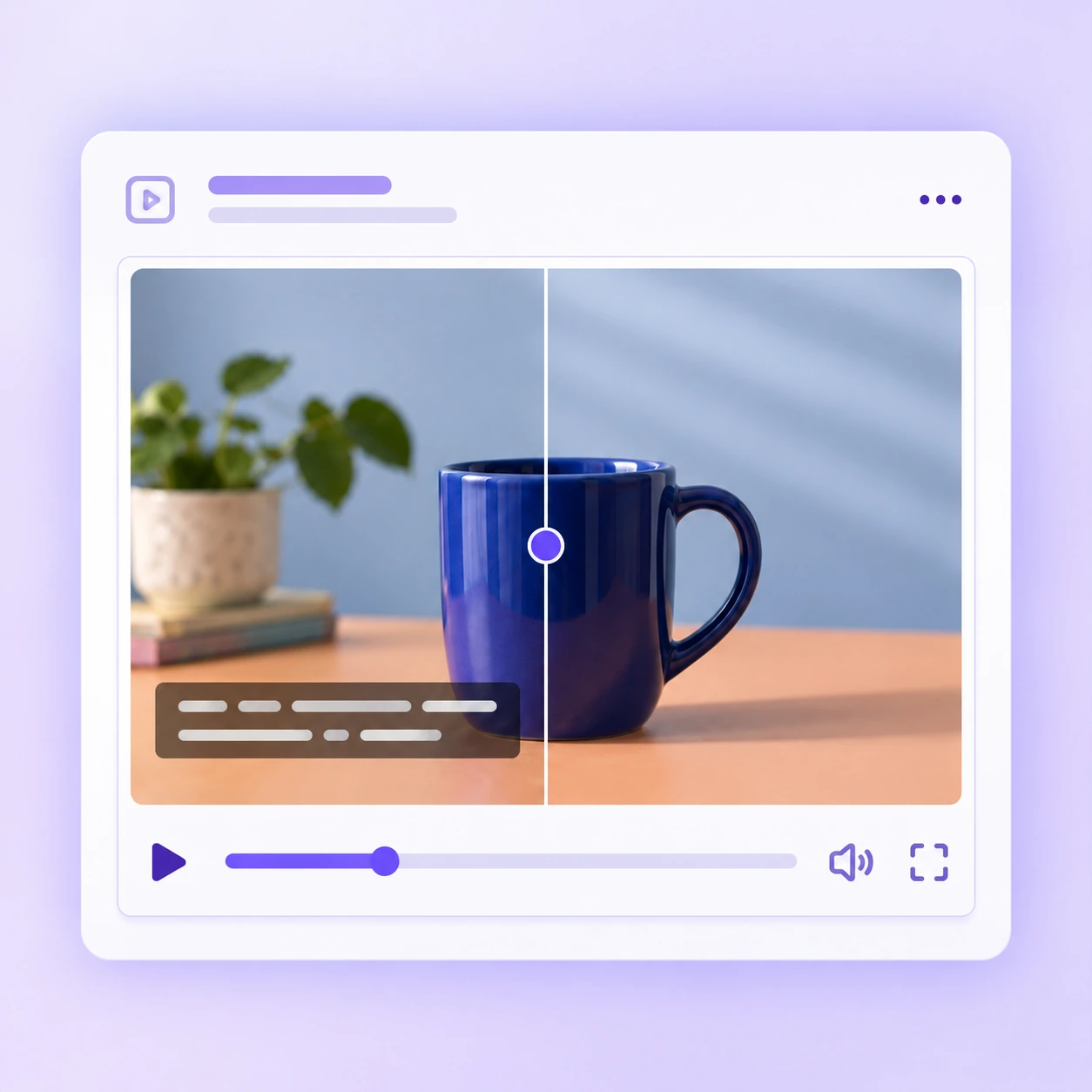
Remove subtitles from video to clear outdated captions and prepare the footage for a fresh message, another audience, or your next edit.
Make Room for New Subtitles
Prepare clips for fresh captions in your video editor so old words do not compete with a new script, updated message, or subtitle style.
Start Online Without Sign-Up
Open subtitle cleanup in your browser and start without signing up, keeping the first step simple when you need to refresh existing clips.
How to Remove Video Subtitles
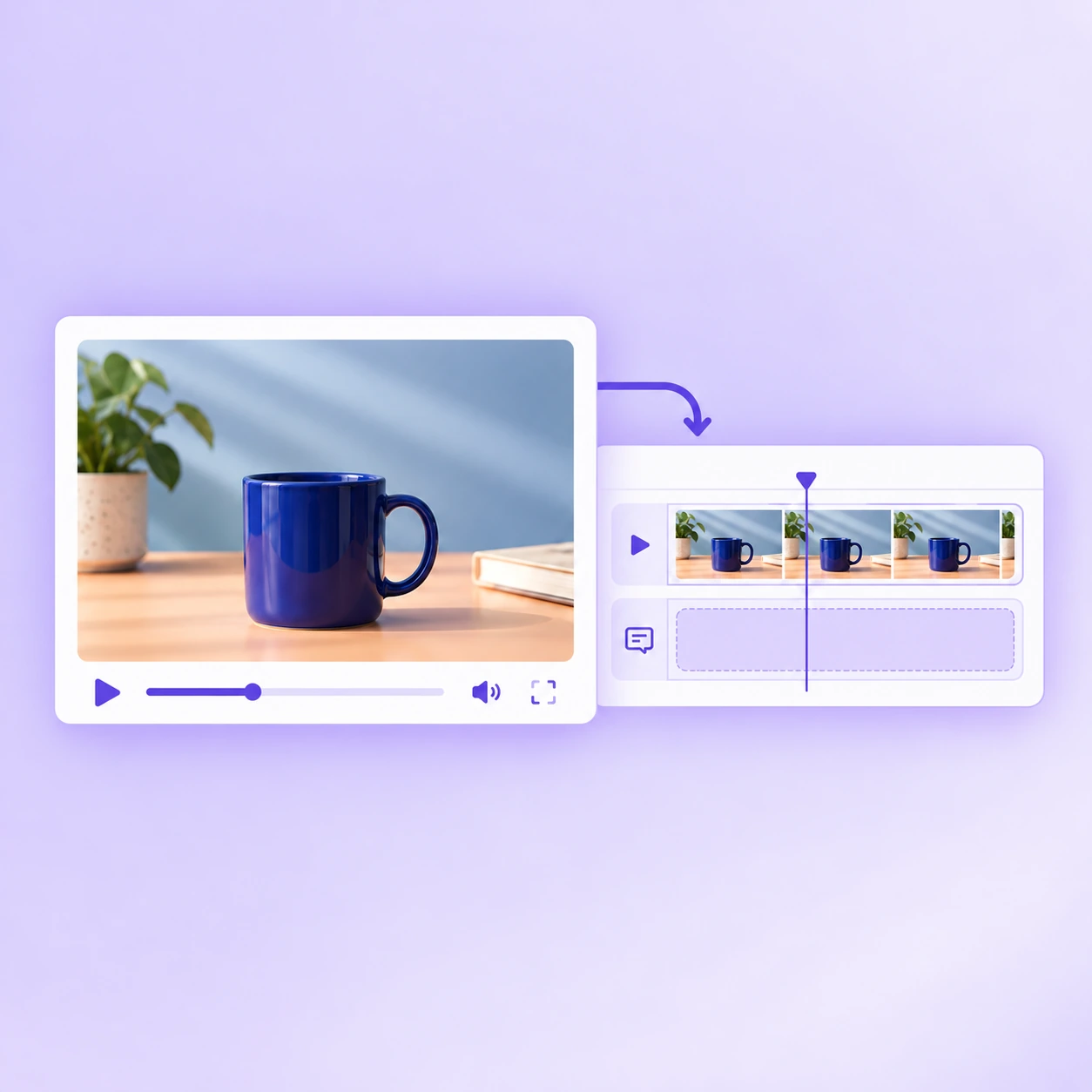
Upload your video, run subtitle removal, then review and download the result before continuing your edit.
Step 1: Upload Your Video
Choose the video you want to edit and upload it to the online tool. Use a copy of your source file so you can keep the original for later.
Step 2: Generate a Cleaned Version
Run subtitle removal to generate a cleaned version of your clip. Review the subtitle area across the video before moving on to download.
Step 3: Download and Keep Editing
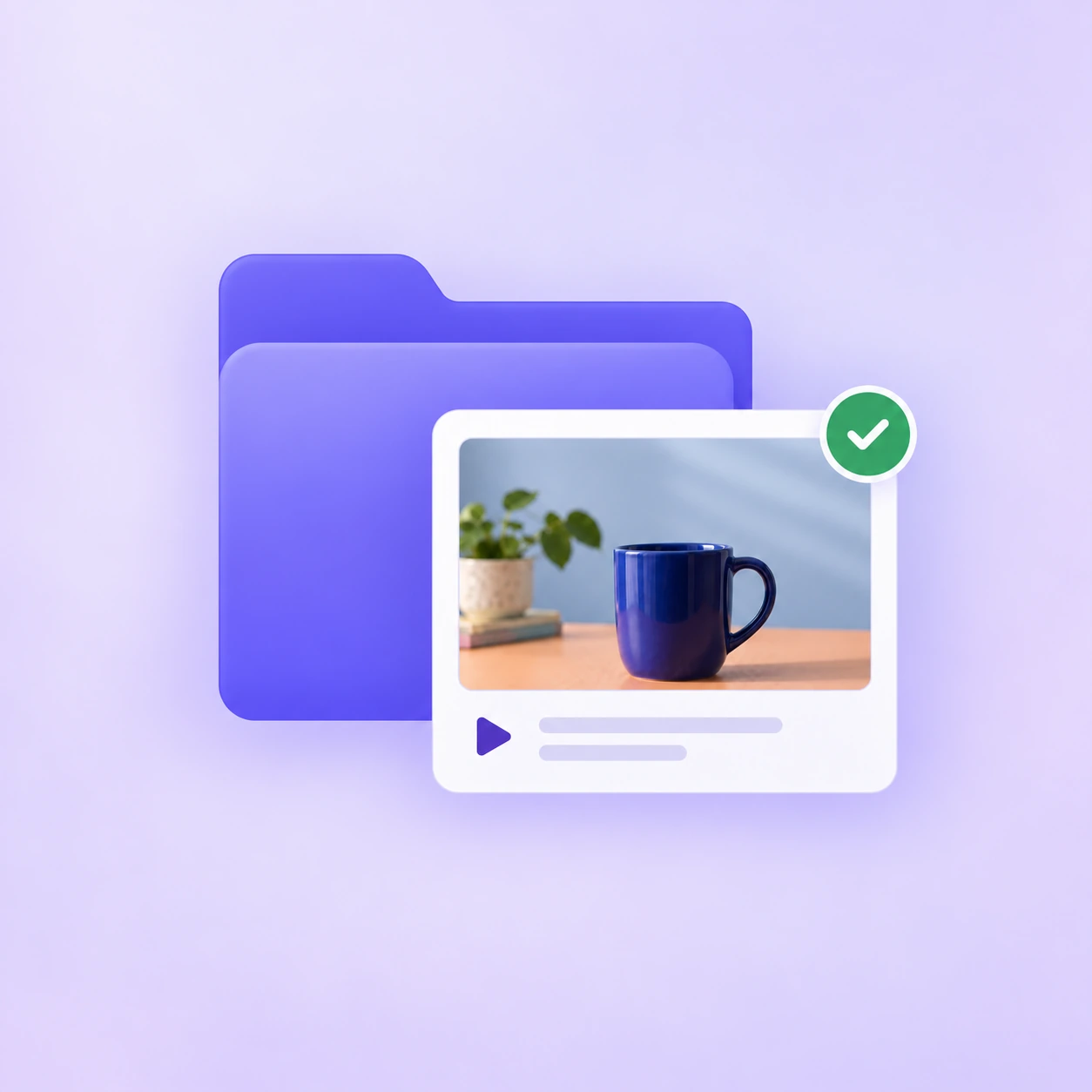
Download the edited video and check it before sharing. Bring it into your editor to add new captions or continue working on the next cut.
Make Room for Your Next Story Without Old Subtitles
Remove subtitles from video with UGC Maker and prepare your clips for fresh edits or new captions. Start online for free without signing up.
See how creators and editors use subtitle cleanup to refresh existing clips and make room for new captions.
Emily Carter
Social Media Creator
I had a short clip I wanted to post again, but the old captions no longer matched what I wanted to say. Remove Subtitles from Video gave me a cleaner starting point for the new edit. I checked the result, added my updated captions in my editor, and finally had a version that felt current again.
Daniel Brooks
E-commerce Video Editor
We were updating a product video after a promotion ended, and the old offer was still on screen. I used Remove Subtitles from Video to clean up the footage before adding the new copy. I still reviewed the caption area carefully, but it was a useful way to reuse a clip we already liked.
Sofia Martinez
Localization Coordinator
The English captions were baked into a clip we needed for a Spanish version. Remove Subtitles from Video helped me prepare the picture before I added the translated subtitles separately. Having one caption style on screen made the new version easier to follow. I especially appreciated being able to try the cleanup without creating another account.
Rachel Bennett
Online Course Producer
One of our lesson clips had an outdated term in the captions, even though the explanation itself was still useful. I tried Remove Subtitles from Video before rebuilding the caption layer in my editor. I kept the original file and compared both versions. It gave me a practical starting point for updating that section of the course.
Marcus Reed
Freelance Video Editor
A client wanted different wording on a clip, but all I had was an export with captions already on it. Remove Subtitles from Video helped me prepare it for another round of editing. I checked the cleaned area during playback before adding the revised text. That extra review was worthwhile, especially where the background moved behind the words.
Olivia Chen
Independent Content Producer
I wanted to give an older video a quieter caption style instead of covering the existing words with another text box. Remove Subtitles from Video fit into that refresh pretty naturally. After reviewing the output, I brought it back into my editor and adjusted the new captions to suit the pacing. The browser workflow was straightforward to try.
FAQ
Find answers about subtitle cleanup, file requirements, and what to check before your next edit.
Can Remove Subtitles from Video help with subtitles I can switch off?
Before you use Remove Subtitles from Video, turn captions off in your player. If the words disappear, they may be a separate subtitle track rather than part of the picture. Disable or remove that track in your editing workflow first, and reserve visual cleanup for text that remains visible within the video image.
Can I use Remove Subtitles from Video with subtitles in another language?
When you use Remove Subtitles from Video, the task is to clear existing on-screen wording rather than translate speech. Check a representative section containing the language and lettering you want to remove. Add your new translation separately, then review names, punctuation, line breaks, and timing in your video editor.
Will Remove Subtitles from Video keep my original audio?
After you use Remove Subtitles from Video, play the downloaded file with sound and compare it with your source. Check speech, music, and synchronization before you publish. Keep the original audio and video available in your editor so you can rebuild the final cut if the processed file does not meet your project needs.
Which file formats can I use with Remove Subtitles from Video?
For Remove Subtitles from Video, check the file types shown by the current uploader before choosing a clip. A file extension alone does not identify every codec inside a video. If your file is rejected, use an accepted export preset in your editor and keep a copy of the original so you can compare the converted footage.
Does Remove Subtitles from Video support my target resolution?
Before using Remove Subtitles from Video for a delivery with strict specifications, compare the source dimensions with the processed output. Review fine details at normal playback size and at full resolution. Keep your delivery requirements separate from subtitle cleanup, and confirm the available export settings before publishing.
How long can a clip be when I use Remove Subtitles from Video?
Check the current upload limits before you use Remove Subtitles from Video with a long or large file. Duration and file size are different constraints, so reducing one may not resolve the other. For a longer project, work from an editable source and keep any trimmed test section aligned with the original timeline.
What should I check before I use Remove Subtitles from Video on private footage?
Before you use Remove Subtitles from Video for sensitive footage, review UGC Maker's current privacy policy and any notices shown during upload. Confirm the terms fit your project before submitting a client file. Avoid assuming a retention period or automatic deletion schedule unless it is explicitly stated in those policies.
Can I use Remove Subtitles from Video for client or commercial projects?
Use Remove Subtitles from Video with footage you own or are authorized to modify. Review UGC Maker's current terms along with any permissions attached to the source material. Removing captions does not grant rights to the footage, music, people, or brands shown, so confirm the intended use with your client before publishing.
Can I restore old subtitles after using Remove Subtitles from Video?
Keep an untouched source before you use Remove Subtitles from Video. A processed export should not be treated as a substitute for your original file or editing project. If you need the old subtitles later, return to that source or import a saved subtitle file, then review its timing against your final edit before exporting.
Can Remove Subtitles from Video export a translated subtitle file?
Remove Subtitles from Video is a cleanup workflow, so do not treat the processed picture as a translated subtitle file. Keep subtitle authoring separate: create or import your new captions in a suitable editor, check the wording against the audio, and export the subtitle format required by your publishing destination.
Can I process several clips with Remove Subtitles from Video?
For a series of clips, use Remove Subtitles from Video with a clear file naming plan so each output stays matched to its source. Check whether the current interface offers batch controls before planning a bulk job. Otherwise, review clips individually and confirm each processed version before adding it to your editing project.
What should I check if Remove Subtitles from Video does not finish?
If Remove Subtitles from Video does not complete, read any message shown by the uploader or processing screen before trying again. Check the connection, file requirements, and available device storage. Keep your source file intact, avoid repeated submissions while a job is still running, and save error details if you need support.