

TL;DR
- Start AI product photography with a clear photograph of the actual item, then use AI for a defined scene or lighting task.
- Decide where the image will appear before generating: a product reference, a lifestyle scene, and an ad composition have different jobs.
- Keep a short list of details that must match the source: shape, color, label, material, and included parts.
- In UGC Maker, upload the source, describe one change, choose the available output settings, and review the displayed credit requirement.
- Compare every candidate with the original at full size. If essential product details keep changing, retain the original product pixels through compositing or take a better photograph.
AI product photography is most useful when you already know what the product looks like and need a different way to present it. It can help explore a background, clean up a set, or make room for campaign copy. It cannot establish the correct appearance of an item that was never photographed clearly.
This guide from UGC Maker follows the available AI Photo Editor controls. The mug examples and visuals are editorial concepts, not measured before-and-after results from the tool. The aim is a repeatable decision process: prepare a source, request a limited edit, and accept only images that still represent the product accurately.
Give each product image one job
Before choosing a prompt, write down the placement and the question the image needs to answer. “Make this look premium” leaves both undefined. “Show the mug clearly against a neutral backdrop for the product gallery” gives you something to judge.
| Image job | What the shopper needs to see | Useful creative freedom | Acceptance check |
|---|---|---|---|
| Product reference | The exact item and visible parts | A clean, unobtrusive background | Shape, finish, variant, and accessories match the source |
| Lifestyle scene | A plausible setting for the item | Surroundings, surface, and distant background | Context does not invent scale, function, or included objects |
| Campaign image | A clear product and room for a message | Layout, negative space, and background styling | The real offer can be added without covering or changing the item |
A single generated image rarely needs to do all three jobs. Keep a straightforward product reference even when you also make a more expressive campaign visual.
For Google shopping feeds, check the current Merchant Center image requirements. The main image must show the item being sold, and promotional overlays are restricted. Google also provides separate attributes for additional views and lifestyle imagery. Treat an attractive social composition and an eligible feed image as separate review decisions.
Prepare a source that can support the edit
Use the highest-quality original you have, rather than a screenshot of an already compressed listing image. Make sure the whole item is visible, the relevant details are in focus, and the photographed color matches the variant you intend to sell.
Before uploading, check five things:
- Outline: handles, straps, corners, and thin edges remain easy to distinguish from the background.
- Lettering: important label text is actually readable. Do not ask AI to guess words hidden by glare.
- Material: reflections, fabric weave, grain, or a matte finish are visible enough to use as a reference.
- Completeness: the frame includes the product parts that the final image needs to show.
- Version: the photo depicts the right SKU, colorway, packaging, and accessories.
For a transparent bottle or reflective object, a simple background can make the boundaries easier to inspect. For a garment, photograph the actual pattern and construction; our photo clothes-changing guide explains the separate garment-reference workflow.
If a new scene requires an unseen angle, take that photograph. A generated rear view can look plausible while inventing a clasp, seam, port, or label.
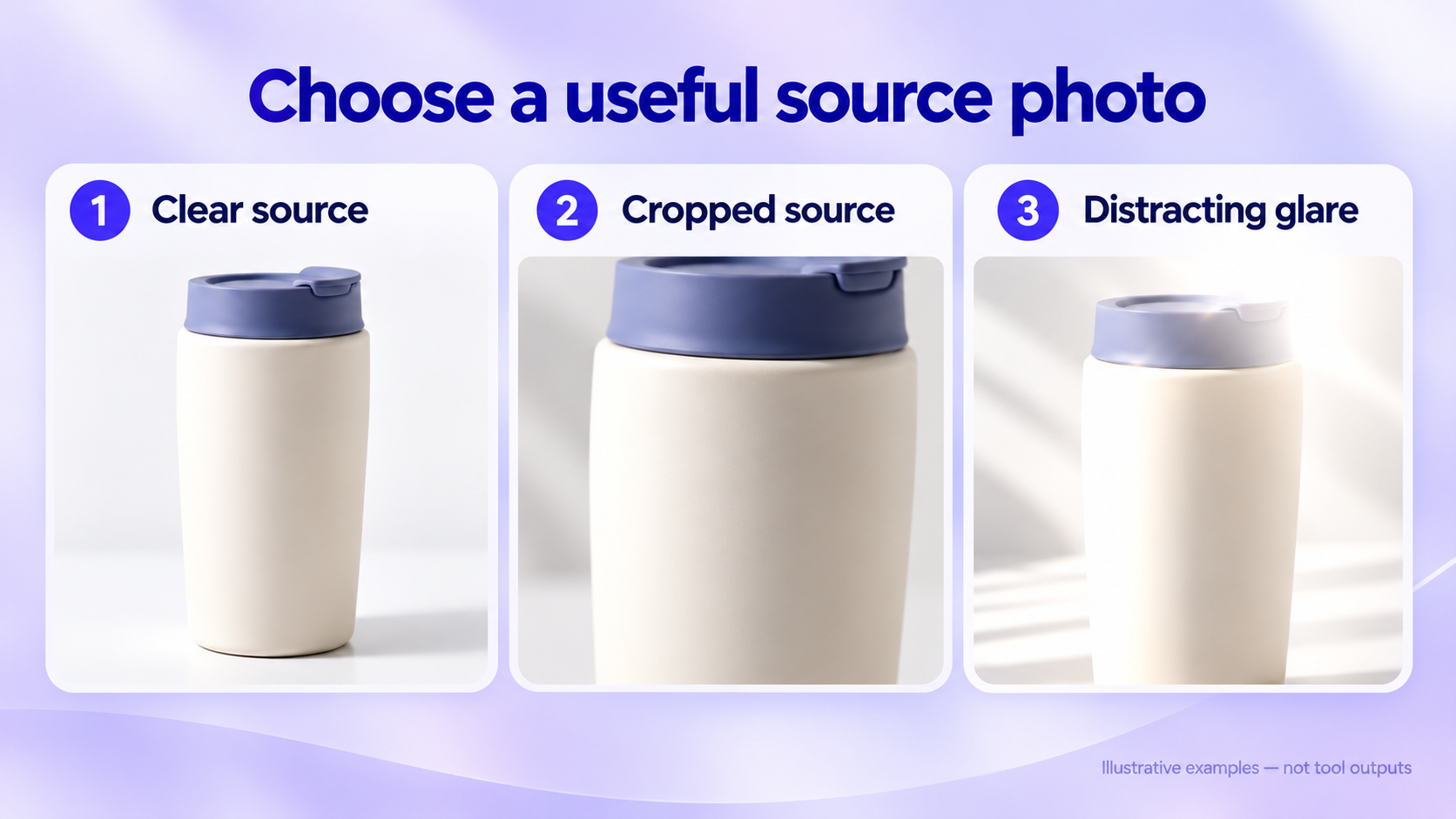
Illustrative source-selection examples. These are generated teaching visuals, not photographs of a real SKU or UGCMaker test outputs.
Write a small image brief
Keep this brief beside the editor. It makes the review faster because you have already decided what should change and what should remain recognizable.
| Brief field | Example for a fictional travel mug |
|---|---|
| Source | One clear, front-facing photo of an ivory mug with an indigo lid |
| Placement | Lifestyle image in a product-page gallery |
| Requested change | Replace the background with a quiet kitchen setting |
| Keep fixed | Mug silhouette, lid mechanism, color, viewing angle, and visible finish |
| Exclude | New lettering, extra mugs, invented accessories, or unsupported performance cues |
| Review | Compare the lid, rim, base, surface finish, and contact shadow with the source |
The preservation list is a review standard, not a technical lock. Even an explicit instruction can fail. When exact artwork or lettering matters, keeping the original product pixels through conventional masking and compositing is often the more controllable approach.
Build the first scene in UGC Maker
1. Upload the original product photo
Open the AI Photo Editor and add the source in the image area. The current editor accepts JPG, JPEG, PNG, and WebP, with a 16 MB upload limit. Keep an untouched local copy and use a descriptive working name, such as mug-ivory-front-source.
Start with one source and one edit. Adding several tasks at once makes it harder to work out why a result changed the product.
2. Describe the scene change
Use a specific instruction like this, adapted to your own photo:
Use the uploaded mug photo as the product reference. Change the background to a quiet kitchen counter with a soft, distant tiled wall. Keep the mug at the same angle and proportions. Preserve the indigo lid, drinking opening, ivory finish, and base. Keep the immediate space around it clear. Add no text, hands, additional products, or accessories.
This is an original example prompt, not a tested preset. Its purpose is to make the requested change and rejection conditions explicit. For more task-specific starting points, use the existing AI photo editing prompt library.
3. Choose the settings for the placement
Review the model, aspect ratio, resolution, and output count offered by the current editor. Choose the ratio that fits your intended layout, and leave room around the product for the crop you will actually use.
A ratio written in the prompt is not a substitute for selecting an available output setting. Likewise, a larger resolution label does not establish that the product details are more accurate.
For a local edit, a model may expose marking or selection controls. Use them to describe the relevant area, then inspect the rest of the image too. A selected region does not guarantee that every surrounding pixel stays unchanged.
4. Review access and generate a candidate
Read the credit requirement shown beside the generation controls. Access depends on available credits; the site can request login or a purchase when the balance is insufficient. Avoid planning a production batch around an assumed unlimited allowance.
Generate a candidate, then compare it with the original. The result is ready for review when it is available to inspect, rather than automatically ready for a listing.
Adapt the same source to three scene briefs
Return to the original for each new scene. This keeps an error in one candidate from becoming the reference for the next.
Neutral product view
Ask for an uncluttered backdrop and preserve the original viewing angle. Keep attention on the outline, finish, and visible parts. Do not add an award badge or promotional wording to an image intended for a placement that restricts overlays.
Lifestyle context
Choose a setting that helps explain the product's use without asserting an unverified property. A mug on a counter establishes context. Steam, ice, a backpack, or a car cup holder may imply temperature, compatibility, portability, or scale that the source does not establish.
Campaign composition
Leave deliberate empty space for copy that will be added in a layout tool. Keep the product large enough to recognize, then check the composition in the crop you intend to publish. Background styling can vary while the product reference stays the same.
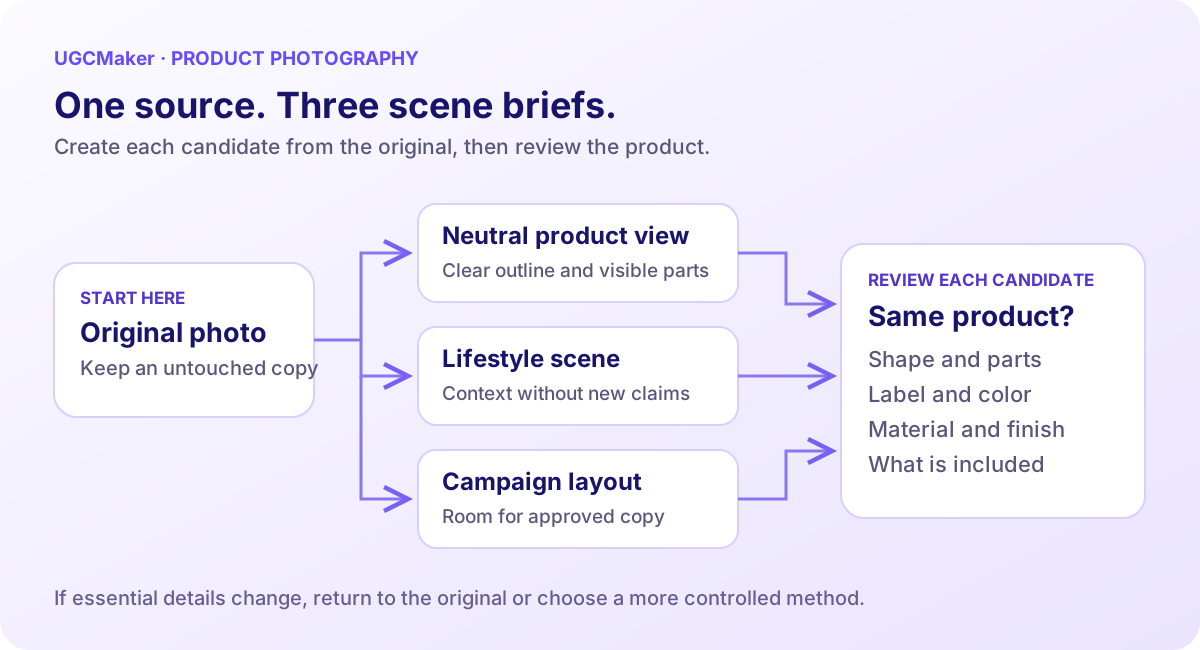
Each scene starts from the original. The final review decides whether it is usable.
Review the product before judging the styling
Inspect the full composition first, then compare small details at 100% zoom. A pleasing thumbnail can hide a changed lid, simplified texture, or invented label.
| What changed unexpectedly? | What to try next | When to use another method |
|---|---|---|
| Logo or label lettering | Narrow the request to the surroundings | Retain the original product pixels if exact text still changes |
| Shape or part count | Remove angle changes and complex props | Photograph the view you actually need |
| Color or finish | Reduce lighting and color requests | Use controlled photo editing when the exact variant remains uncertain |
| Contact shadow | Request a simpler surface and consistent light direction | Composite the product into a scene you can control |
| Included objects | Remove props and extra items from the brief | Use a plain product reference if the scene keeps implying a bundle |
Keep a simple record for accepted images: source filename, prompt, model/settings, candidate filename, intended placement, and the person who approved it. This is more useful for future production than saving a prompt without its result.
If you need a larger image after accepting the content, handle enlargement as a separate task. The image-upscaling quality guide explains why additional pixels and faithful detail are different checks.
Check the exported file and destination
Review the saved image, including its crop and lettering, rather than relying only on an editor preview. Then apply the destination's current requirements.
Google's AI image metadata guidance requires generative AI images to carry source metadata and says existing digital-source tags should be preserved. This guide does not establish that a UGCMaker export automatically supplies the metadata required by your feed workflow.
Frequently asked questions
Can AI product photography replace a studio shoot?
It can help with defined presentation tasks when the source already documents the product. It is less suitable for establishing unseen angles, precise fit, reflective details, or product behavior. Decide image by image instead of replacing every photograph with the same method.
Can I create an accurate product image from text alone?
Text can describe a concept, but it does not establish the exact item you sell. For a sales image, use a real product reference and check the candidate against it.
How do I keep a catalog visually consistent?
Reuse an approved scene brief, framing rule, and source-photo standard. Compare every new result with the approved reference. Similar prompts can still produce different light, scale, and backgrounds.
What should I try first?
Choose one well-photographed SKU and one limited background change. Open the AI Photo Editor, keep the original beside the candidate, and accept the image only when the product details survive the edit.