

TL;DR
- Useful UGC scripts connect a spoken message to something the viewer can see: a presenter, a product detail, or an actual demonstration.
- Separate four fields before production: spoken words, shot direction, on-screen text, and approximate timing.
- The seven examples below are complete, original scripts for a fictional product. Adapt their structure using your actual product facts.
- A 15-, 30-, or 45-second plan is a target, not a measured delivery time. Read or generate the voiceover before locking the edit.
- In a talking-avatar workflow, paste only the spoken words. Keep shot instructions, captions, and product cutaways in your production plan.
A strong UGC script gives the viewer a reason to watch, explains one useful point, and ends with a relevant next action. The opening line matters, but it needs a body that supports it. A striking hook followed by a list of unrelated features leaves the editor with a difficult job.
This UGC Maker guide provides seven AI-assisted editorial examples, not tested advertising winners or customer testimonials. They use one fictional product so you can see how different structures change the message without changing the product facts.
Start with a product brief you can support
Before drafting, collect the facts the finished video is allowed to communicate. Then choose the action you want the viewer to take: inspect the design, understand a feature, check compatibility, or visit the product page.
Our fictional Pebble travel mug brief is deliberately small:
- Ivory ceramic body and an indigo lid.
- A removable lid with a visible drinking opening.
- One mug and one lid in the illustrated set.
- Dimensions, care instructions, and available options are information to check on the product page.
- No established claim about heat retention, leak resistance, dishwasher safety, or fit in a particular cup holder.
These are invented example facts, not specifications for a real product. When adapting a script, replace the product and its details with information you have approved. Remove a line if you cannot show or support it.
Decide who is speaking too. A brand narrator can explain a design. A real creator can describe their own experience. An AI spokesperson reading a script does not become a customer who bought, tested, or recommended the item.
Keep the script separate from the production prompt
| Field | What belongs in it | Example |
|---|---|---|
| Spoken line | Words the viewer should hear | “Here is the lid from above.” |
| Shot | What the camera or edit should show | Top-down close-up of the real lid |
| On-screen text | Brief supporting copy added during editing | “Lid detail” |
| Timing | A planning window to revise after the read | Approximately 5–9 seconds |
For a talking avatar, a shot instruction pasted into the speech field may be spoken aloud. For a video model, “say this sentence” and “show this action” are different instructions with different output risks.
Our UGC prompt library covers model-facing instructions. This article focuses on the actual message and edit plan. For more opening options, use the video hook guide.
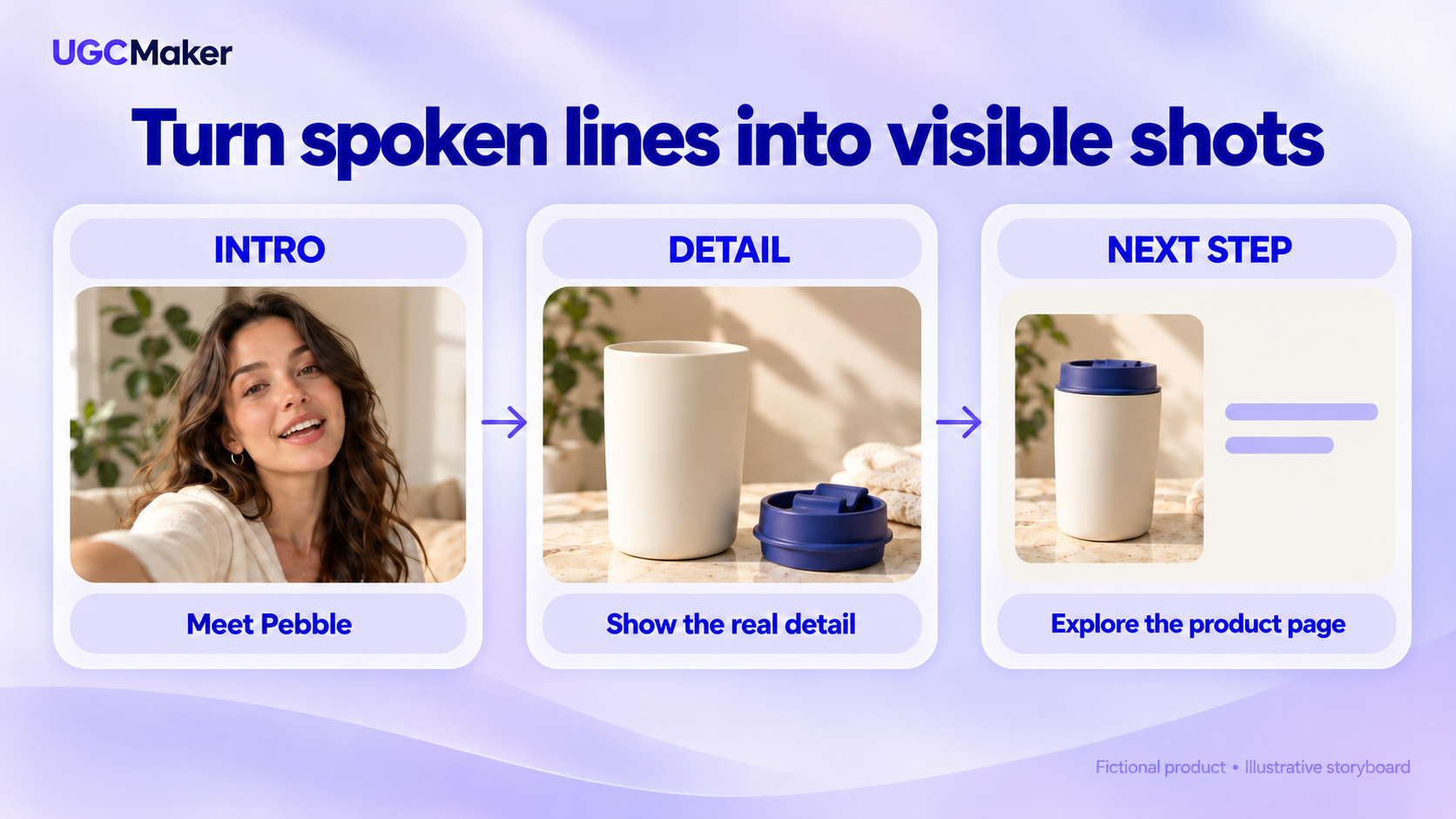
Illustrative storyboard for a fictional product. It is not a real campaign, customer endorsement, or generated-video test.
Choose a length by the message, then time the read
Use a short script for one recognizable point. Use a longer version when the viewer needs a sequence, a distinction, or an answer to a real question.
As a planning calculation, an assumed 120–150 spoken words per minute gives roughly 30–38 words in 15 seconds, 60–75 in 30 seconds, and 90–113 in 45 seconds. Pauses, demonstrations, emphasis, and voice selection can change the result. These ranges are arithmetic examples, not a platform rule or measured UGCMaker speaking speed.
The timings below are proposed edit windows. Read the complete script aloud or review a voiceover take, then adjust the windows to the actual delivery.
1. The one-detail introduction
Target: about 15 seconds. Use when: the viewer needs a quick introduction to a recognizable design detail.
| Planned time | Spoken line | Shot | On-screen text |
|---|---|---|---|
| 0–4 s | “A mug detail worth a closer look: this indigo lid.” | Presenter introduction, then the actual mug | “Meet Pebble” |
| 4–11 s | “Lift it off, see the drinking opening, and look at the ivory body.” | Close-ups of the removable lid and body | “A closer look” |
| 11–15 s | “See the dimensions and care details on the product page.” | Product image and a clear end card | “Explore the details” |
Keep the action visible. If you do not have footage of the lid being removed, use a still of the separated parts and change the line to describe that view. Do not let a generated action establish how the real mechanism works.
2. The problem-to-detail script
Target: about 30 seconds. Use when: a shopper's uncertainty can be answered by showing the product more clearly.
| Planned time | Spoken line | Shot | On-screen text |
|---|---|---|---|
| 0–5 s | “Product photos can hide the small details you actually want to see.” | Presenter beside the product reference | “Look beyond the thumbnail” |
| 5–15 s | “So here is the Pebble mug up close: the ivory body, the indigo lid, and the drinking opening from above.” | Real front view followed by a top-down lid view | “Body • Lid • Opening” |
| 15–24 s | “This view shows the design. For the measurements and care instructions, check the written product information too.” | Product detail image, then the relevant page information | “Check the specifications” |
| 24–30 s | “Open the product page and take a closer look before you choose.” | Product and end card | “See Pebble” |
The problem is missing information, not an invented defect in a competing product. Adapt this structure to the question your images genuinely answer.
3. The three-step demonstration
Target: about 30 seconds. Use when: the product has a short action sequence you can demonstrate with real footage.
| Planned time | Spoken line | Shot | On-screen text |
|---|---|---|---|
| 0–5 s | “Here is the Pebble mug in three simple views.” | Presenter or product opening shot | “Three views” |
| 5–13 s | “First, the complete mug, so you can see the shape and the indigo lid together.” | Full product view on a neutral set | “1. The complete mug” |
| 13–22 s | “Next, the lid removed. Then a closer look at the drinking opening and the rim.” | Actual removal footage and close-ups | “2. Lid off 3. Close-up” |
| 22–30 s | “Use the product page to check the dimensions, care guidance, and options for the version you want.” | Product page with relevant information | “Check your version” |
A demonstration needs continuity. Use the same product variant throughout, and keep edits from concealing whether the action actually happened.
4. The question-and-answer script
Target: about 30 seconds. Use when: the product page or support team receives a specific, answerable question.
| Planned time | Spoken line | Shot | On-screen text |
|---|---|---|---|
| 0–5 s | “What does the Pebble mug look like with the lid off?” | Question card and presenter | “A closer look inside” |
| 5–15 s | “Here is the ivory body on its own, and here is the indigo lid beside it.” | Real image or footage of separated components | “Body + removable lid” |
| 15–24 s | “You can see the rim and opening in these close-ups. For cleaning instructions and dimensions, use the product details.” | Close-up of rim, then care information | “Read the care guidance” |
| 24–30 s | “Visit the product page to check whether this design suits what you need.” | Complete product and end card | “Explore the design” |
Replace the question with a real customer question. If the answer needs a measurement or test, supply that evidence rather than extending the narrator's explanation.
5. The shopping-consideration script
Target: about 30 seconds. Use when: you want to help someone assess an item without claiming it is ideal for everyone.
| Planned time | Spoken line | Shot | On-screen text |
|---|---|---|---|
| 0–5 s | “Choosing a mug for your desk? Look at more than the color.” | Desk setting and presenter | “Three things to check” |
| 5–16 s | “With Pebble, start with the shape, take a closer look at the lid, and check the measurements against the space you have.” | Actual product views and a verified dimensions graphic | “Shape • Lid • Dimensions” |
| 16–24 s | “The ivory and indigo design is one part of the choice. Care instructions and your own routine matter too.” | Product close-up and relevant care text | “Check the care details” |
| 24–30 s | “Find the specifications on the product page before you decide.” | Product and end card | “Read the specifications” |
Use a verified dimensions graphic only when you have the measurements. A lifestyle scene alone is not a reliable scale reference.
6. The visual-reveal script
Target: about 15 seconds. Use when: a genuine visual detail is more persuasive than a long feature list.
| Planned time | Spoken line | Shot | On-screen text |
|---|---|---|---|
| 0–4 s | “Start with the silhouette. Now look at the lid.” | Full mug, then a closer lid view | “A closer look” |
| 4–11 s | “Pebble pairs an ivory body with an indigo top and a visible drinking opening.” | Real front and top-down detail views | “Ivory + indigo” |
| 11–15 s | “Explore the design and care details on the product page.” | Product end card | “Explore Pebble” |
Let the cut reveal a real feature. Avoid a “before and after” label when you are only changing the camera angle or background.
7. The buying-checklist explainer
Target: about 45 seconds. Use when: the viewer needs a little more guidance before deciding whether to inspect the product further.
| Planned time | Spoken line | Shot | On-screen text |
|---|---|---|---|
| 0–7 s | “Before you choose a mug from a photo, check three things: the design, the dimensions, and the care instructions.” | Presenter with a simple checklist | “Design • Dimensions • Care” |
| 7–20 s | “Here is the Pebble design: an ivory body with an indigo lid. These close-ups show the drinking opening, rim, and the lid removed from the body.” | Actual front, top, and separated-part views | “See the details” |
| 20–33 s | “Next, read the measurements and compare them with the space where you plan to use it. Then check how the product should be cleaned.” | Verified specifications and care information | “Compare with your needs” |
| 33–45 s | “Photos can introduce the product. The details help you make the decision. Visit the Pebble product page and check the version you want before ordering.” | Product, page, and end card | “Check the product page” |
This structure is useful when the explanation earns its extra length. If the three checks are not relevant to your product, replace them rather than stretching a short idea into 45 seconds.
Adapt the structure without changing every variable
Choose one script that matches your real brief. Replace the example facts, then make one controlled creative change: the opening, the demonstration order, or the call to action.
TikTok's creative guidance recommends an early hook, a relevant problem-and-solution story, and platform-appropriate presentation. It also encourages testing creative variations. That is a planning principle, not evidence that one of these scripts will outperform your existing ads.
For a useful comparison, keep the product, offer, audience, and main body stable while changing the element you want to learn about. Track the actual result in your campaign tools; a persuasive script on the page is not a conversion measurement.
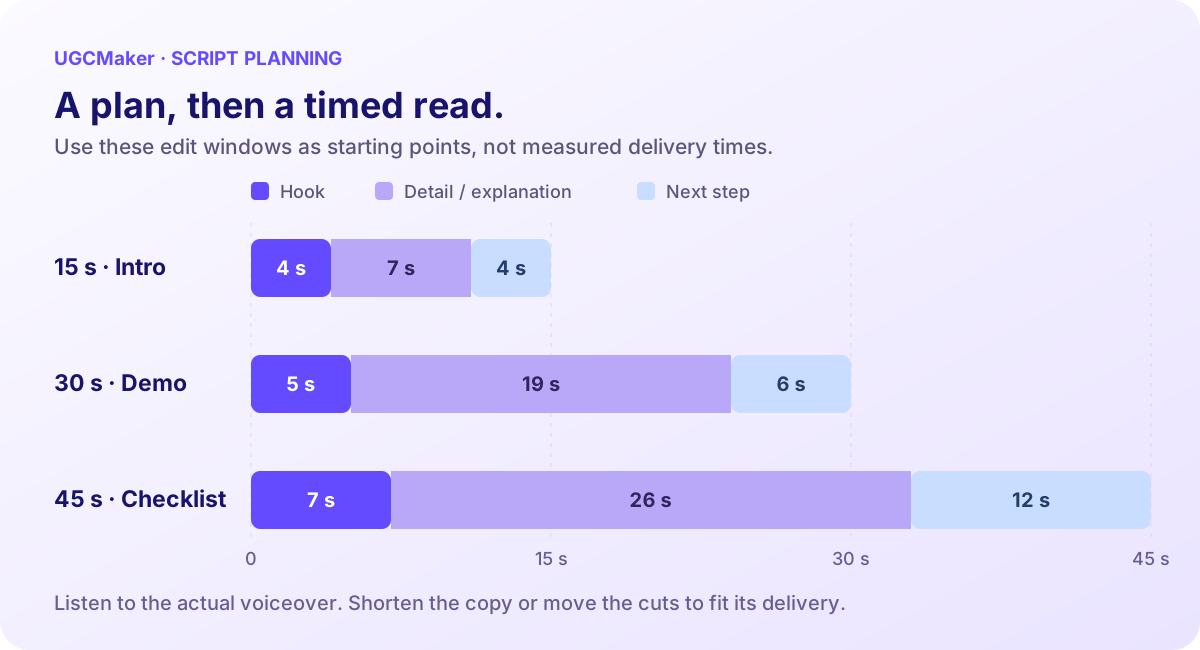
Editorial timing plans. Revise the segment boundaries after listening to the actual voiceover.
Take the script into production
Presenter-led delivery
Use the AI Talking Avatar Generator when you need a portrait to deliver the spoken lines. Copy only the Spoken line column into the text input, or prepare the approved audio separately. Choose a voice for text-to-audio, review the current settings and credit requirement, then inspect the generated delivery.
The talking-photo tutorial covers the input choices and review process. Product cutaways, on-screen text, and the final edit remain separate tasks unless your selected production tool explicitly supports them.
Product-led scenes
Use Marketing Studio to explore an appropriate video-generation workflow with your approved product assets and scene instructions. Treat the shot list as a brief to adapt to the selected model, rather than assuming a pasted table will produce a perfectly timed multi-scene ad.
When a product action or measurement matters, retain real footage or verified source material. Review any generated scene for changed product details before using it.
Final assembly
Put the approved voice, product footage, and text into an editor that supports the finishing work you need. Watch the completed video with sound, then without sound. Check pronunciation, visual support for each claim, caption readability, and a call to action that matches the destination page.
Frequently asked questions
What is the difference between a UGC script and a UGC prompt?
A script contains the message and production plan. A prompt instructs a model. A spoken line may be part of a prompt, but directions such as camera movement, framing, and “do not add text” belong outside the words a presenter should say.
Which script should a beginner choose?
Start with the one-detail introduction or a single question and answer. Both give you a small amount of copy and a clear visual requirement, making mistakes easier to spot.
Can I use these as customer testimonials?
These examples are brand explanations for a fictional product. A real testimonial needs a genuine person's supported experience. Do not turn a narrator into a supposed customer by adding invented lines such as “I used this for a month.”
How do I know the final script fits the target duration?
Time the actual read or voiceover. Shorten the copy or extend the edit when necessary. Word-count estimates and storyboard time ranges cannot establish the final duration by themselves.
What should I do after choosing a script?
Prepare your real product brief, select one message, and map every spoken claim to a shot or source. Then create the presenter delivery with the AI Talking Avatar Generator and assemble only the supporting visuals you can stand behind.