
TL;DR
- To make a photo talk, combine a suitable portrait with spoken content: text converted to speech, an uploaded recording, or audio you record in the tool.
- Start with one clearly visible, well-lit face and a short message. A difficult portrait or unclear audio creates problems that a longer prompt may not solve.
- UGC Maker's talking-avatar workflow includes image upload, three audio input paths, voice selection for text, and generation settings.
- Review the displayed credit requirement and available resolution before generating. Login or additional credits may be required.
- Check the actual result for pronunciation, mouth movement, facial changes, and framing. Add any separate product footage or captions in an editing workflow that supports them.
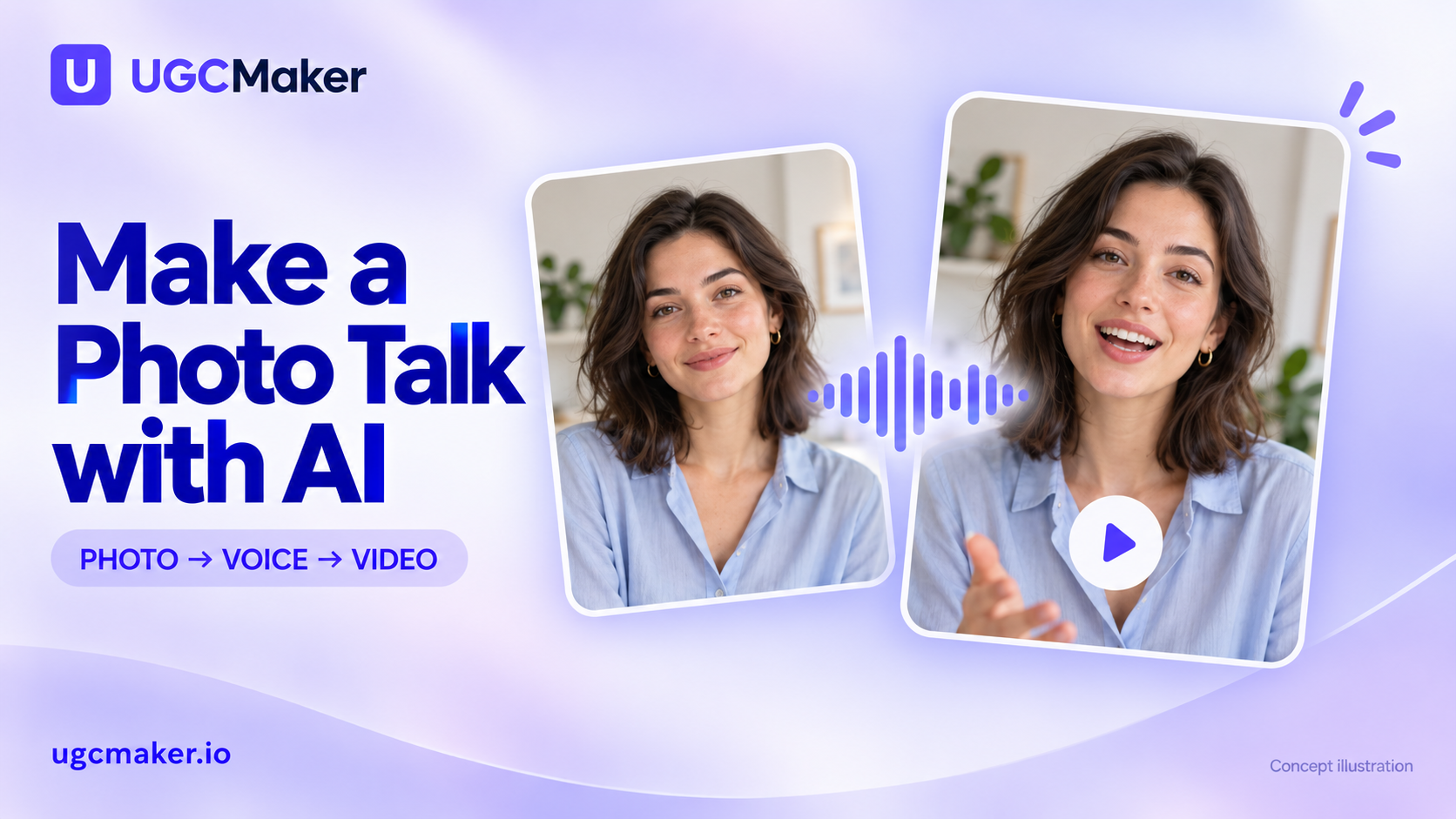
A talking photo is a still portrait animated to deliver speech. It can introduce a product, explain a feature, or present a short message when you do not have a recorded presenter clip. It does not automatically become a complete product demonstration: the spoken message and the evidence shown on screen still need planning.
This UGC Maker tutorial follows the AI Talking Avatar Generator controls and uses original, AI-assisted editorial examples. The illustrations are concepts, and this is not a benchmark of generated-video quality or processing speed.
Choose the right starting point
Use a talking-photo workflow when your main task is a presenter delivering a message. If the video needs to show a zip opening, a fabric stretching, or an app completing a task, plan separate footage of that action.
| What you already have | Start with | What to prepare |
|---|---|---|
| Portrait and written message | Text to Audio | A clean script, voice choice, and pronunciation notes |
| Portrait and approved voiceover | Upload Audio | The final audio file with the intended pacing |
| Portrait and your own delivery | Record Audio | A quiet recording environment and a rehearsed script |
| Product footage but no presenter portrait | A footage-based edit | Voiceover and a shot list, rather than forcing the task into a talking photo |
The three audio paths are alternatives. Choose the one that already gives you the most control over the message and delivery.
Pick a portrait that is easy to animate
A useful starting portrait shows a single adult with the face clearly visible, fairly close to the camera, and lit evenly enough to distinguish the mouth and eyes. Leave space around the head so the composition can tolerate small movements and a later crop.
Prefer a neutral or relaxed expression for an introductory test. Hair across the lips, a hand covering the chin, a strong profile angle, and heavy shadows make important features harder to inspect. Several faces in one image also make the intended speaker less clear.
These are practical source-selection guidelines, rather than a guarantee. Comparable published portrait guidance from D-ID also recommends a front-facing, well-lit face with a neutral expression and no face occlusions. D-ID's upload and output specifications apply to D-ID; use the limits shown in UGC Maker for this workflow.
Choose an image you are authorized to animate. For a product explainer, make the presenter role clear: a brand spokesperson can describe a product without pretending to be a customer who used it.
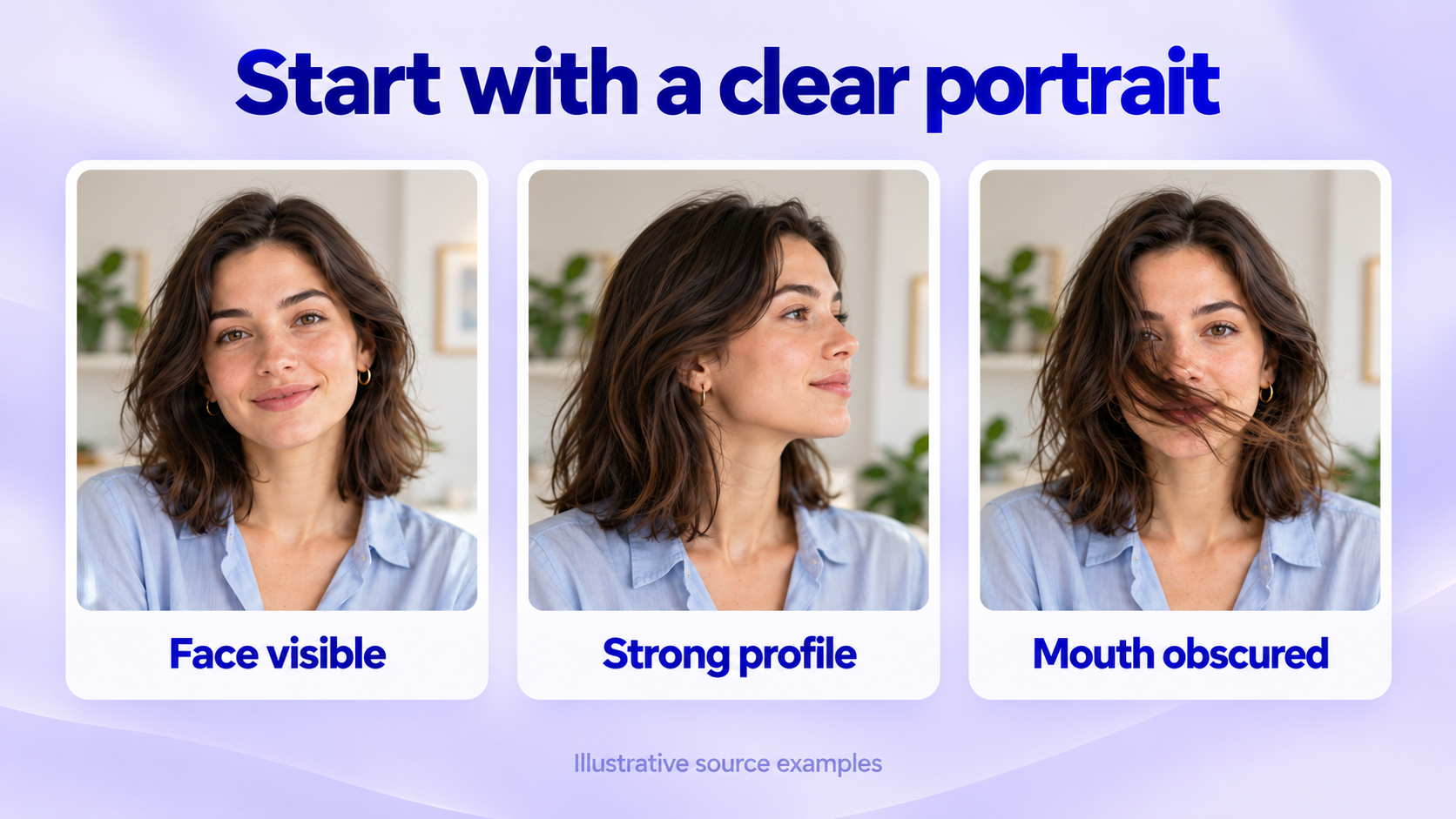
Portrait-selection concepts featuring a fictional adult. These are not generated-video results or a measured quality comparison.
Write one message before choosing a voice
Decide what the viewer should understand or do after the clip. A short product introduction usually needs a reason to listen, one or two concrete details, and a next step.
Avoid pasting an entire product page into the script field. Specifications, shipping information, and a long feature list are difficult to deliver as one natural sentence sequence.
Here is an original example for a fictional Pebble travel mug. It assumes the image brief includes an ivory body and an indigo lid; it makes no temperature or leak-resistance claim:
Meet the Pebble mug. Here is the indigo lid, the drinking opening, and the ivory body. This short clip introduces the design; the close-up shows the details. Open the product page to check the dimensions, care instructions, and available colors before choosing yours.
The product close-up in that script is a separate shot to supply during editing. The avatar generator does not establish those product details simply because the narrator mentions them.
Write numbers and abbreviations the way you want them spoken. Read unusual product names aloud, remove bracketed production directions from the voice script, and keep sentences short enough to pause naturally.
For a fuller planning format, use the UGC scripts with voiceover and shot lists. That guide separates spoken words from instructions for the editor or video model.
How to make a photo talk in UGC Maker
1. Upload your avatar image
Open the AI Talking Avatar Generator. In the image area, upload the portrait you selected. The current controls accept one JPG, JPEG, PNG, or WebP image; keep the file under 10 MB.
Confirm the selected image before working on the audio. A profile picture designed for a small circular crop may need a different source for a full video frame. If you first need to choose an avatar-making approach, the avatar-from-photo tools guide covers that earlier decision.
2. Choose one audio path
Text to Audio: paste only the words the avatar should say. Choose a voice and listen to its sample to judge the general voice character. The sample is not a preview of your exact script. The current text field allows up to 1,500 characters, and generation also enforces a minimum script length; a one-word test may be too short.
Upload Audio: use this when you already have a voiceover with the pacing and pronunciation you want. The current upload controls accept MP3 or WAV files under 10 MB. Listen to the file before uploading so you do not spend a generation on the wrong take.
Record Audio: use this when you want to supply your own delivery directly. The current recording controls have a 5–60 second range. Recording needs microphone access in the browser. Listen back for room noise, clipped words, and unwanted silence before proceeding.
The source path matters. Selecting an uploaded voiceover does not mean a text-to-audio voice choice will rewrite that recording. Choose and review the active input deliberately.
3. Plan duration from the delivery
For text, word count is only a planning aid. As a calculation example, 40 words delivered at an assumed 120 words per minute would take 20 seconds before pauses. A different voice or delivery can change that duration.
For uploaded or recorded audio, listen to the actual take and use its duration. Keep the message short enough that it remains understandable without speeding through the last sentence.
If a line is too long, remove a secondary point or split the message into two clips. Increasing playback speed is rarely a good first solution to a crowded script.
4. Review settings and access
Choose the model, resolution, and output count available in the current interface. Options and credit rules can vary by model. Read the total or per-unit credit requirement shown for your selection before generating.
The site checks available credits and can request login or a purchase when the balance is insufficient. Opening the tool is not a promise of unlimited generation, a particular free allowance, or a specific export resolution.
5. Generate and inspect the candidate
Select Generate Talking Avatar when the image and active audio input are ready. When the result is available, review it from beginning to end. Processing time and visual quality have not been measured for the examples in this article.
Watch once for the overall message, then again for the voice and face. A clip can sound convincing while changing the presenter's identity or moving the mouth unnaturally on a product name.
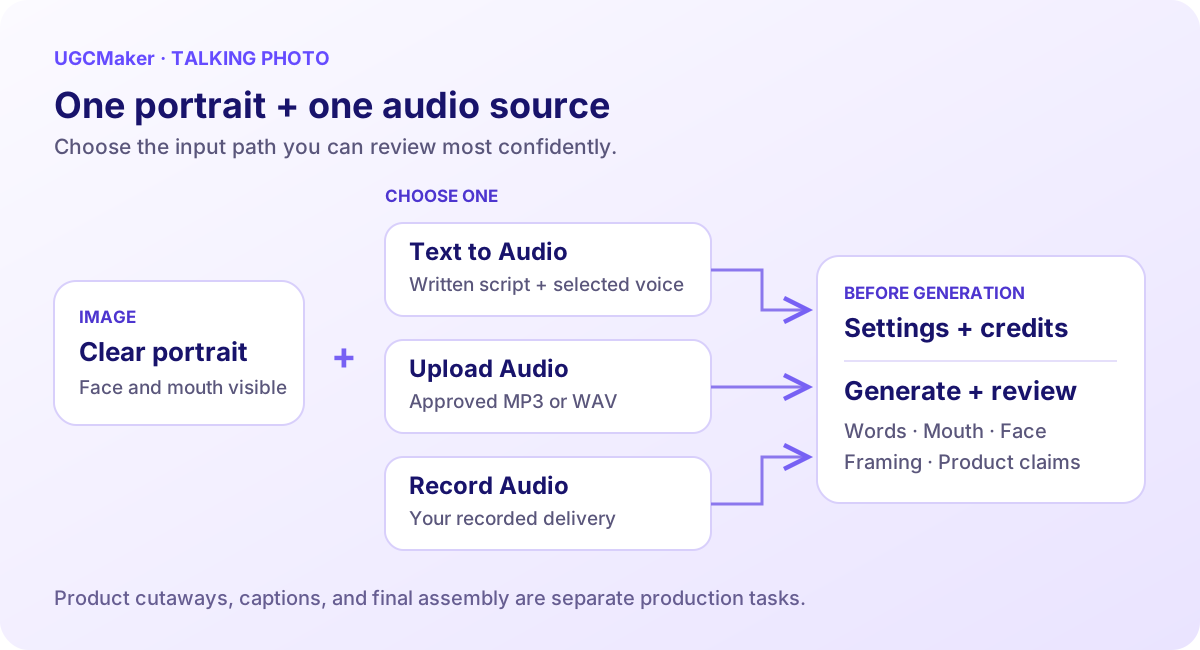
Choose one audio source, then review the complete result. This is an editorial workflow diagram, not a screenshot.
Check more than lip sync
Use the same acceptance questions for every candidate. That makes it easier to compare revisions without being distracted by one attractive moment.
| Review area | What to look for | First adjustment to try |
|---|---|---|
| Spoken message | Correct words, names, numbers, and meaning | Simplify or rewrite the line; use approved audio when exact delivery matters |
| Audio quality | Clear speech without clipped endings or distracting background sound | Replace or rerecord the source take |
| Mouth movement | Speech and visible movement appear reasonably aligned throughout | Try a clearer portrait or a shorter, cleaner audio passage |
| Face and identity | Recognizable features remain stable during motion | Use a more neutral source and reject identity drift |
| Framing | Head and mouth remain visible in the intended crop | Start with more space around the face |
| Product claims | Each statement matches your approved product information | Remove unsupported claims before making another version |
Change one input at a time. If you change the photo, script, voice, and model together, you will not know which adjustment improved or worsened the result.
Turn the talking clip into a product explainer
The talking-avatar clip can be the introduction or narration component of a larger edit. Pair it with actual product evidence where the message needs it: a close-up for a design detail, a screen recording for a software step, or footage of a real product action.
Keep these as separate production tasks:
- Avatar speech: what the presenter says and how that delivery looks.
- Product footage: what demonstrates the feature or behavior.
- Final edit: cuts, captions, music, end card, and platform crop.
Use an editing tool that supports the finishing work you need. This walkthrough does not establish automatic captions, product cutaways, or a complete multi-scene edit inside the talking-avatar generator.
For social placements, TikTok's creative guidance recommends designing for vertical video and adding captions for accessibility. Review the final composition in the actual placement, especially the area near interface buttons and caption text.
Frequently asked questions
Can I make a picture talk without recording my voice?
Yes, the Text to Audio path lets you provide written speech and select a voice. Review the delivered words and pronunciation in the actual generated candidate.
Can I use my own audio?
The current UGC Maker upload controls accept MP3 and WAV files under 10 MB. Use an approved recording and listen to it before generation. Available model and duration limits should be checked in the current interface.
Will any portrait work equally well?
No. Pose, expression, lighting, occlusions, and image quality can affect how useful the result is. Begin with a clear, fairly front-facing portrait, then judge the generated video rather than assuming the source guarantees success.
Does a talking photo prove someone used the product?
No. A synthetic presenter delivering a script is not evidence of a real customer's experience. Use it for an accurately framed explanation, and keep personal-experience claims tied to genuine evidence.
What is the easiest first project?
Use one suitable portrait and one short product introduction. Open the AI Talking Avatar Generator, select the audio path you can review most confidently, and refine a single candidate before planning a larger batch.