

TL;DR
- AI motion transfer uses a reference performance or movement to guide a new character or shot. Which parts transfer depends on the model and its input mode.
- Body movement, facial performance, and camera movement are different control targets. Decide which one you need before preparing the files.
- Choose a reference with a readable action and framing appropriate to the task. Match the character image to the important pose, visible body area, and props.
- Inspect a small, meaningful sequence first. Review the start, the difficult gesture or turn, and the ending before adding a more demanding action.
- A video upload field does not prove that a model will copy choreography, preserve identity, reproduce audio, or keep every cut.
For a trend remake, the action may be the whole idea: a glance, a turn, a hand gesture, or a short dance phrase. Writing “do the same movement” leaves several decisions unresolved. Which performer? Which part of the body? Does the camera move too? What must remain recognizable after the movement?
This UGC Maker guide focuses on preparing and diagnosing that reference, rather than ranking models. It combines primary documentation with an original planning worksheet. The example briefs are AI-assisted editorial examples, not measured outputs. We inspected UGCMaker's current interface and code on November 13, 2026, but did not run a motion-transfer generation experiment.
Name the motion you want to transfer
Start with one sentence that identifies the control target. “Keep the head turn while using my character reference” is a different request from “move the camera around a stationary product.”
Research also treats camera and object motion as distinct controls. The MotionCtrl paper describes independently controlling the two. That distinction is useful for planning; it does not mean every commercial model exposes independent controls.
| Control target | What changes over time | What to inspect in the reference |
|---|---|---|
| Facial performance | Expression, gaze, or mouth movement | Face visibility and the expressions that carry the message |
| Body or gesture motion | Arms, hands, torso, or other pose changes | Relevant joints, contact points, and movement order |
| Camera motion | The viewpoint around the scene | Changes in framing and background relationships |
| Object motion | Position or orientation of a product or prop | Shape, trajectory, and interaction with the subject |
For example, Adobe's camera-motion reference documentation describes extracting camera movement from a clip. Runway's Act-Two performance documentation describes a driving performance and a character input, with different gesture behavior for image and video character inputs. These are examples of different input contracts, not evidence of equivalent capabilities in UGC Maker.
The practical rule is to read the selected mode's description. A camera reference may help guide a pan without reproducing the actor's hands. A performance reference may guide expressions without preserving the source scene's editing.
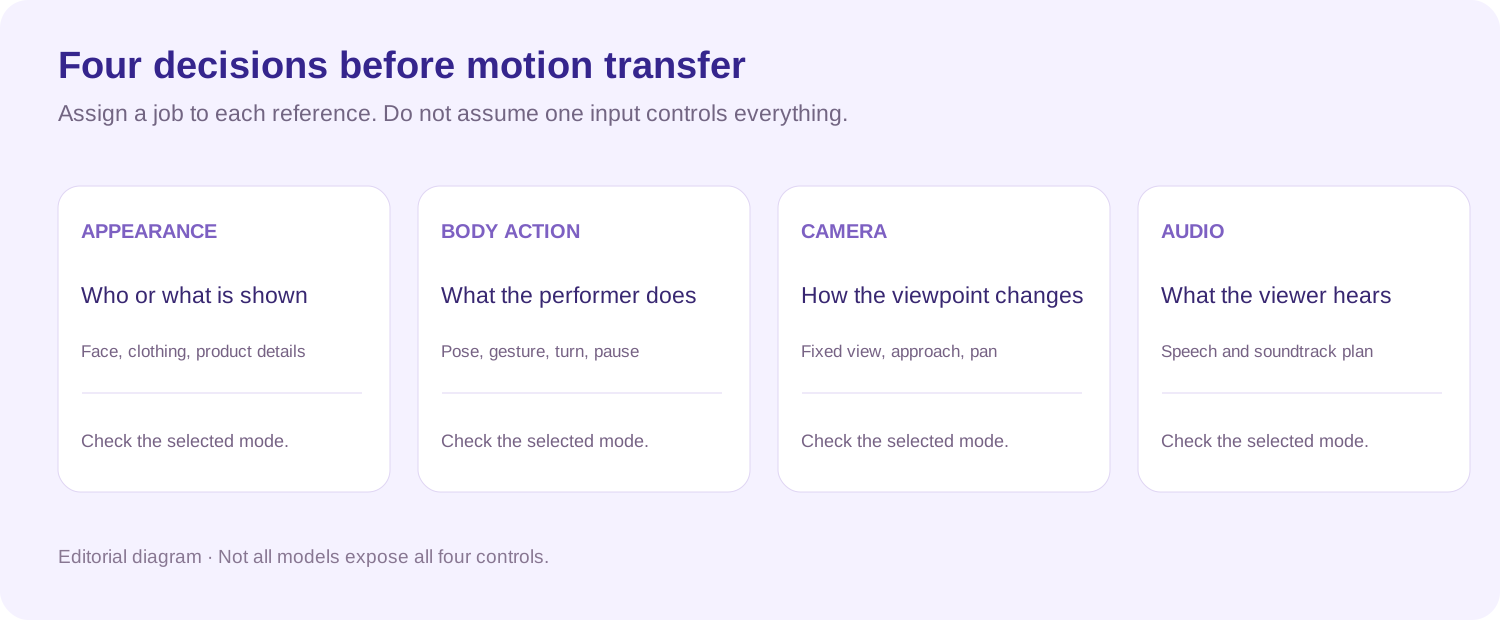
Editorial preparation map. It is not a screenshot or a claim that all controls are available in one model.
Prepare the reference video around one action
Pick the smallest complete action that communicates your idea. Keep the preparation, the main movement, and the return or ending when those parts matter. A hand entering the frame and pointing is easier to brief when the clip includes where the hand starts and where it stops.
For a dance phrase, identify the body area that carries the choreography. For a product presentation, identify the gesture that brings attention to the item. Do not assume the same reference framing suits both jobs.
Check the framing against the selected mode
Some performance tools focus on a face or an upper body. Others are designed around broader body movement. Cropping every source to a face would remove a full-body action; keeping a tiny face in a wide shot may be unsuitable for a facial-performance task.
Runway's Act-Two guidance, for its particular workflow, recommends a single visible subject, an uninterrupted shot, visible facial features, and appropriate hand visibility and starting pose for gestures. Treat those as mode-specific requirements. They are not a universal specification for every dance or motion-control tool.
Use this original preparation worksheet to make your own decision:
| Check | What to record | If it is unclear |
|---|---|---|
| Performer | Which person supplies the action | Choose a single-subject segment or name the role precisely |
| Starting state | Pose, hand position, and visible props | Include a short lead-in or choose a more compatible character image |
| Important movement | Ordered verbs, such as look, raise, pause, lower | Watch the action again and simplify the description |
| Occlusion | Moments when a face, hand, or object is hidden | Mark those moments for output review |
| Framing | Which body parts stay inside the image | Use a source and output crop that retain the required action |
| Ending state | Final pose and position | Keep the end of the action rather than trimming it halfway through |
These are editorial preparation heuristics. They help define what you will evaluate; they are not tested success-rate claims.
Match the character image to the intended action
A character image supplies visible appearance information. It does not establish every possible view of the person, outfit, or product. Compare it with the part of the reference performance you intend to use.
For a gesture that begins with both hands visible, check whether the character reference makes those hands and their starting position clear. For a turn, consider whether you have a suitable view of the character rather than an image that hides most of the face. For a seated action, confirm that the chosen image and scene give the character somewhere plausible to sit.
Use concrete compatibility notes:
- Pose: the character starts facing forward while the performer starts sideways.
- Framing: the reference action uses the full body, but the supplied character image is a tight headshot.
- Props: the source performer lifts an object, but the new scene has no corresponding object.
- Appearance: a distinctive sleeve or accessory becomes important during the gesture but is unclear in the image.
These notes do not predict a model's exact failure. They identify decisions that a prompt or a better input might need to resolve.
For product content, provide the actual item separately when the workflow supports it. A person's pose cannot establish the product's label, dimensions, buttons, or mechanism. If an exact interaction is important to a purchasing decision, real footage may be the clearer production choice.
Write a motion brief in four parts
Use identity → action → framing → review condition. Keep camera direction separate from the performer's movement.
Here is an invented brief for a seated presenter:
Use the supplied character image for the presenter. Use the selected reference segment for the sequence of looking toward the object, raising one hand to point, pausing, and returning the hand. Keep the presenter seated and keep the face and pointing hand inside the frame. Use a fixed camera. Review the identity after the head turn and the hand shape during the point.
This is an untested prompt template for a compatible workflow. Replace “supplied character image” and “reference segment” with the actual reference controls or tags provided by your tool. Text does not turn an unsupported input into a motion-control feature.
For a camera-led product shot, the brief changes:
Use the supplied product image for the item's appearance. Follow the reference's gradual approach toward the product. Keep the product stationary on the tabletop. Do not ask the presenter or product to rotate. Review the product shape and the final framing before adding captions.
The second example asks the viewpoint to change. It does not ask a body-performance model to animate a person. If your scene needs both kinds of motion, plan which input controls each one and whether the model supports that combination.
A simple way to isolate the difficult part
Before asking for a long sequence, choose one meaningful motion and write down the acceptance condition. The goal is to make a failed candidate informative.
Fictional sequence: a presenter looks at a box, points to it, then returns to the starting pose.
| Moment | What should remain clear | What a failure might tell you |
|---|---|---|
| Start | Intended character, pose, box position | The appearance or staging references need clarification |
| Look | Recognizable identity during the turn | The turn or face visibility needs attention |
| Point | A readable hand and a stable target | The gesture, prop position, or contact needs simplification |
| Return | The same character and plausible final pose | Review the complete sequence, not only its strongest moment |
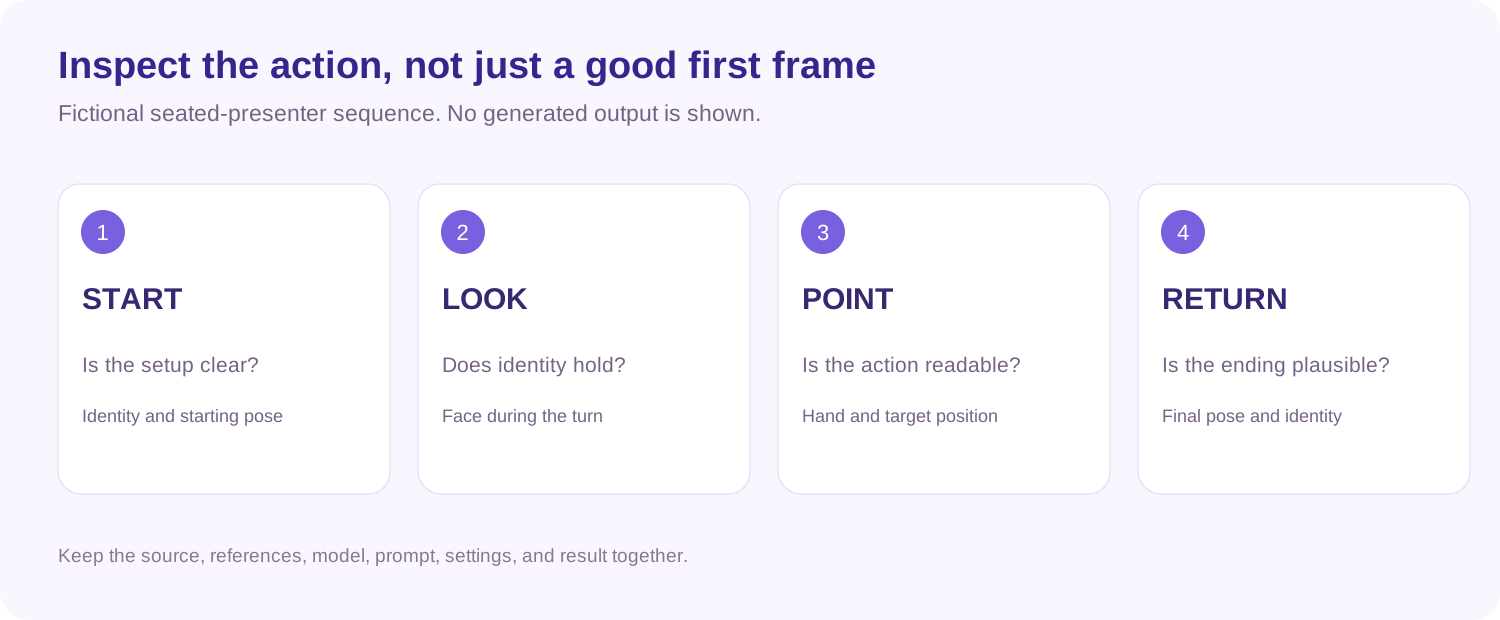
Illustrative diagnostic sequence. It contains no generated comparison and no measured result.
Keep your model, reference segment, character image, prompt, framing, and result together. When you revise, change the variable most closely connected to the failure. For example, use a better-matched starting pose before adding more adjectives to the prompt.
A repeated render with identical inputs may vary. To learn from an iteration, record what changed and what remained unresolved. Do not describe a single plausible clip as a benchmark for the model or a guarantee for a new character.
Where this fits in UGC Maker
The current Marketing Studio exposes a model selection, product and avatar references, a prompt, and generation parameters. During inspection, the selected Seedance 2.0 setup also had a reference-file input listing video formats alongside images and audio.
That observation establishes an input option, not a verified transfer result. The current code distinguishes video-input-compatible models from image-input models, so a file picker accepting a clip is not enough to establish compatibility for every selected model or mode. Check the current model, reference input, and request feedback before generating.
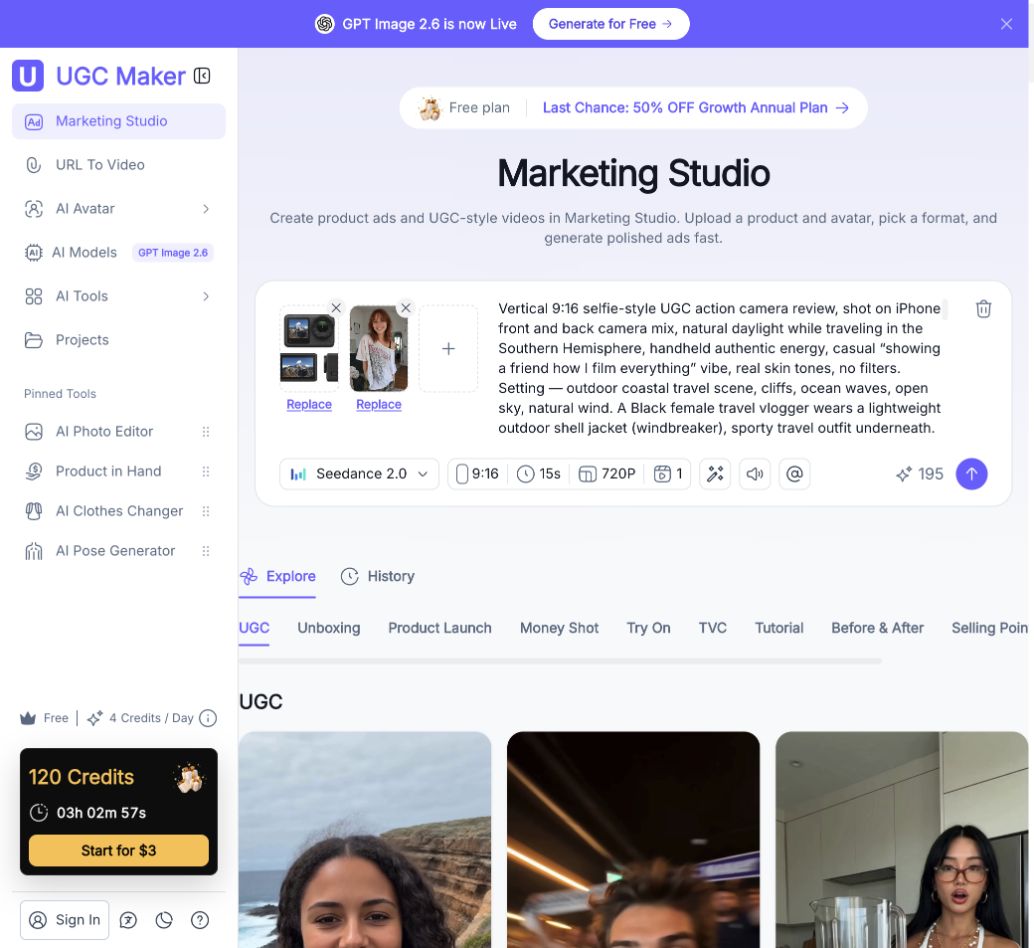
Actual logged-out interface, November 13, 2026. The assets belong to the template. We changed the model selection for inspection; no reference video was uploaded and no result was generated.
For a product remake, a practical preparation sequence is:
- Identify whether you need the source's action, camera move, or simply its storytelling pattern.
- Write the motion and appearance requirements separately.
- Choose a compatible input mode and model, then attach the appropriate references through the current controls.
- Review duration, output crop, sound settings, quantity, and the displayed credit requirement.
- Generate a candidate only when you know which action and identity conditions you will inspect.
If the main need is understanding the reference, start with the video-to-prompt workflow. UGC Maker's UGC Prompt Generator has a From video mode with an optional analysis-focus field. You can use that field to ask for a description of the main gesture and apparent camera movement, then check the notes against the clip. This produces text for planning; it does not itself transfer motion.
Diagnose motion-transfer problems by symptom
The camera follows the reference, but the gesture does not
Recheck the control target. A camera-motion mode is not necessarily a body-performance mode. Confirm which part of the reference the selected workflow uses before asking for a more detailed description of the gesture.
The face is recognizable until the performer turns
Mark the first moment where identity becomes unclear. Compare the source view, the character reference, and any obstruction around that point. Try a better-suited appearance reference or a simpler segment. Review the turn again; a stronger opening frame alone does not resolve it.
The hands or prop behave implausibly
Check whether the action requires gripping, passing, opening, or balancing an object. Simplify that interaction or replace it with a real filmed cutaway when accuracy matters. A generated action should not establish how a real product mechanism works.
The important movement is outside the final crop
Check the intended output framing before another attempt. A correctly described point is still unusable if the hand or object is cut off. Keep the required body area and target visible through the whole action.
The motion is recognizable, but the timing is wrong
Check the chosen source segment, requested duration, pauses, and edit points. Preserve the order that carries the meaning. If precise timing matters, assess whether the workflow provides enough control or whether an edited sequence is more appropriate.
The sound or speech does not match
Inspect the workflow's audio behavior separately. Do not infer soundtrack transfer or lip-sync support from visual motion support. Plan the final audio and captions around the actual delivered clip and the permissions you have for the intended use.
Frequently asked questions
Is AI motion transfer the same as text-to-video?
No. A text instruction describes an intended action; a reference-driven workflow uses a performance or movement input in addition to any text. Both may generate a new clip, but their available controls and failure modes differ.
Can one portrait reproduce a full dance routine?
A portrait supplies appearance, while the routine requires motion information and a compatible mode. A tight portrait also leaves much of the body and outfit unspecified. Check the model's requirements for the specific action instead of assuming one image contains all the necessary information.
Does a higher output resolution fix identity drift?
Resolution and identity consistency are different checks. More pixels do not establish that the same face, hands, or product details remain correct through a turn. Resolve the underlying action or reference problem and inspect the actual result.
What is the difference between motion transfer and a viral-video remake?
Motion transfer focuses on an action or performance. A remake can also mean rebuilding the shot order, script, or reveal with new footage. Use the viral-video recreation guide to choose the task before preparing inputs.
What should I prepare first?
Prepare one complete, readable action, a suitable appearance reference, and a short list of acceptance conditions. If the action is hard to describe, use UGC Prompt Generator → From video to draft analysis notes, then confirm them against the source before choosing a generation workflow.