

TL;DR
- To recreate viral videos with AI, start with a reference clip and decide what must carry over: the performance, the camera movement, or the storytelling structure.
- A character-replacement workflow needs a source video and identity references. A product remake may need a new scene, script, and edit instead.
- Prepare a clear reference, map each character to a photo, and write down what should stay and what should change before generating.
- Review faces, hands, product details, cuts, and audio. A recognizable first frame does not establish that the whole clip works.
- In UGC Maker, Marketing Studio → Explore → Create Similar loads a template's assets, prompt, and settings for adaptation. That action alone does not establish frame-for-frame cloning of an uploaded video.
A viral clip gives you something useful to start from: a visible action, a camera move, or a reveal that you can describe precisely. The first step is choosing which of those you actually need. Replacing the performer in a dance and adapting a product reveal are different production jobs.
This UGC Maker guide explains how to turn either job into a workable brief, including a current template workflow in Marketing Studio. The examples and prompts are AI-assisted editorial starting points, not measured generation results or proven advertising winners. The interface observations were made on November 13, 2026; no output-quality benchmark was conducted.
What is a Viral Studio workflow?
The phrase Viral Studio appears in AI products that help people adapt recognizable short videos. The name alone does not tell you how a particular tool works. Look at its inputs and the result it promises.
For this guide, separate three practical tasks:
| Task | What you want to retain | What you need to supply | Main acceptance check |
|---|---|---|---|
| Replace a character | A specific performance or sequence in a source clip | The reference video and a suitable photo for each replacement | The correct identity stays attached to the correct role throughout |
| Transfer motion | An action or camera movement for a new subject | A motion reference and compatible subject references | The important action remains recognizable without breaking the new subject |
| Remake the format | The hook, reveal, or order of shots | A shot plan, your assets, and an adapted message | The new video communicates your own idea clearly |
These are planning categories, not interchangeable features. A tool may support one or combine several. Check whether it accepts a video, still images, a prompt, or a template, and whether the chosen model supports the input you intend to use.
For a detailed preparation worksheet, use the AI motion transfer guide. If you first need to describe the reference shot by shot, start with the video-to-prompt workflow.
If you need the exact moment when two performers exchange places, a written description may leave too much open to interpretation. If you only need “show the problem, reveal the item, show one detail,” a new shot plan may be enough.
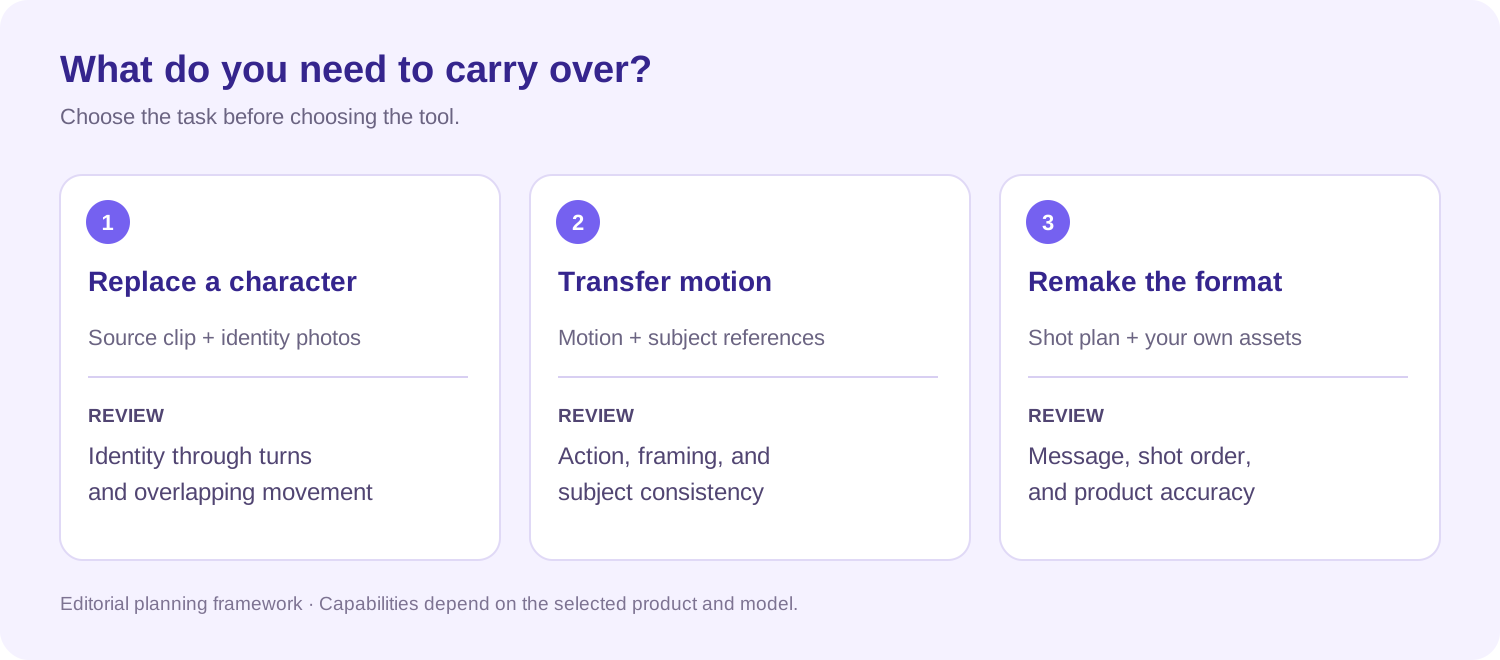
Editorial workflow diagram. It does not represent a product interface or a tested generation pipeline.
Choose a reference you can actually adapt
Before uploading anything, write one sentence about why the clip fits your idea. “The performer turns toward the camera just before the reveal” gives you a specific moment to preserve. “It has lots of views” does not.
Choose a reference whose visual demands fit your replacement subject. For an initial attempt, a clearly visible subject and a readable action give you fewer things to diagnose than a crowded scene with rapid cuts.
| Reference condition | Why it matters to the remake | Practical decision |
|---|---|---|
| One clearly visible performer | Makes the identity-to-role mapping straightforward | A useful starting point for a character replacement |
| Several people crossing or overlapping | Creates moments where you must check who is who | Map roles and inspect each crossing |
| Hands covering the face | Hides identity during part of the action | Review the moment the face becomes visible again |
| Product rotating or changing hands | Requires consistent shape and plausible contact | Use real product references and inspect the interaction |
| A joke that depends on dialogue | The meaning depends on words as well as movement | Plan the voice and edit before choosing the visual workflow |
| A transformation or demonstration | Can imply a real product result | Use evidence for the result you show; a generated scene is not a product test |
These are editorial selection heuristics, not measured success rates. Keep a demanding clip if its action is essential, but identify the difficult moments before spending credits.
Also prepare footage and identity images that you are authorized to use. Keep the source file, the chosen segment, and the approved references together so a later revision starts from the same inputs.
How to recreate viral videos with AI, step by step
1. Define what stays and what changes
Make two short lists. Be specific enough that another person could inspect the result.
Example brief for an eight-second reaction clip:
- Keep: one seated performer, a glance to the left, a pause, then a turn toward the camera.
- Change: the performer's appearance to match the supplied character reference.
- Review: identity before and after the turn, the chair outline, and the moment the hand passes the face.
- Handle separately: captions, branding, and the final soundtrack unless the selected workflow explicitly handles them.
This is an invented planning example. Eight seconds describes the example brief, not a universal tool limit.
If your “change” list includes the person, location, product, dialogue, camera, and ending, consider a new production. There may be little left that needs direct video cloning.
2. Prepare the source and identity references
Select a segment containing the complete action you want to keep. A clip that ends halfway through the turn gives you an incomplete reference for the ending.
For each character, prepare a clear identity image and assign a role using a stable description: “left performer at the start,” “seated presenter,” or “person nearest the door.” Avoid relying only on left and right if the performers change positions.
Match the preparation to the tool. Some workflows accept several people; others are intended for one subject. Supported duration, file size, formats, and photo counts are product-specific. Check the current upload controls rather than borrowing a limit from another service.
For ecommerce, add an actual photo of the item you sell. Record the details that must remain recognizable: the cap, label, color, buttons, or included parts. A portrait reference cannot establish those product details.
3. Use a prompt to resolve ambiguity
When a workflow provides an optional prompt, use it to explain role mapping and the intended scope of the change. Begin with a small instruction instead of asking for several unrelated transformations.
Character-mapping example for a compatible reference-video tool:
Use the uploaded clip as the motion reference. Replace the seated presenter with the character in reference photo 1. Follow the sequence of the glance, pause, and turn. Keep one presenter in the scene. Check that the identity remains consistent after the hand passes the face.
Two-character mapping example:
Reference photo 1 corresponds to the person who starts beside the door. Reference photo 2 corresponds to the seated person. Keep those identities associated with their original roles when they move or overlap.
These are untested prompt templates. They do not add motion-reference support to a model or guarantee preservation. If the interface uses numbered reference tags or a role selector, use its actual controls and naming.
4. Make a first candidate with a clear review goal
Choose the output settings available for your model and account. Check the duration, framing, quantity, and displayed credit requirement before generating. A template may replace the values that were selected earlier.
Use the first candidate to answer the hardest question in your brief. Can the identity survive the turn? Does the product remain recognizable during the handoff? If that fails, changing the soundtrack or adding captions will not solve it.
Keep the inputs and settings with the result. To diagnose a failure, change one relevant variable at a time: a clearer portrait, a simpler source segment, or a more precise role assignment. This makes the next comparison useful even when outputs vary between runs.
5. Review the whole clip before finishing the edit
Watch once at normal speed to judge whether the idea reads. Then pause around turns, occlusions, cuts, and product contact.
| Inspect | Pass condition | Reason to revise |
|---|---|---|
| Identity | The intended character remains recognizable | The face changes after a turn or cut |
| Role assignment | Each character stays in the intended role | Two people exchange identities |
| Hands and contact | The action reads as plausible | Fingers merge with the face or product |
| Product | Visible details match the real item | The label, shape, or parts change |
| Timing | The important gesture and reveal remain understandable | The action happens too early, too late, or is cut off |
| Audio and text | Speech, music, and captions fit the final edit | Old captions or an unrelated line change the meaning |
Finish captions and branding after you have a usable visual candidate. Make the final framing decision for the destination: a vertical crop can remove a second person or hide the product even when the uncropped version works.
Adapt a reference into a product video in UGC Maker
For an ecommerce video, the useful part of a reference is often its structure. A close-up, a brief pause, and a product reveal can become a new ad with your own message and assets.
The current Marketing Studio provides an observed starting point for this kind of adaptation:
- Open Explore and choose a relevant category, such as UGC, Unboxing, Money Shot, or Product Launch.
- Preview a candidate and choose Create Similar.
- Replace the sample product and avatar references with your own appropriate assets.
- Read and adapt the loaded prompt. Remove sample-specific dialogue, claims, locations, and actions that do not fit your item.
- Review the selected model, aspect ratio, duration, resolution, quantity, and displayed credits before generating.
During interface inspection, selecting the action-camera UGC template populated product and avatar references, a prompt, and settings showing Seedance 2.0 Mini, 9:16, 15 seconds, and 720P. Those values describe that observed selection; they are not recommendations or fixed settings for every template.
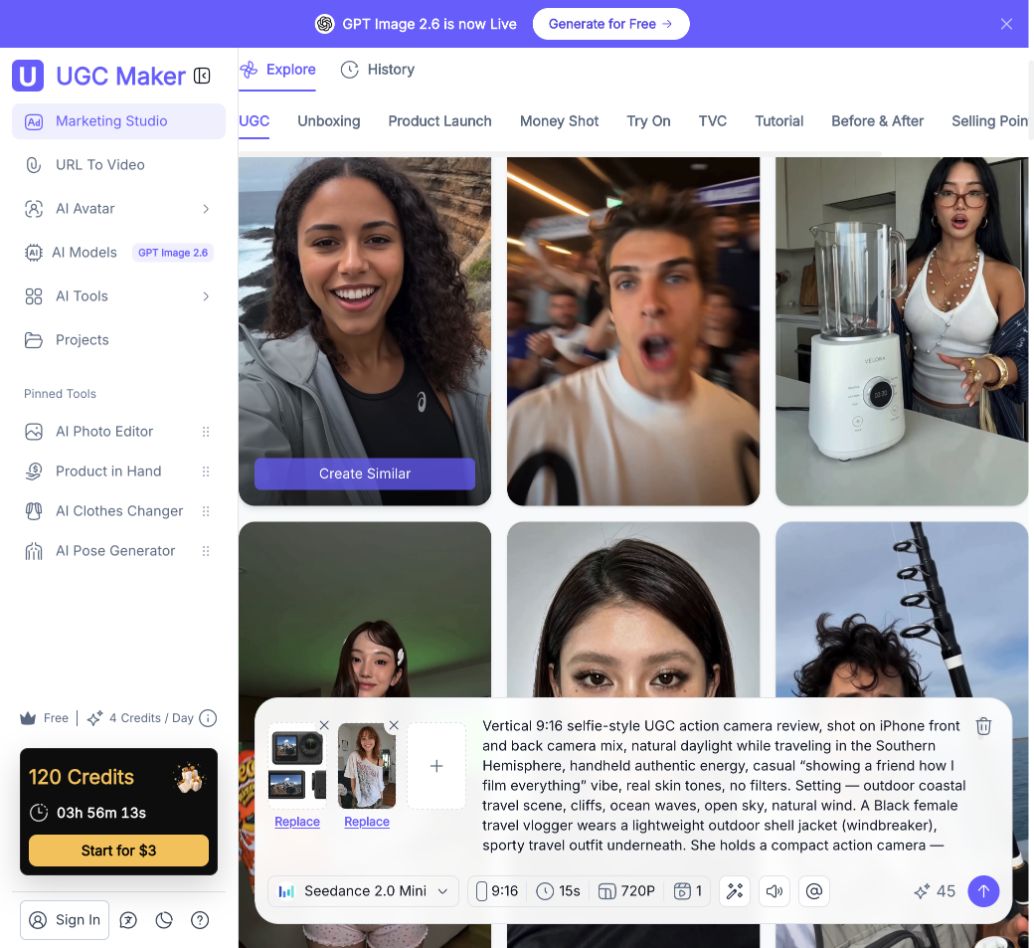
Logged-out interface captured November 13, 2026. The visible videos and references are template material. This is not a generated result from our own test.
The observed Create Similar action loads a production setup. It does not, by itself, demonstrate that a new output will reproduce the template's footage frame for frame. Review the finished output against your brief rather than assuming the button promises exact duplication.
Example: turn a reveal format into a mug video
Suppose your reference has three beats: an object enters the frame, a hand reveals it, and the camera holds for a detail. Your fictional product is an ivory mug with an indigo lid. Retain the sequence and replace the message with something you can show.
| Planned beat | New product shot | What to check |
|---|---|---|
| Introduce | Bring the mug into a simple tabletop composition | Shape and colors match your product reference |
| Reveal | Show the mug and lid clearly | The lid design stays consistent |
| Hold | End on a clear view of the item | The viewer can understand what is being offered |
Original prompt example for a product-and-avatar setup:
Create a vertical product-introduction video using @Product as the item reference and @Avatar as the presenter reference. Show the presenter introducing the mug, then a close view of its ivory body and indigo lid, then a steady final product view. Keep the mug's visible shape and colors consistent with the uploaded photo. Use a plain tabletop setting. Do not add claims about heat retention or leak resistance. Leave promotional text for the final edit.
The mug and prompt are illustrative, not a tested output. Use the reference tags exposed by the editor and replace the invented product details with your actual specifications. Simplify the sequence or assemble separate shots if a single generation does not communicate all three beats clearly.
For spoken content, prepare the actual words with our UGC script templates. For alternative model-facing instructions, use the UGC prompt guide. Keep the spoken script separate from camera and action instructions.
Fix common video-remake failures
The face changes halfway through. Note the first frame where it drifts. Try a clearer identity reference or a segment with less obstruction. If the problem occurs at a cut, inspect each shot separately instead of accepting a good opening frame as evidence for the whole video.
The movement feels unrelated to the reference. Check whether you selected a workflow that actually uses video as a motion input. A still-image or text-led generation may interpret a description without reproducing the source performance. More descriptive text cannot guarantee the same choreography.
The product changes shape or lettering. Return to the source photo, simplify the action, or use a real product cutaway in the edit. Do not use a plausible-looking generated label as evidence that the correct SKU is shown.
The remake looks close but the joke no longer works. Compare the pause, reaction, spoken line, and reveal. Decide which beat carries the meaning, then adjust that part of the brief or final edit. Visual resemblance and a clear message are separate checks.
Each new attempt costs more without resolving the issue. Stop and record what failed. Change a relevant input or reduce the scope before generating again. Track credits and usable candidates; there is no universal cost per successful remake.
Prepare the clip for its destination
Keep the footage, likeness references, audio, and product claims within the permissions and approvals you have for the intended use. Treat the soundtrack as a separate choice from the visual reference. TikTok directs businesses toward its Commercial Music Library for commercial activity and says other sounds require appropriate licensing. See TikTok's commercial music guidance.
Follow the destination's AI disclosure requirements too. YouTube requires disclosure for realistic AI-generated or meaningfully altered content, including making a real person appear to do something they did not do. Its GenAI disclosure guidance explains the scope. A synthetic spokesperson should not be presented as a customer with an actual purchase or testing history.
Frequently asked questions
Can I recreate a viral video from one photo?
A photo can supply a character's appearance. To follow a specific existing performance, a compatible workflow also needs that performance as a video reference or preset. A photo alone does not specify the original choreography, cuts, or timing.
Is AI video cloning the same as face swapping?
The terms are used broadly. Face replacement changes identity in footage; motion transfer follows a reference action; a format remake rebuilds a sequence with new content. Compare the actual inputs and output behavior instead of choosing by the label alone.
Can I paste a TikTok, Reel, or Shorts link into any AI tool?
No. Link import, file upload, and template selection are different entry points. Use only the methods the current interface supports. A URL-to-video tool may mean turning a product page into an ad, which is a different task from importing a social video as a motion reference.
Does recreating a viral video make the new version go viral?
No. A reference can guide production, but it does not establish how a different audience will respond to a new character, product, message, or account. Judge the remake's clarity first, then evaluate its actual performance after publication.
Where should I start in UGC Maker?
For a new product video based on a recognizable format, open Marketing Studio, choose a relevant template, and adapt the loaded assets, prompt, and settings. Start with one clear action and one product message, then review the result before expanding the idea.